

SAP Cloud ALM – What’s New in week 2 and 4
Welcome to the first SAP Cloud ALM update blog of 2025! As we embark on a new year, SAP continues its commitment to innovation and user-centric improvements in Cloud ALM. This bi-weekly update series keeps you informed about the latest enhancements, features, and optimizations. In this edition, we’ll delve into the highlights from the updates rolled out during week 2 and week 4, showcasing how SAP is enhancing the ALM experience to help you work smarter and achieve more.
SAP Business Transformation Center
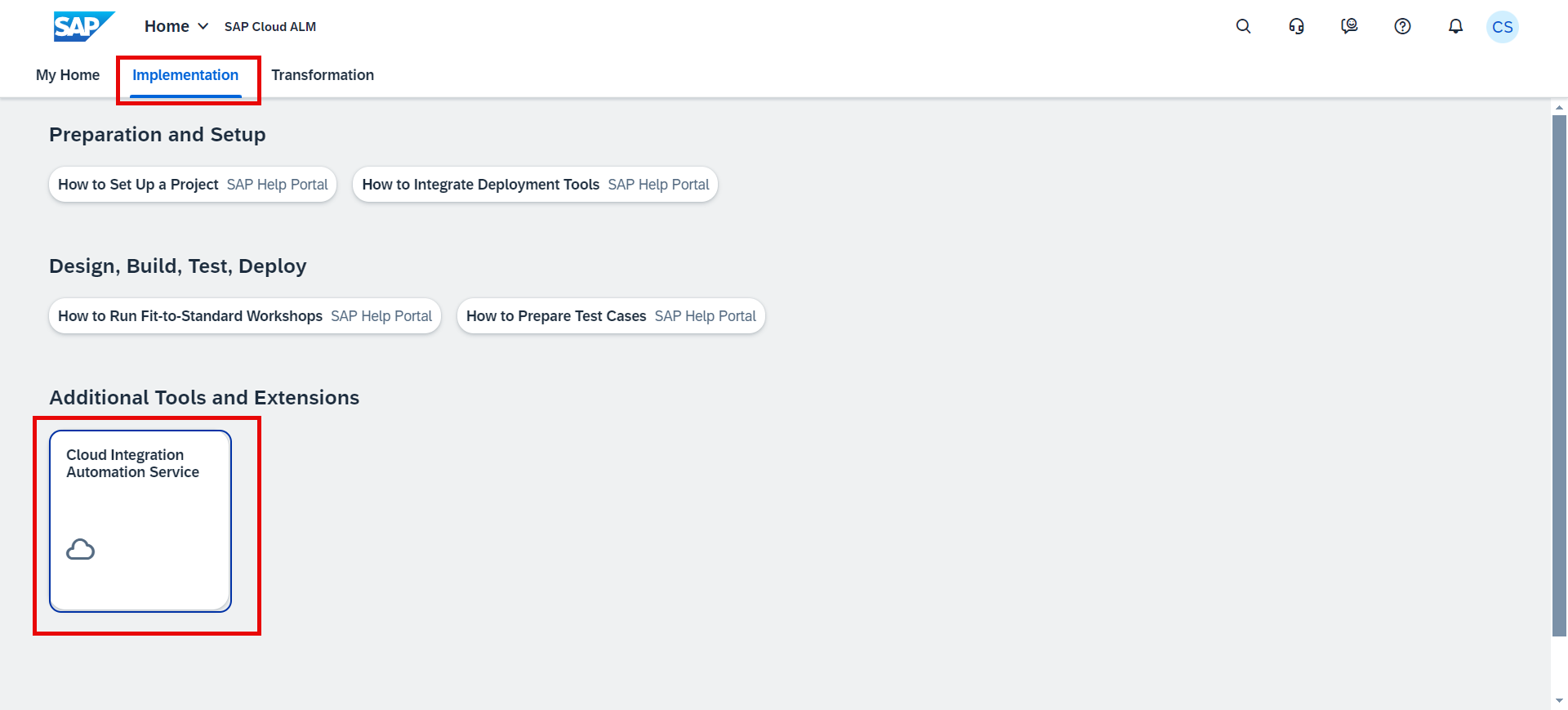
It’s now possible to use Cloud Integration Automation Service (CIAS) to onboard the source and target systems for use with SAP Business Transformation Center. This service guides through the workflow and contains instructions for the manual and automated tasks, enabling an easy and quick integration configuration setup.
Modeling has 2 new features available.
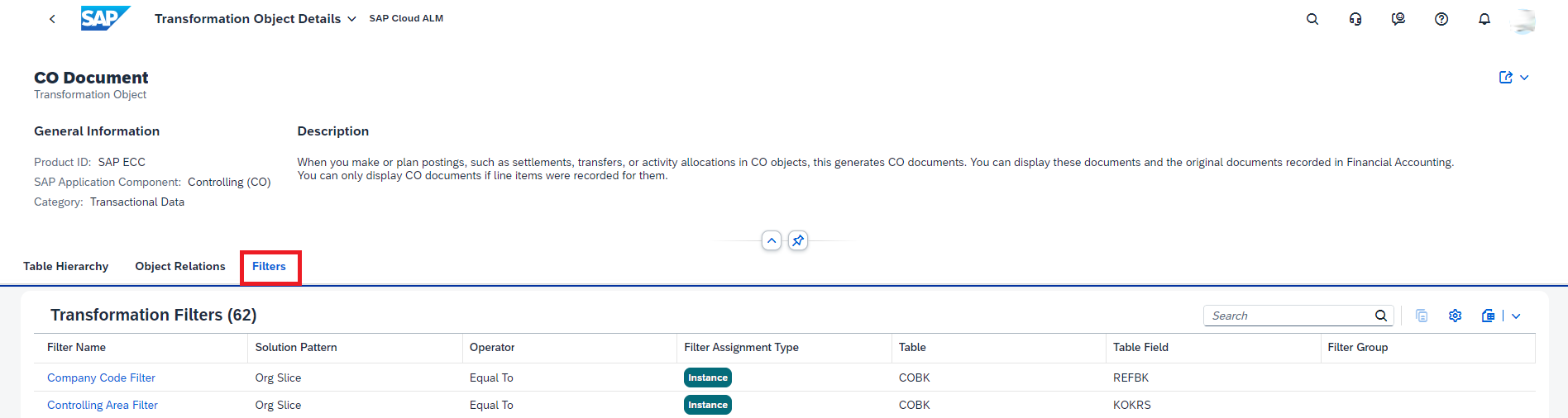
There is now a new tab called “Filters” in the Transformation Object Details app, where is displayed a list of all transformation filters applied to a selected transformation object.
There is also a new tab called “Solution Patterns” in the Manage Transformation Model app, where are displays a list of the solution patterns applied to a selected transformation model. A “Solution Patterns” tab is also available in the Transformation Model Versions app, where it displays which solution patterns have been applied to the corresponding transformation model version.
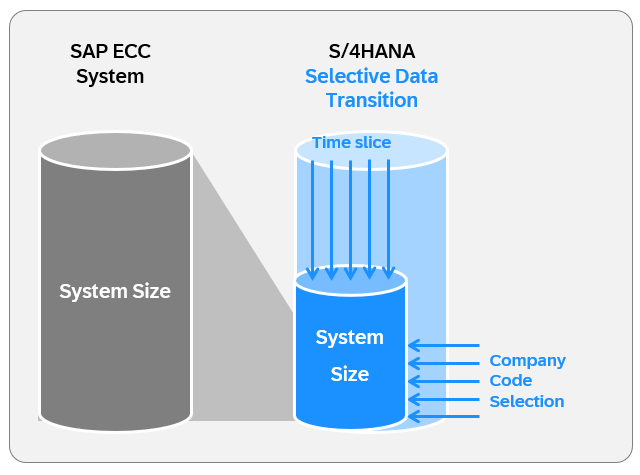
The solution pattern that SAP Business Transformation Center currently offers is time slice.

Scoping allows now to use the time slice solution pattern to selectively exclude data before a defined fiscal year from migration scope, while ensuring that data related to open items, even if outside the time slice, is included. This allows to reduce the migration scope only to data that is necessary for operational, reporting or auditing purposes. This data reduction not only simplifies the migration process but also ensures a more relevant and valuable dataset at the end of the migration.
Implementation
Test Preparation enhanced it’s feature inserting images to test cases. Images that are inserted in test case are now retained when downloading and reuploading the test case.
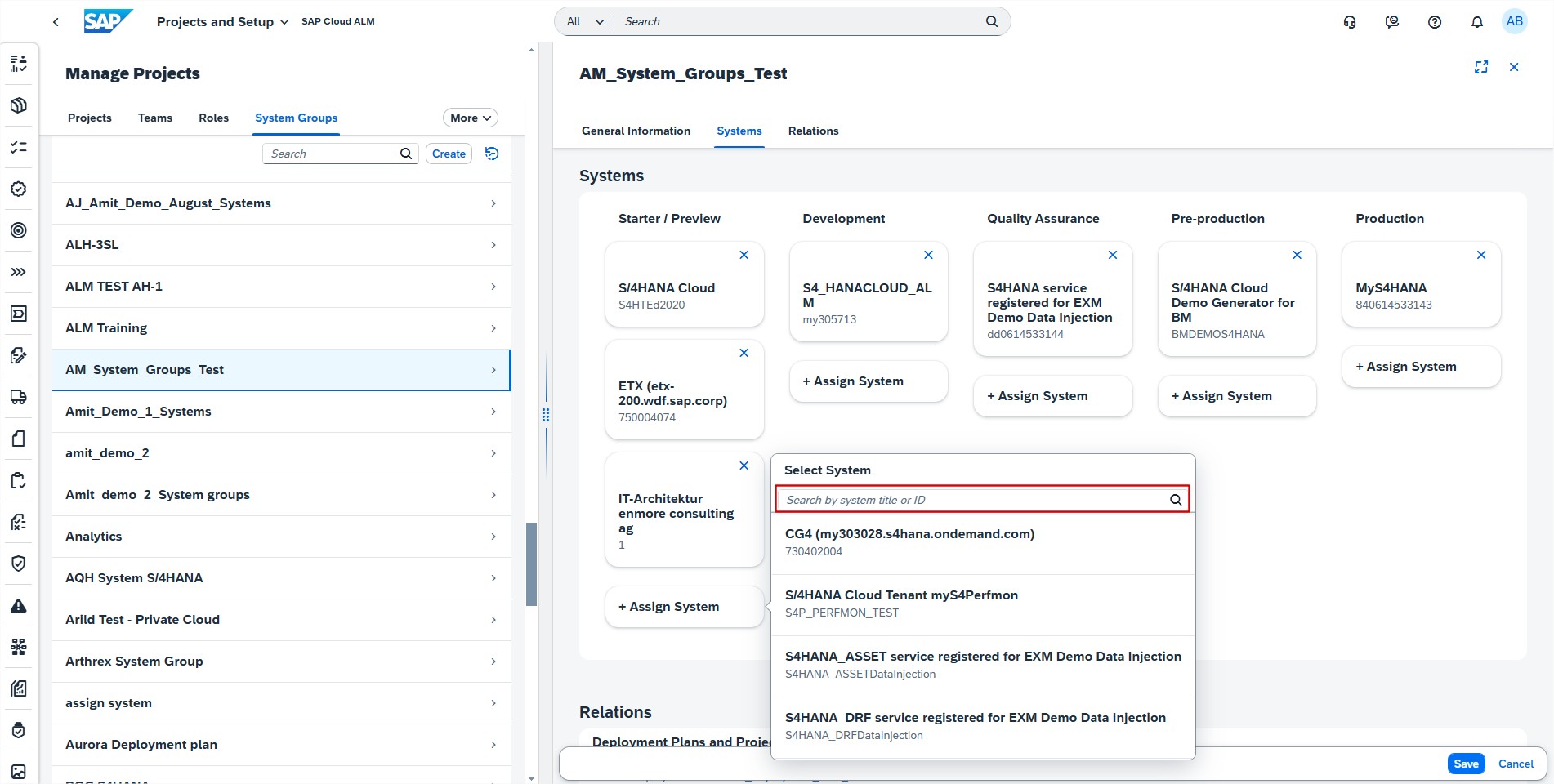
Projects and Setup allows now to search by the system title or ID in the selection list of System Groups tab. This helps in finding the preferred system in a long list of systems.
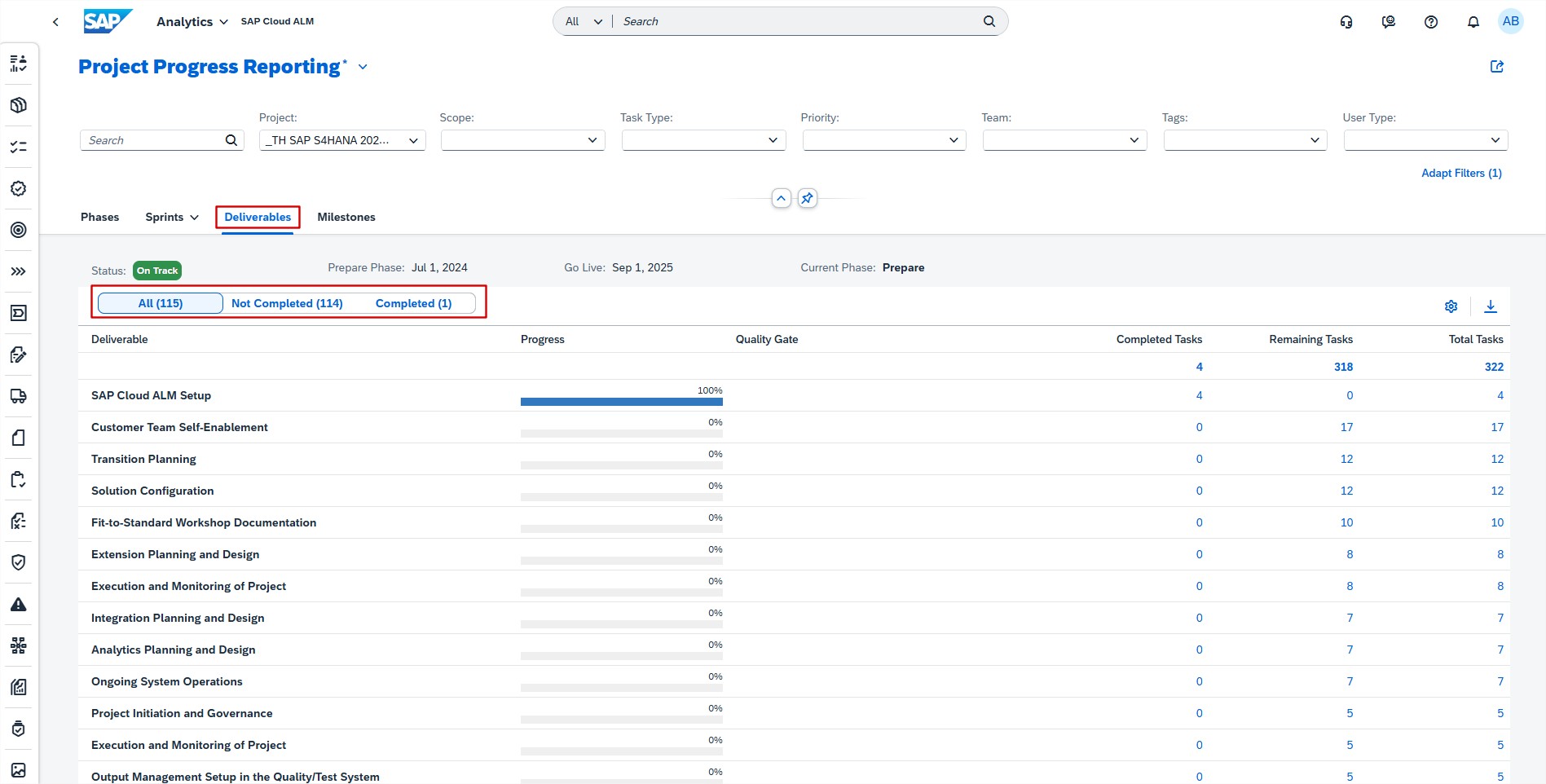
Analytics displays now all deliverables that are not completed by using the “Not Completed” button in the Deliverables tab of the Project Progress Reporting app. By default, the “All” button is enabled to show all deliverables. Additionally, the “Completed” button shows all completed deliverables.
In Features, a Cross-Reference Check now includes object conflict details. In the “Check Details” view when selecting the conflict reason, now displays detailed information on how to solve the issue.

Features also allows now to download transport check results of all the conflicting or missing objects belonging to the same check type and target tenant in a single spreadsheet.
Guided Implementation has 4 new features available.
- It’s now possible to manage the quality gates of a project in the app to ensure that all phase-specific quality criteria are met. The quality gate status and the checklist completion are now shown. Use the newly added link “Go to Checklist” to navigate to the Tasks app.

- Phases without tasks are now clearly indicated. If no roadmap was selected for a new project that just has tasks in the Prepare phase, all other phases are hidden in the tab bar.

- There are now icons for the different item types and statuses.

- A filter for quality gate statuses was added to the app.

Process Authoring has new “Usage Status” filter in the list of solution activities. If there’s a need to delete solution activities, for example after performing a migration, a new filter helps to simplify the process. As it’s only possible to delete solution activities that are not used in a solution process, filter allows to display all activities that are not used anywhere. This gives opportunity to choose “Select All” in the list and delete all unused entries at once.

Process Authoring introduced also a two-step deletion process for custom solution processes using archiving to prevent users from unintentionally deleting data by mistake. It behaves slightly differently depending on the versions that exist.
- If a custom solution process has draft and published versions, it’s possible to either choose to delete its draft directly or archive the custom solution process. Keep in mind that only unscoped custom solution processes can be set to Archived in Process Authoring.
- If a solution process has a draft version only, it’s possible to delete this draft directly.
- If a solution process has a published version only, it’s necessary to first archive the process and then delete it in a subsequent step.
Archived processes can then either be deleted or set back to active by choosing the “Restore” button. Restored custom solution processes are handled in the same way as active, unscoped custom solution processes.
Archived custom solution processes have the prefix [Archived] added to their title in the list of solution processes in the Processes app.
When a custom solution process has been archived, it’s no longer possible to edit its details, related diagrams or elements. Creating new diagrams, publishing and copying is also no longer possible unless restoring it to an active state.
Archived solution processes can no longer be scoped or mass edited, it’s not possible to change their status, Process Owner or Tag assignments in the Processes app.

Tasks has also 2 new features available.
- Tasks allows now to use the spreadsheet upload to assign quality gates to project tasks and to assign requirements to user stories.
- It’s now possible to assign responsible teams to checklist items.

Operations
Real User Monitoring continues to evolve, now extending its capabilities to include several new supported solutions:
- SAP Task Center
- SAP Data Quality Management, microservices for location data
- SAP Predictive Replenishment
- SAP Build Work Zone, standard edition
- SAP Build Work Zone, advanced edition
- SAP SuccessFactors Work Zone
- SAP Cloud Portal service
Job & Automation Monitoring has new filters available in Analysis page, to further refine the jobs and automations displayed. Filters can be found under “Additional filters”, and they are:
- Step/Executable: Filter by the step/executable name of the job or automation.
- Executed By: Filter by the user who has executed the job or automation.
- Scheduled By: Filter by the user who has scheduled the job or automation.

In Intelligent Event Processing, it’s now possible to view the Event Name and Service Type for the variant in the “Where Used” pane. Additionally, it’s now possible to use the “Live Search” to find variants using Event Name and Service Type information.

