ALM Coffeeparty XI – Dual Landscape: Retrofit from the Cloud

Now it’s finally here!
The SAP Cloud ALM team has implemented the retrofit functionality also in the successor to SAP Solution Manager, SAP Cloud ALM.
Spoiler:
The most important features are there, the retrofit categorization is in place, but there are still a few dark spots that we would like to shed some light on here. Of course, some capabilities are still missing, such as cross-release retrofits, etc., but we are patient and can wait.
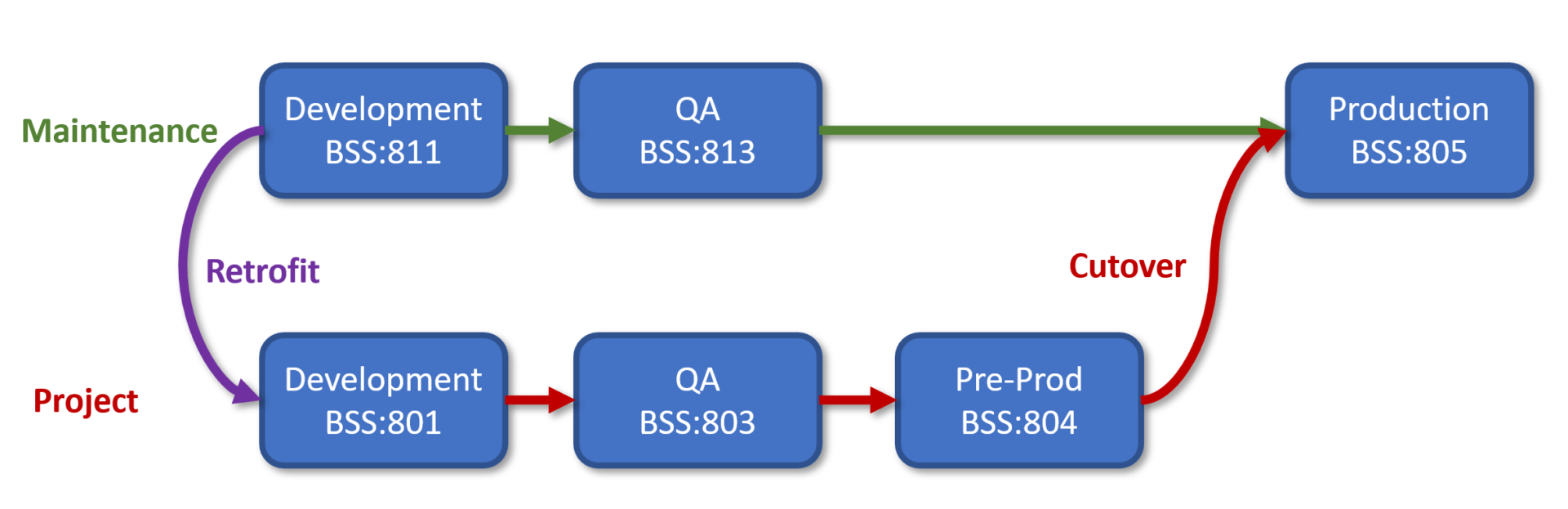
We already discussed the topic of retrofitting during our fifth Coffee Party (part 4), in the chapter entitled “Retrofitting basics.” As before, we are using our sandbox system, on which we simulate a five-system landscape with the help of different clients:
Setup
If you already have the ABAP Transport-Use Case für Cloud ALM up and running, setting up the CALM retrofit is surprisingly easy. The SAP Help pages contain all the necessary information.
Managed Systems
The setup in the managed systems (development in maintenance and in project) has been given its own section:
- Implement SAP Notes that contain the software; from ST-PI 740 SP33, which will be released in January 2026, this should no longer be necessary
- Implement PFCG roles from the notes
- Create new technical users or modify existing ones with these roles
- Set up an RFC connection from maintenance to project
- Control tables must be maintained in both systems.
- If you haven’t already done so, activate the CTS_BROWSER service with SICF.
Comments
As with the SolMan retrofit, it is still necessary for both systems to be able to see each other at the transport level (same TMS domain or TMS domain link).
The SAP_SDF_CALM_CDM_RETROFIT_RFC role for the project development system contains a somewhat naive authorization with regard to the transport directory—ABAP Windows Server biotopes still exist, and some SAP administrators love to be creative with directory names:

This role must be enhanced anyway, as unfortunately the S_RFC authorization for the RFCPING function module, which is necessary to test the connection for authorizations in SM59 of the maintenance system, is missing.
Maintaining the maintenance-dialog-free table /SDF/CDM_PARAM, which specifies the target production system, is amusing, but at least it keeps us from getting bored: With SE16, you have to add an entry like this:
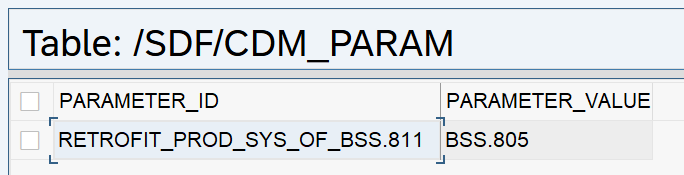
If you have more than one production system in the transport path (in the old SolMan, these were the Sites) then you have to add each additional production system separated by commas. I admit, I once programmed such a amusing DNO_CUST04 parameter, because it’s fun to show the world how virtuosically you can master the ABAP string functions …
Cloud ALM
This documentation is also completely sufficient. We will therefore briefly summarize the steps in the style of a recipe:
- Take two projects, one for maintenance (retrofit source) and one for project work (retrofit target).
- Create/maintain two system groups accordingly.
- Connect the target deployment plan to the target project.
- Create/maintain the source deployment plan, configuring retrofit to the target project here.
- Connect the source deployment plan to the maintenance project.
First inspection
The new Retrofit app welcomes us with an overview of existing retrofit-enabled projects, similar to the Focused Build entry via a list of task lists.
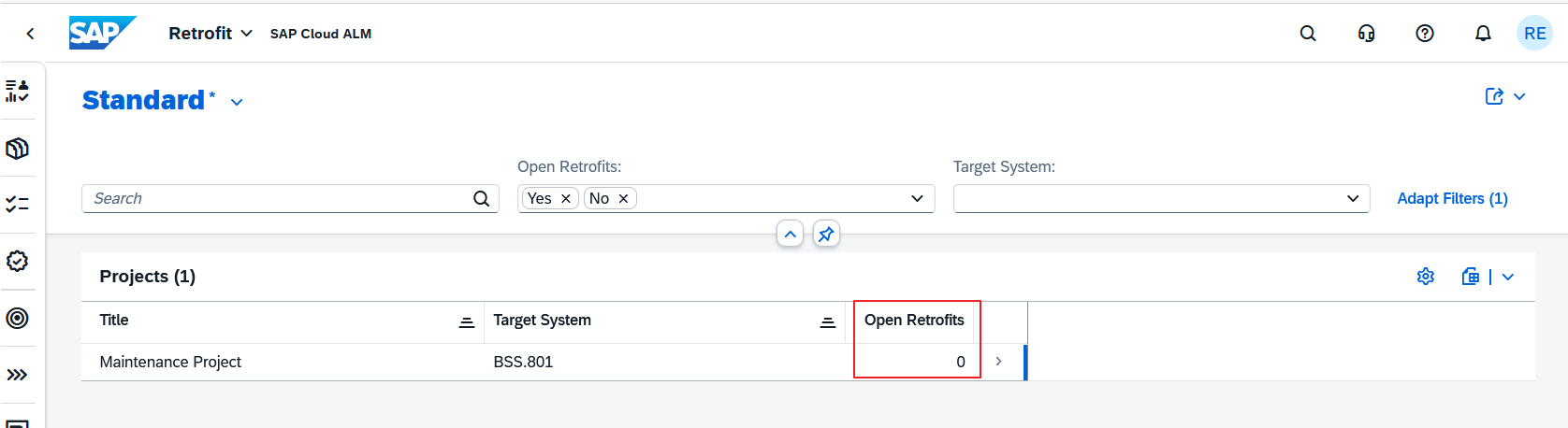
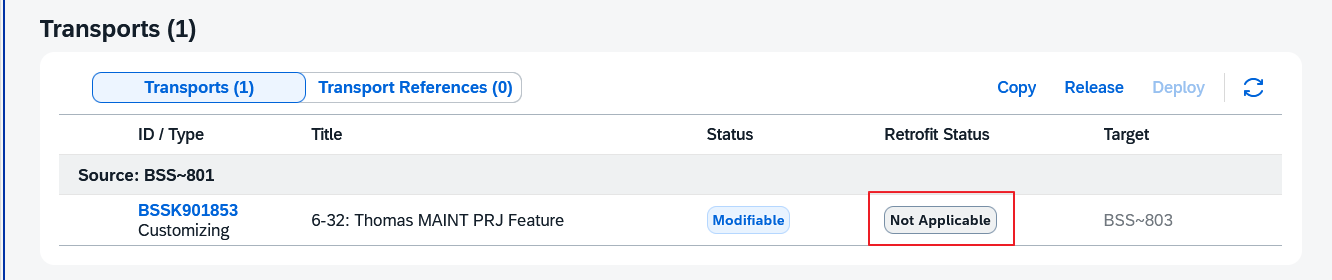
As expected, transports for existing features of the maintenance project are not added to the retrofit queue retroactively:
Here we go
To keep our experience here concise, we will look at two cases: “Automatic” and “Manual.” However, mixed variants, in which a maintenance transport contains both, are also supported (in Focused Build, this was the Full Scope (AUTO_FULL) scenario).
We create a feature in the maintenance project and populate it with a transport, record our maintenance change in the famous table T005a, and release the transport.
The release triggers the export and, immediately afterwards, the retrofit categorization in the ABAP maintenance system (here BSS.811), the result of which will be visible in the new Retrofit app.
You still have to wait blindly until the job has started on the maintenance system and exported the transport.
After a finite amount of time and a few “Refresh,” it’s ready:
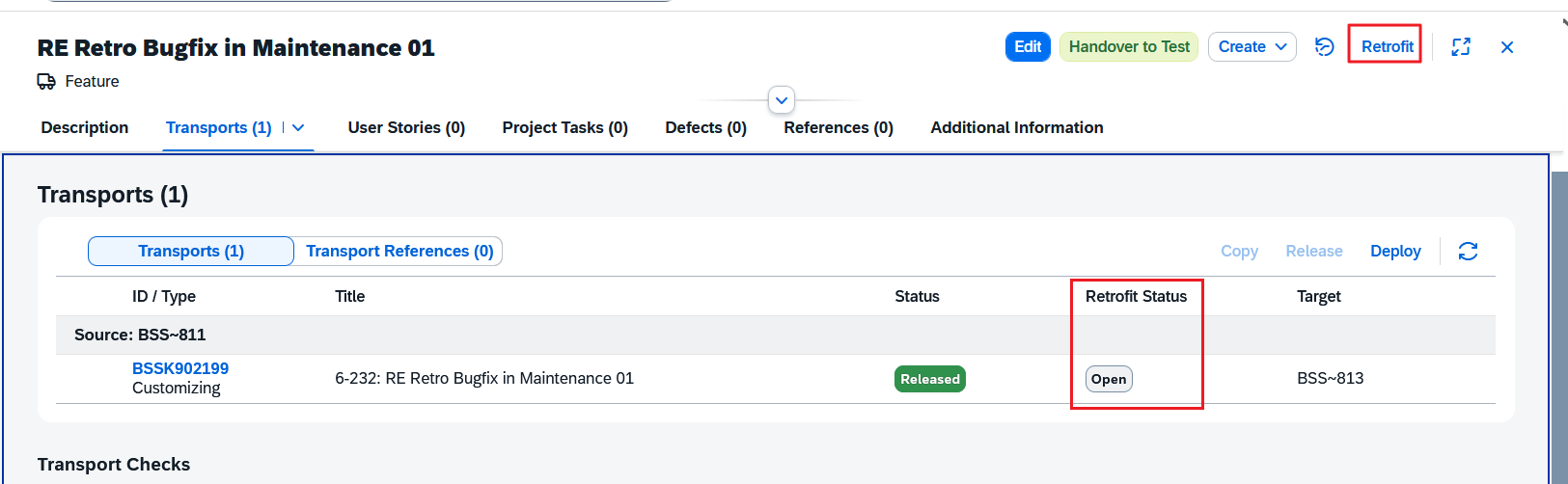
The new “Retrofit Status” column shows that we are ready to go.
Die Retrofit App
It’s great that you can open the Retrofit app directly from the feature. It’s also nice that you can use the back button to return to the feature.
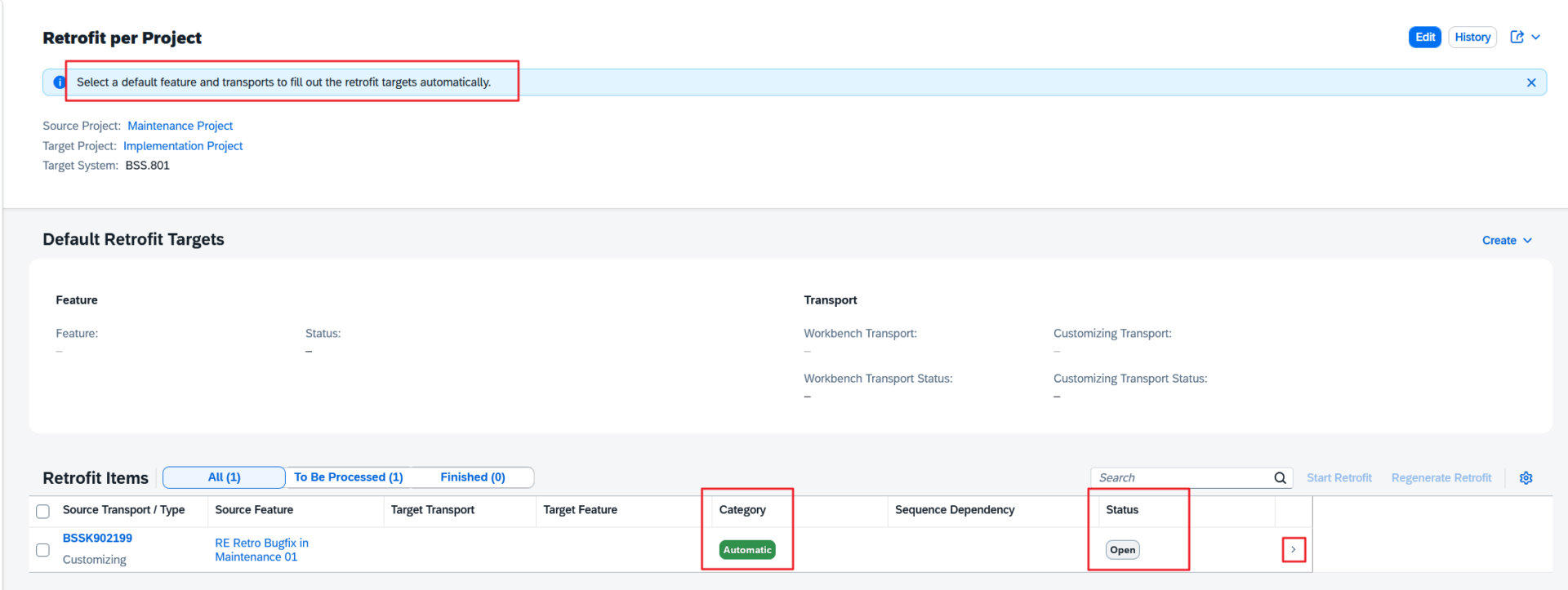
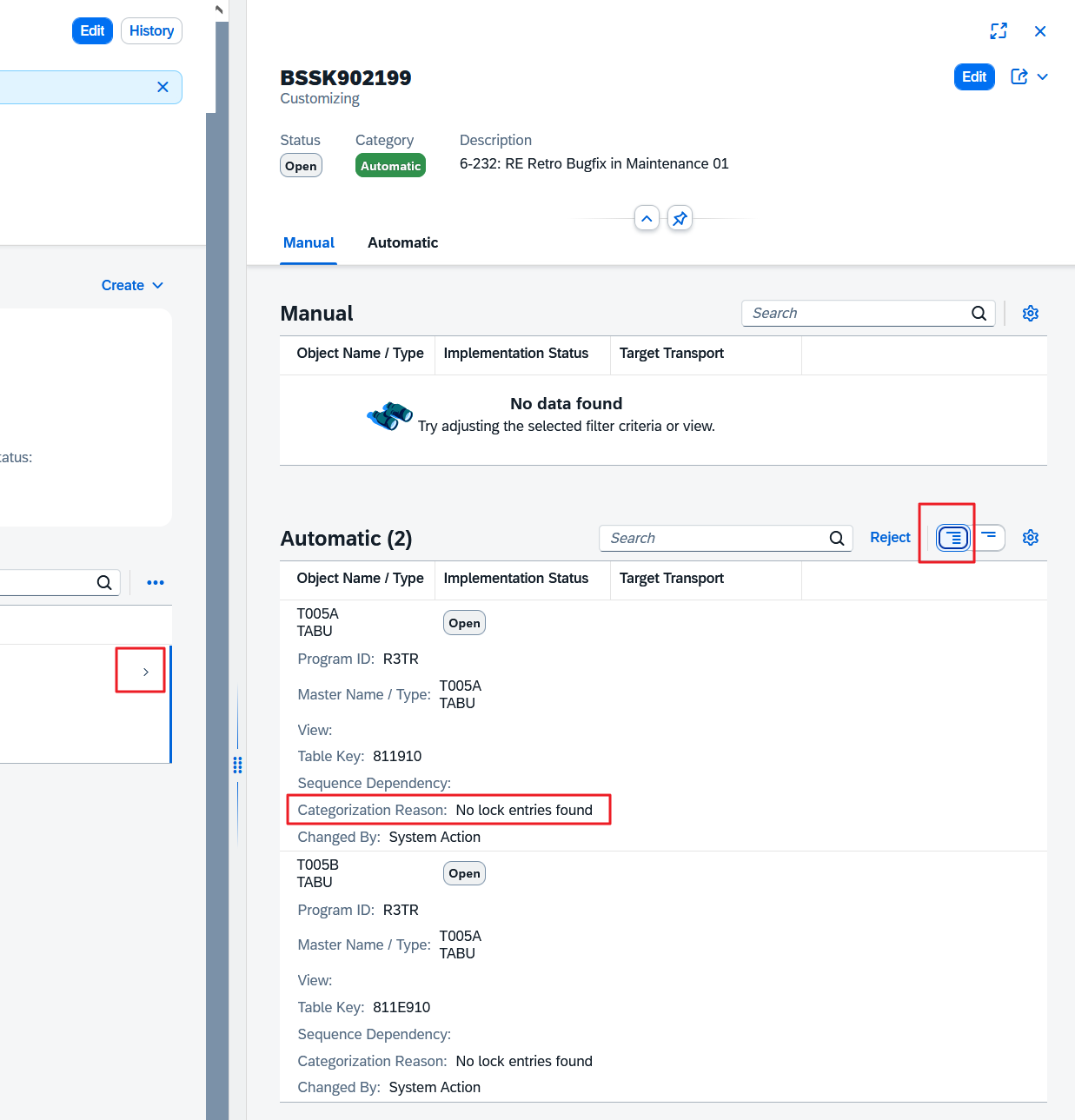
When we click on the detail arrow, we get a detailed view, and when we click on “Show More per Row” there, we learn the reasons for the categorization:
To enjoy the automation, we need to specify a feature in the target project in the Retrofit app and select the appropriate transports for it.
Since this is our first retrofit, we decide to create everything from scratch, as there is a convenient way to do this:
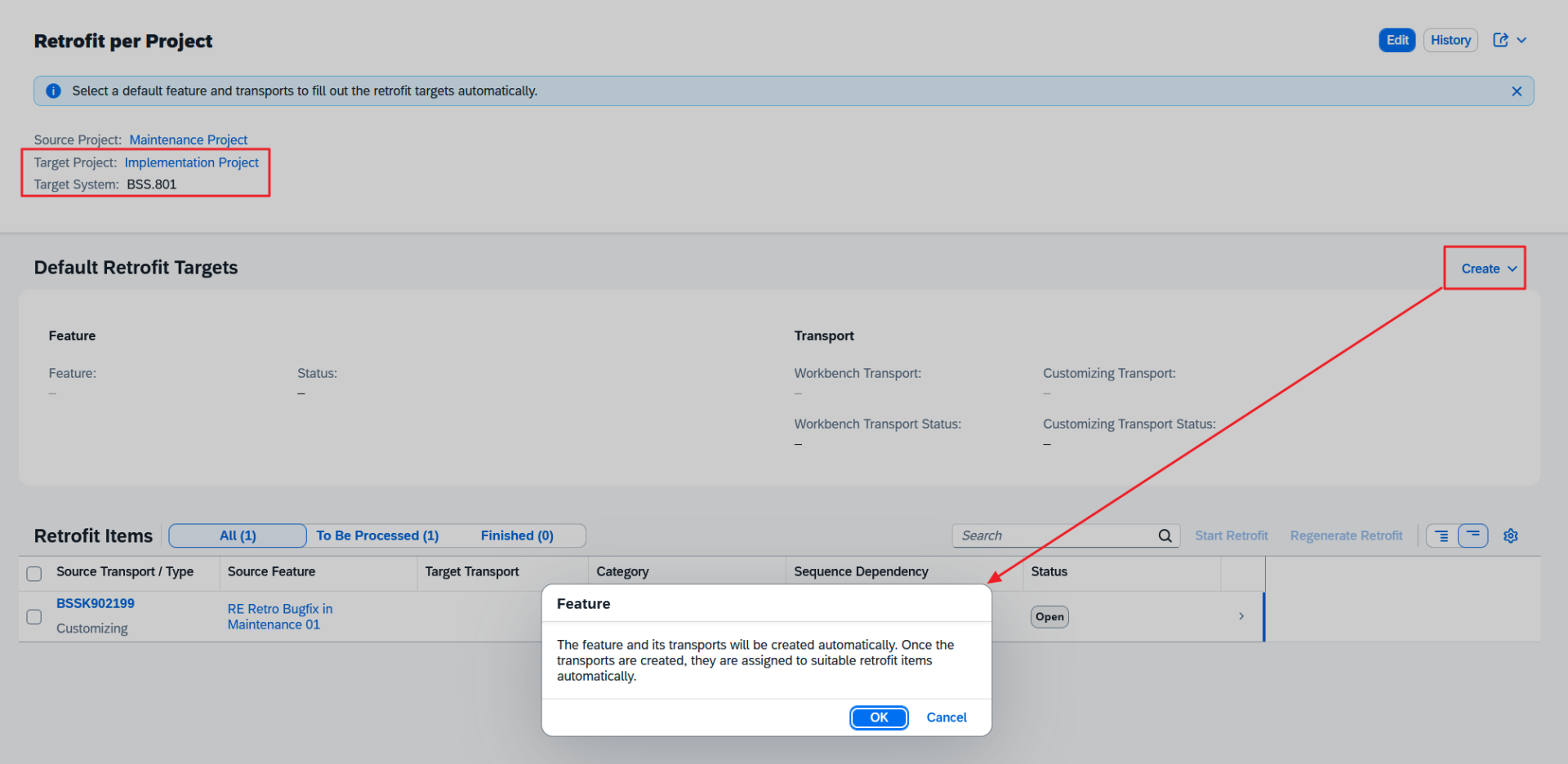
Unfortunately, there is no “Refresh” button here:
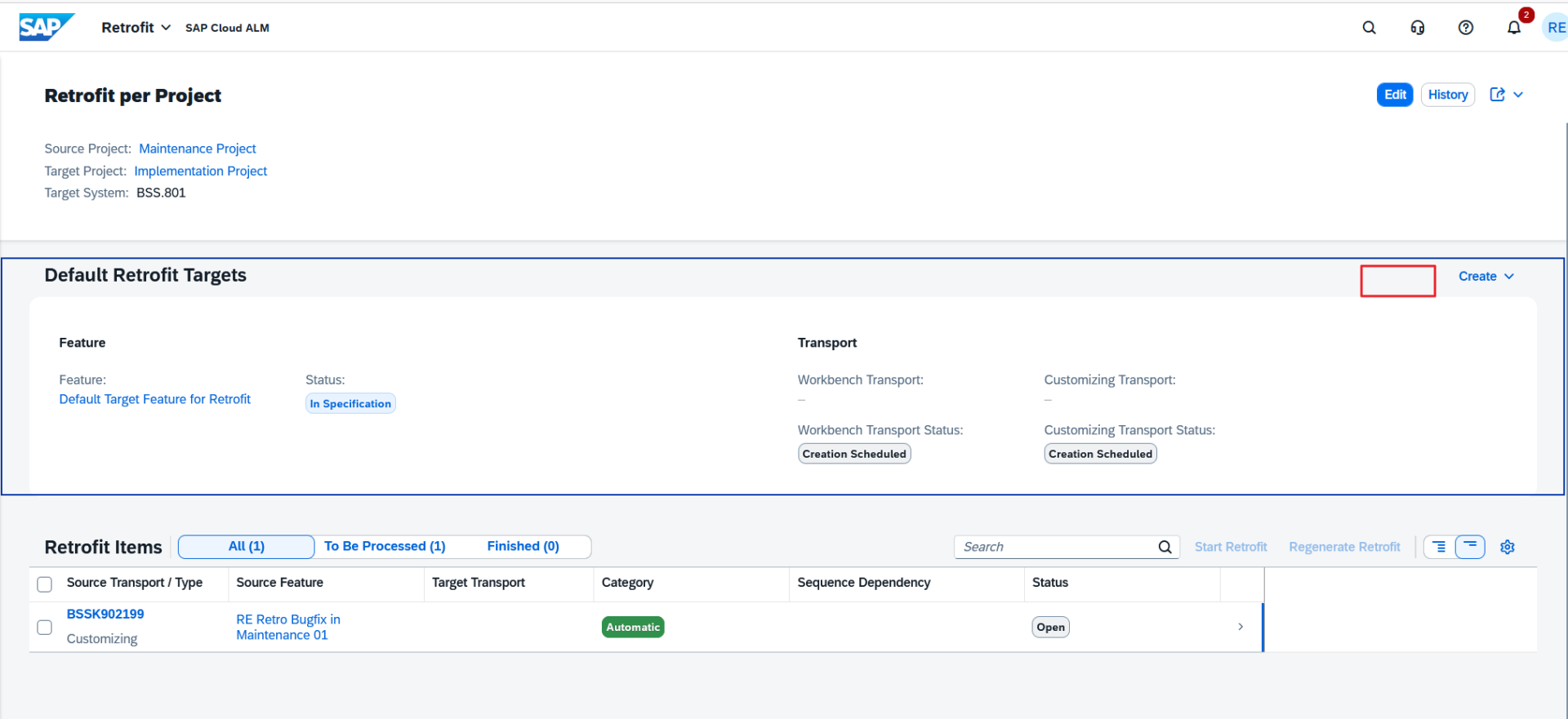
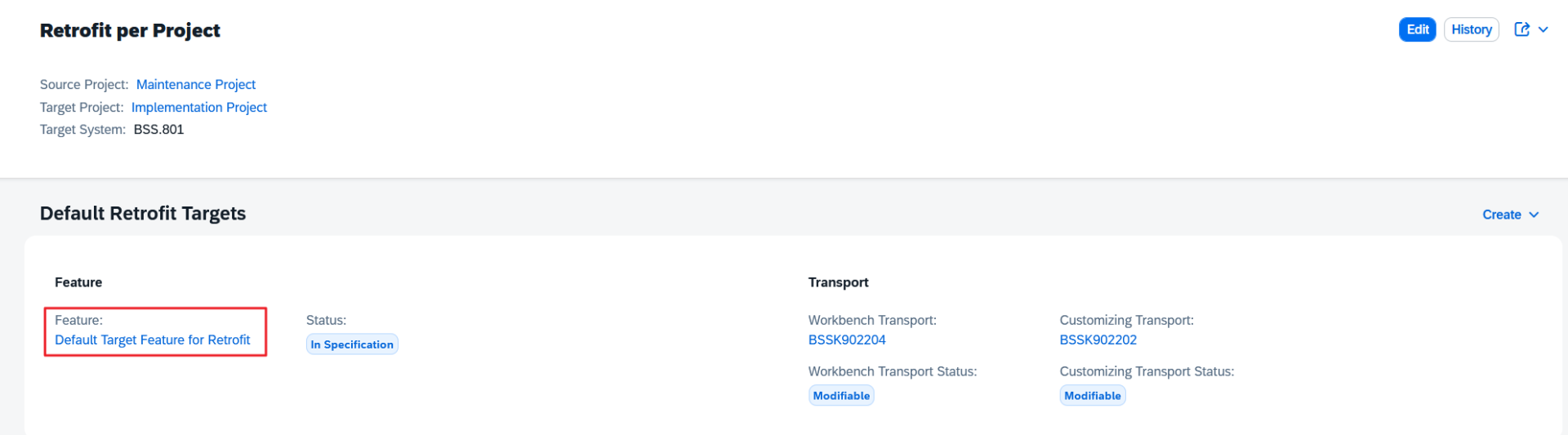
So we wait blindly and without tools for the usual CALM feature memorial minutes and eventually press “Edit” to force an update of the display. Lo and behold, the setup is finally complete; the text of the feature is assigned automatically:
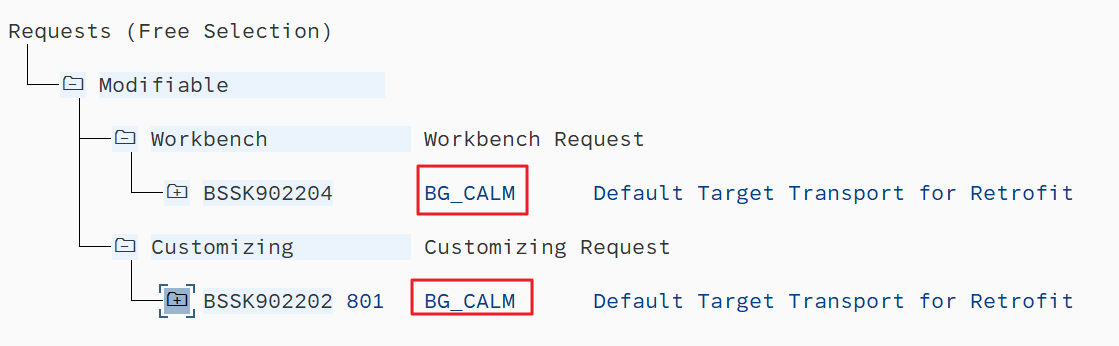
When creating the transports, the technical user for Cloud ALM Integration (here: BG_CALM) is used as the owner:
One could say that only the Focused Build Retrofit Automation scenario AUTO_CD is supported here. We hope that the quiet, stable, and uncomplicated AUTO_TOC scenario will be supported again at some point.
Automatic?
We are delighted and, spoiled by Focused Build, expect the automation to do the work now.
But nada happens.
Disappointed, we take a closer look at the documentation and realize: “Oh, this is a manual automatic” (an oxymoron, if you like). I remember how the goddess offered a similar semi-automatic system: to change gears, you had to tap a small lever on the steering wheel, but at least the clutch was automatically engaged when changing gears.
Oh well.
We select our transport and tap the “Start Retrofit” button:

And once again, we miss the Refresh button:

Here, you can at least help yourself by opening and closing the detail window.
But nothing happens, and we are getting nervous. We use SM37 in the ABAP system to check whether we can find any canceled jobs (see below).
This occupational therapy helps us pass the empty waiting time, and finally we can admire the result:
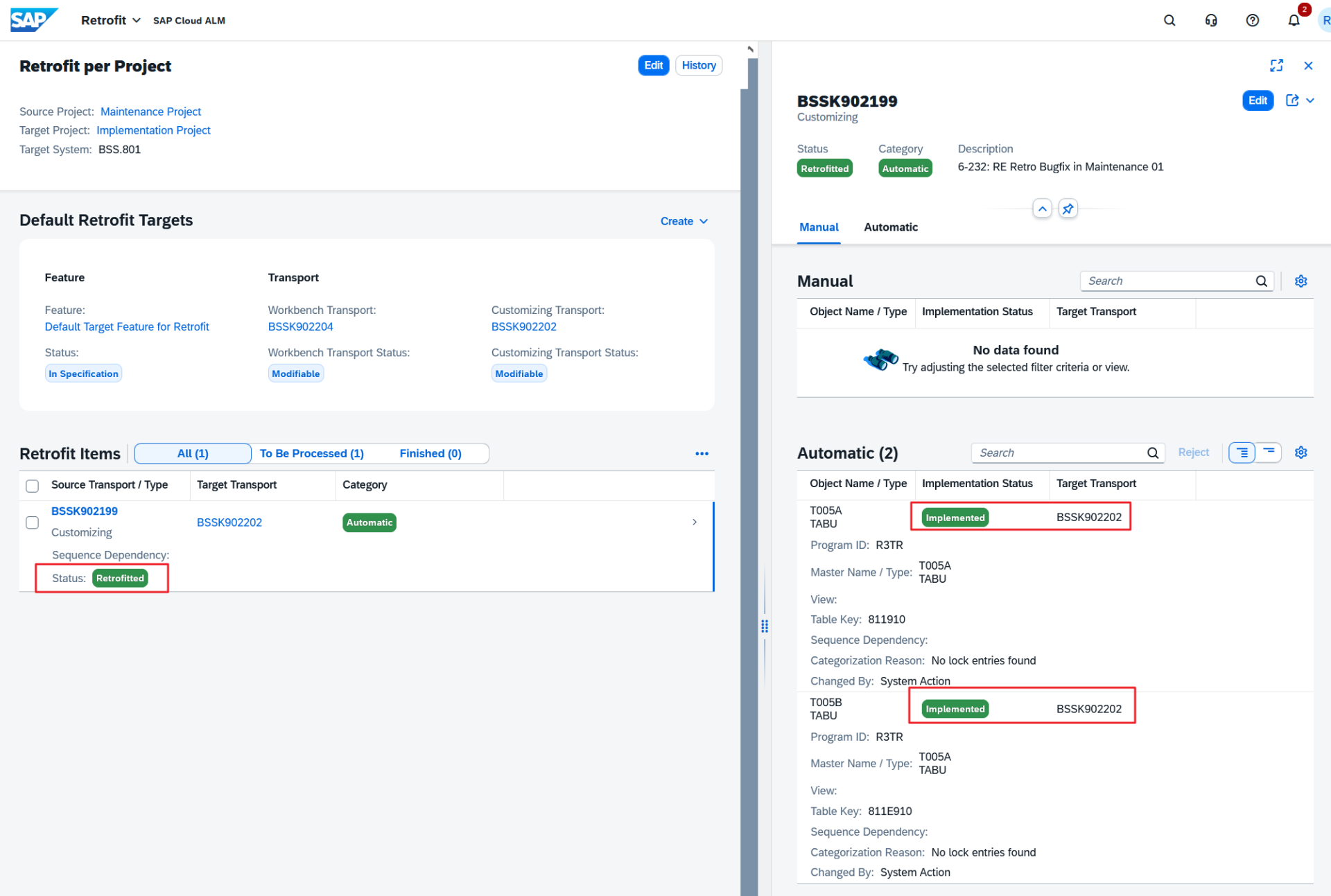
Our first semi-automatic Cloud ALM retrofit was a success!
Warning! Consolidate results
The target feature created with the Retrofit app has the initial status “In Specification”:
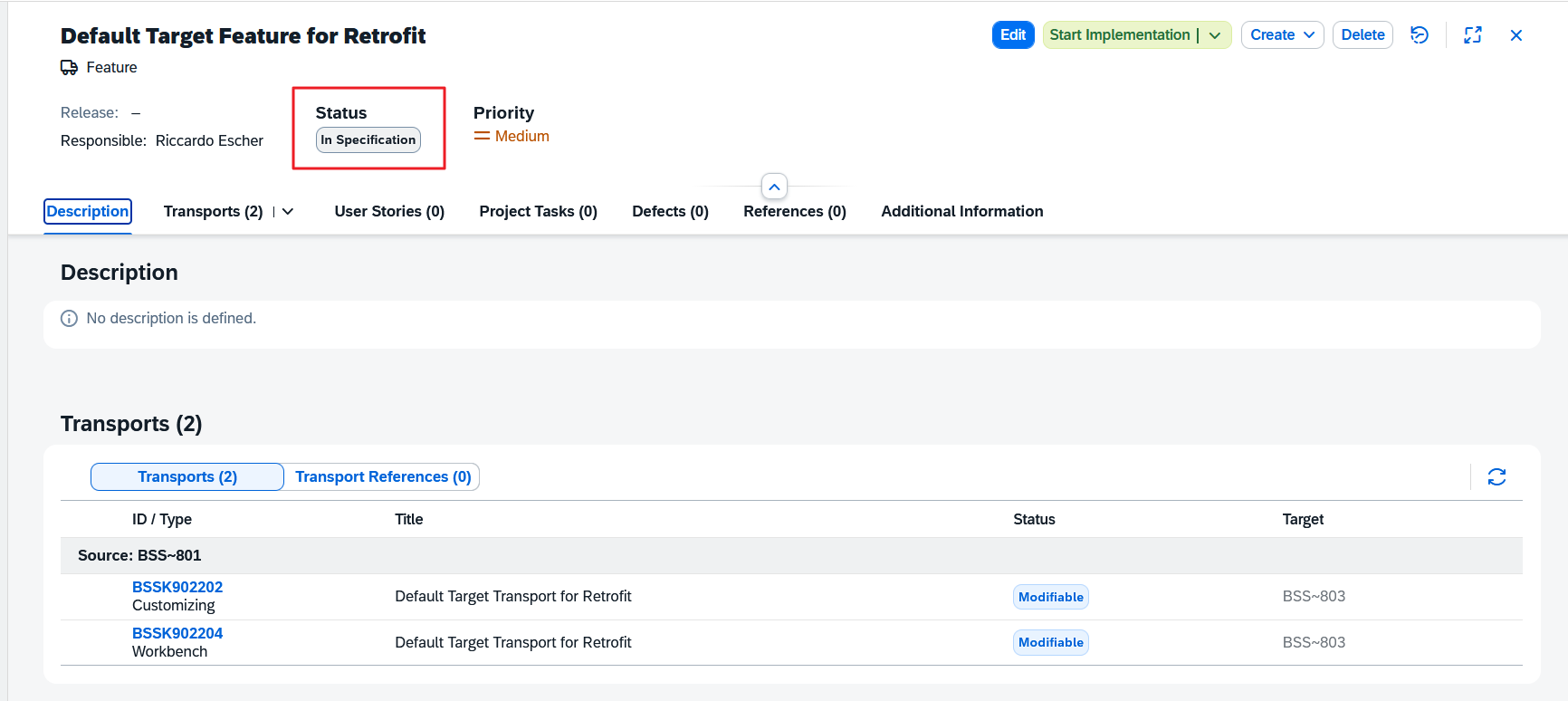
As a result, the feature can be deleted again, even though maintenance transports have already been retrofitted into the target transports of this feature.
We tried it out, of course, with tragic success:
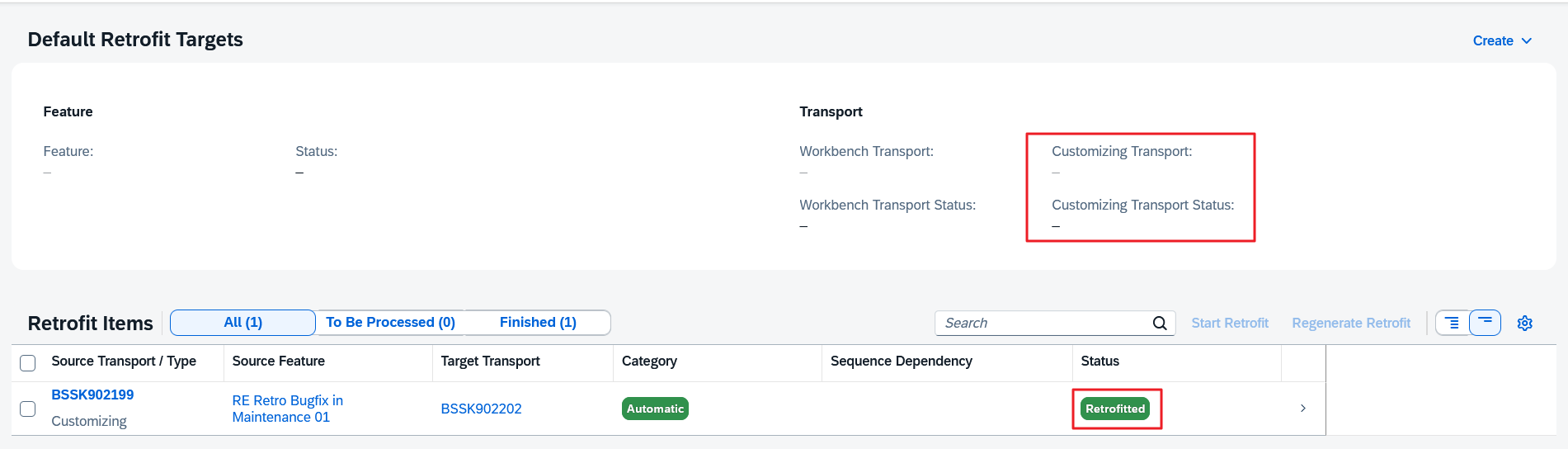
So you should set the target feature “In Implementation” as early as possible!
Where are the collisions?
We try to generate a collision in order to examine the manual retrofit.
We create a new transport in our maintenance feature, populate it with the same key and a new key in table T005a, and release the transport.
The result is also an automatic retrofit.
Subsequent release of the target transport BSSK902202 and creation of a new target transport (BSSK902218) in the retrofit app does not change this categorization:
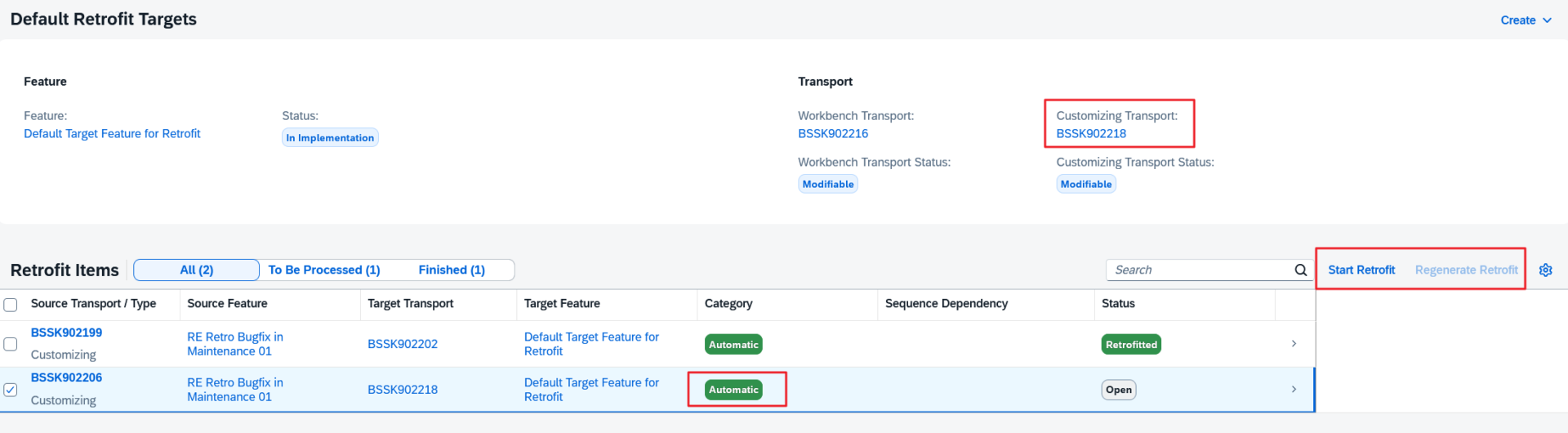
We start the semi-automatic retrofit, which still runs smoothly.
We would have expected the categorization to be repeated and a retrofit error to be generated (we will force this a little later).
This confuses us somewhat, as the documentation states: “This means that target transports, containing the same objects as source transports, which have been released in the last 6 months are included in conflict determination.” Could this be related to the fact that the target transport belongs to the “Default Target Feature for Retrofit”?
We would have liked to repeat the categorization to force a change in the retrofit status, but you can see that “Regenerate Retrofit” is inactive because, unlike SolMan Retrofit, you can only regenerate the retrofit data once an error has already occurred.
This is unfortunate because in the SolMan past, the “Create Retrofit Data Again” function was often a lifesaver if an action was interrupted midway, e.g., due to RFC connection problems, and everything got tangled up.
But maybe there will be no more ugly interruptions in the new SAP Cloud ALM world!

Finally, we have a collision!
So we make a second attempt to generate a conflict transport. This time, we create a new feature in the implementation project and record a change to the same object in project transport BSSK902220 “6-242: RE Retrofit Test – Project Work.”
And lo and behold, the status has turned red:
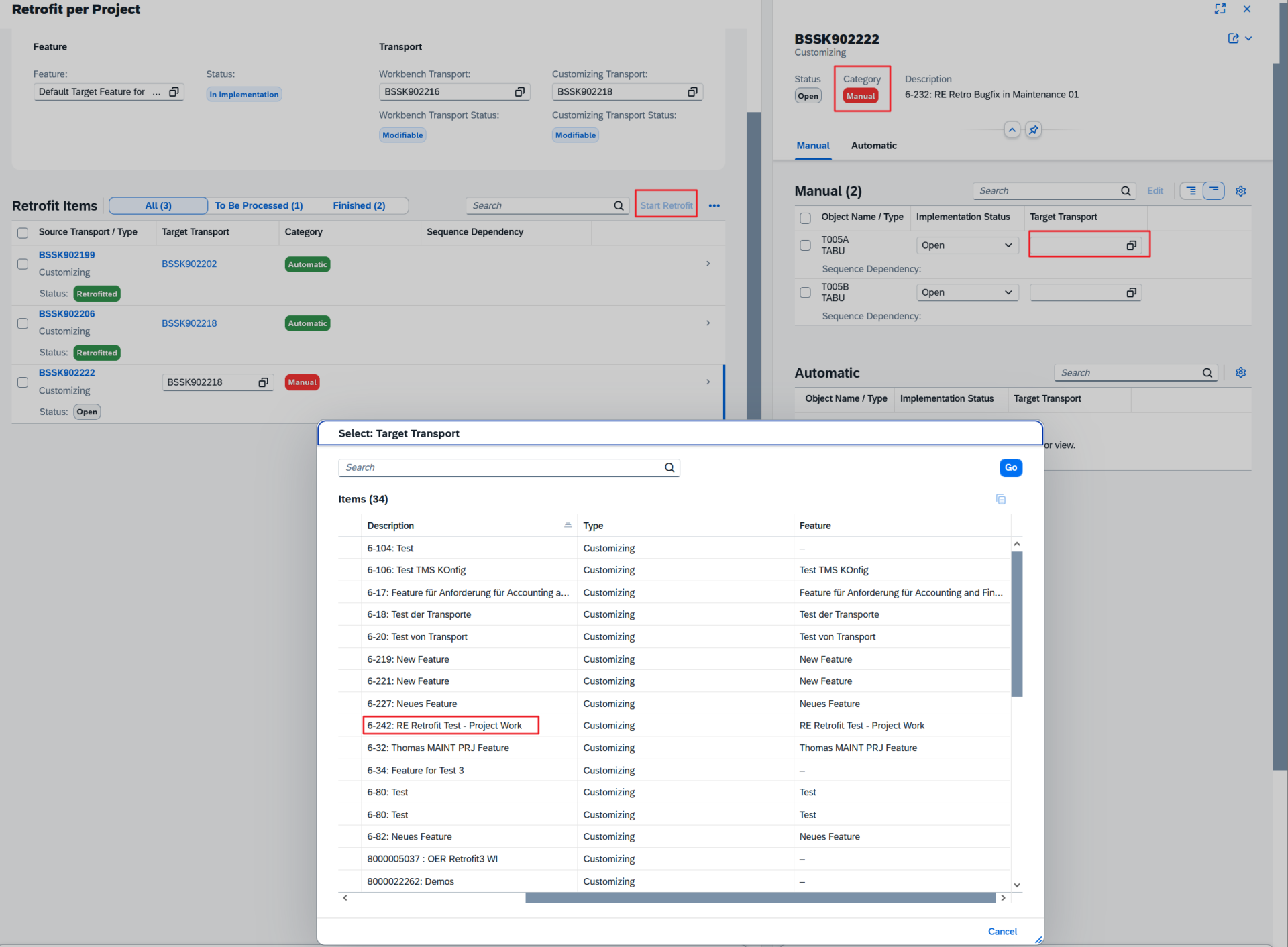
“Start Retrofit” is now inactive.
We have to open the detail window of the individual retrofit entry in change mode and select a target transport for each manual object. If there is a mass assignment here, I have missed it. Luckily, there are only two entries!
Selecting the respective target transport is quite confusing because it displays all (!) changeable transports that have the project QA system (803) as their target, even those without features, but it does not reveal the transport number or which Cloud ALM project they belong to!
What I also find problematic is that we are not given any indication as to which transport from the implementation project is the conflict transport. If it were still changeable, wouldn’t it be the ideal candidate for selection as the target transport? You could even pre-fill the input field with this changeable conflict transport.
Furthermore, we can specify any different transports as manual targets, as has been done here as a test case.
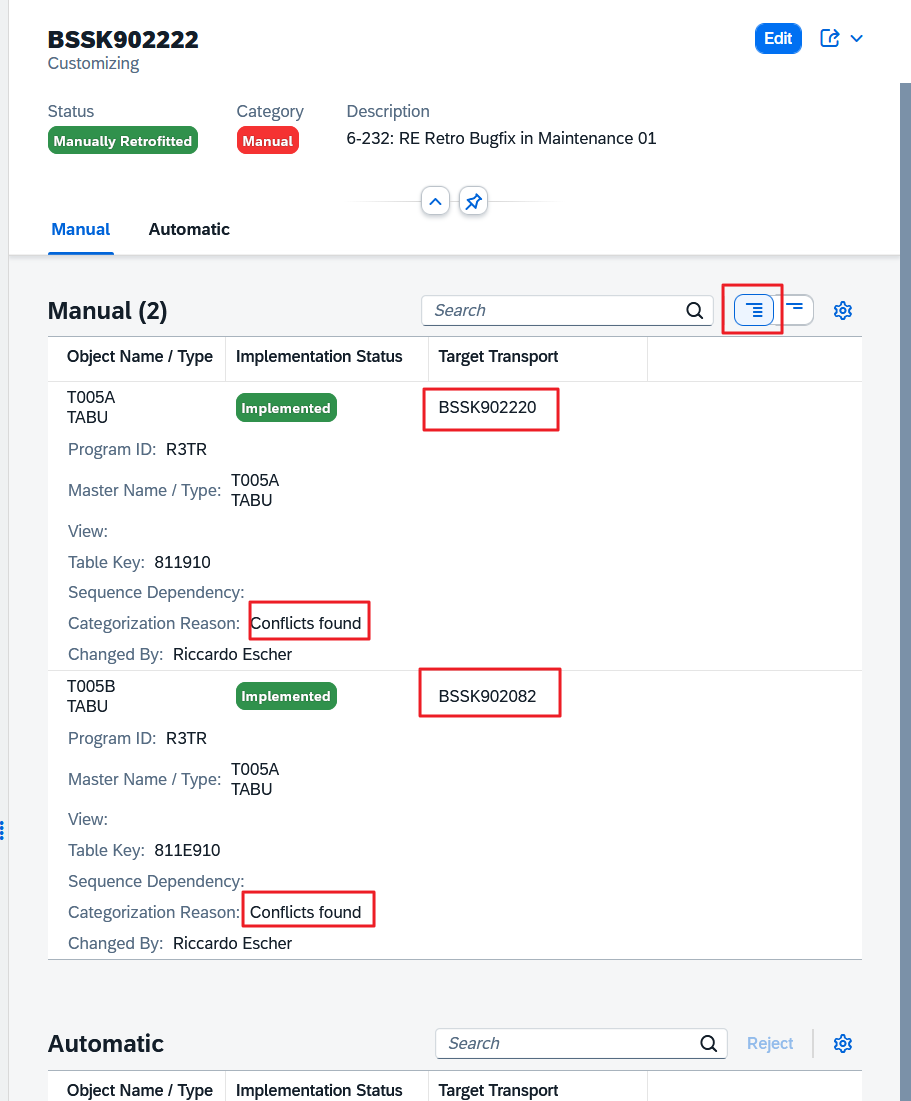
Well, these Target Transport entries are only for documentation purposes.
But we see some pretty serious clouds of error gathering on the horizon and hear a lot of sand crunching in the gears, in case one day a productive software malfunction makes it necessary to search for possible causes …

Photo by Elise Teur on Unsplash
Fortunately (?), the entries for the target transports and their implementation status can still be changed, even though the manual retrofit has long been considered complete:
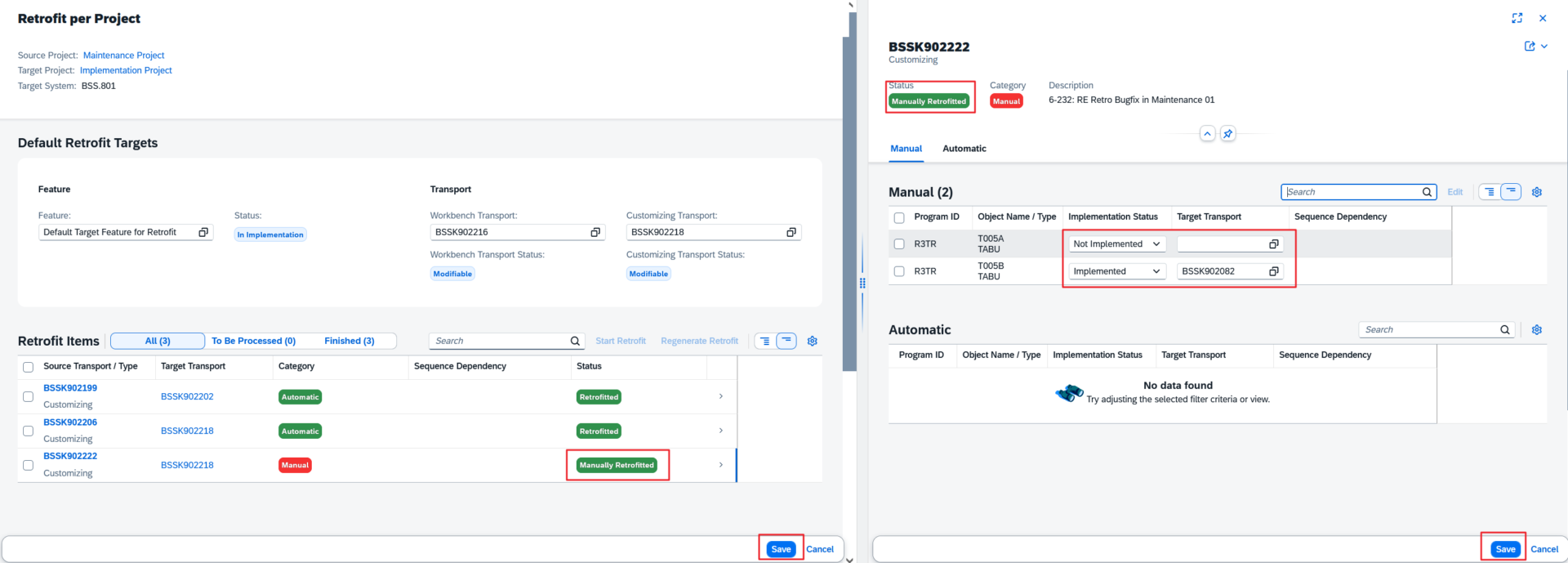
The status “Manually Retrofitted” remains unchanged even if entries are marked as “Not Implemented.”
As a prankster, you can even specify a target transport number in which “Not Implemented” has been implemented. This reminds me of the nice mathematician’s joke about set theory: “If there are 5 people in a room and 6 people leave, one person has to go back in so that the room becomes empty.”
Update: This was the status at the end of January 2026. Now, during proofreading at the beginning of February, the retroactive edit button has disappeared. Training material for an agile application is a challenge!
We are receiving a retrofit error!
But how accurate is this categorization?
We set up a small test. In our maintenance feature, we create a new transport, record a change that is guaranteed not to conflict with the project, and release the task and transport.
As expected, the retrofit status glows beautifully green under the CALM sun:
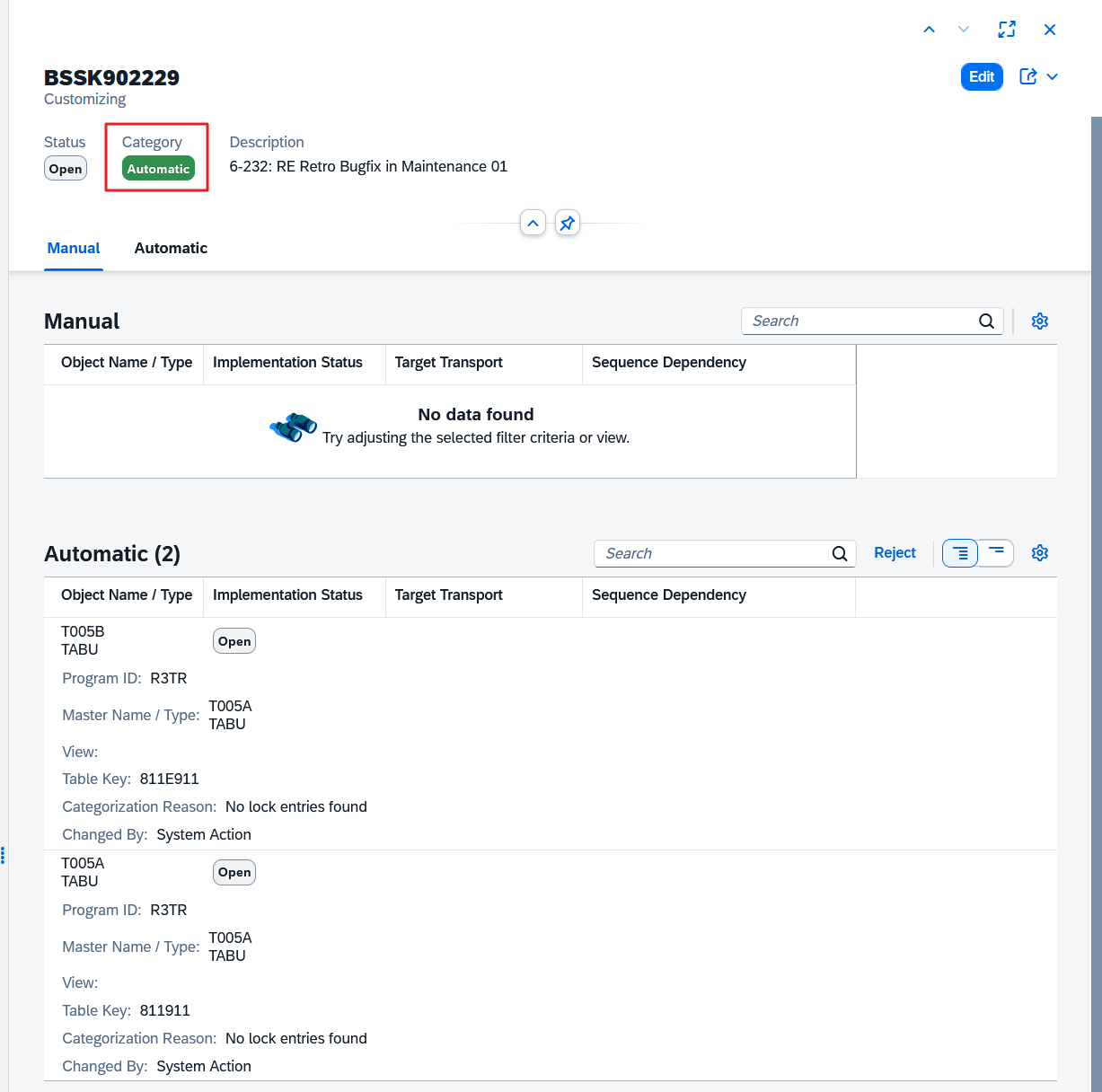
Meanly, the implementation team decides that the project needs new content for this exact entry, changes it accordingly, and records the change in project transport BSSK902220.
There is no longer a CSOL warning as there was in Solution Manager!
This increases the demands on project management to plan regular communication with the maintenance team from the very beginning and not just at the end in the hypercare or operational phase of the project.
We start the retrofit of the still “green” transport entry:
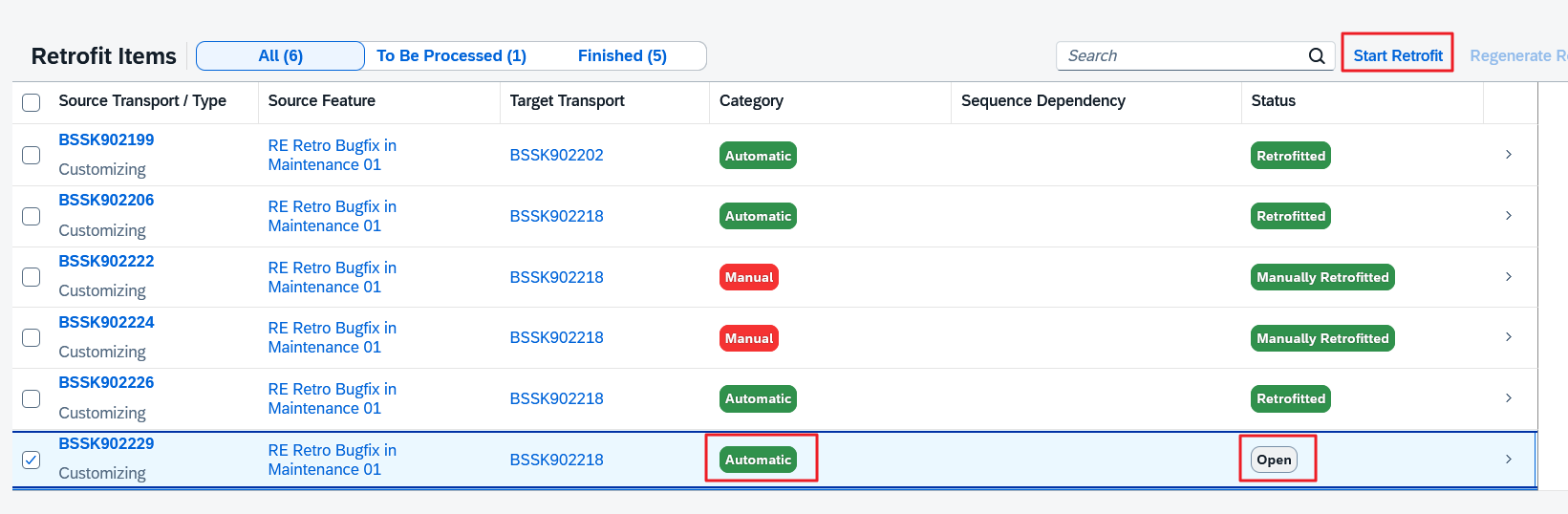
After a few CALM waiting minutes, we get this result:
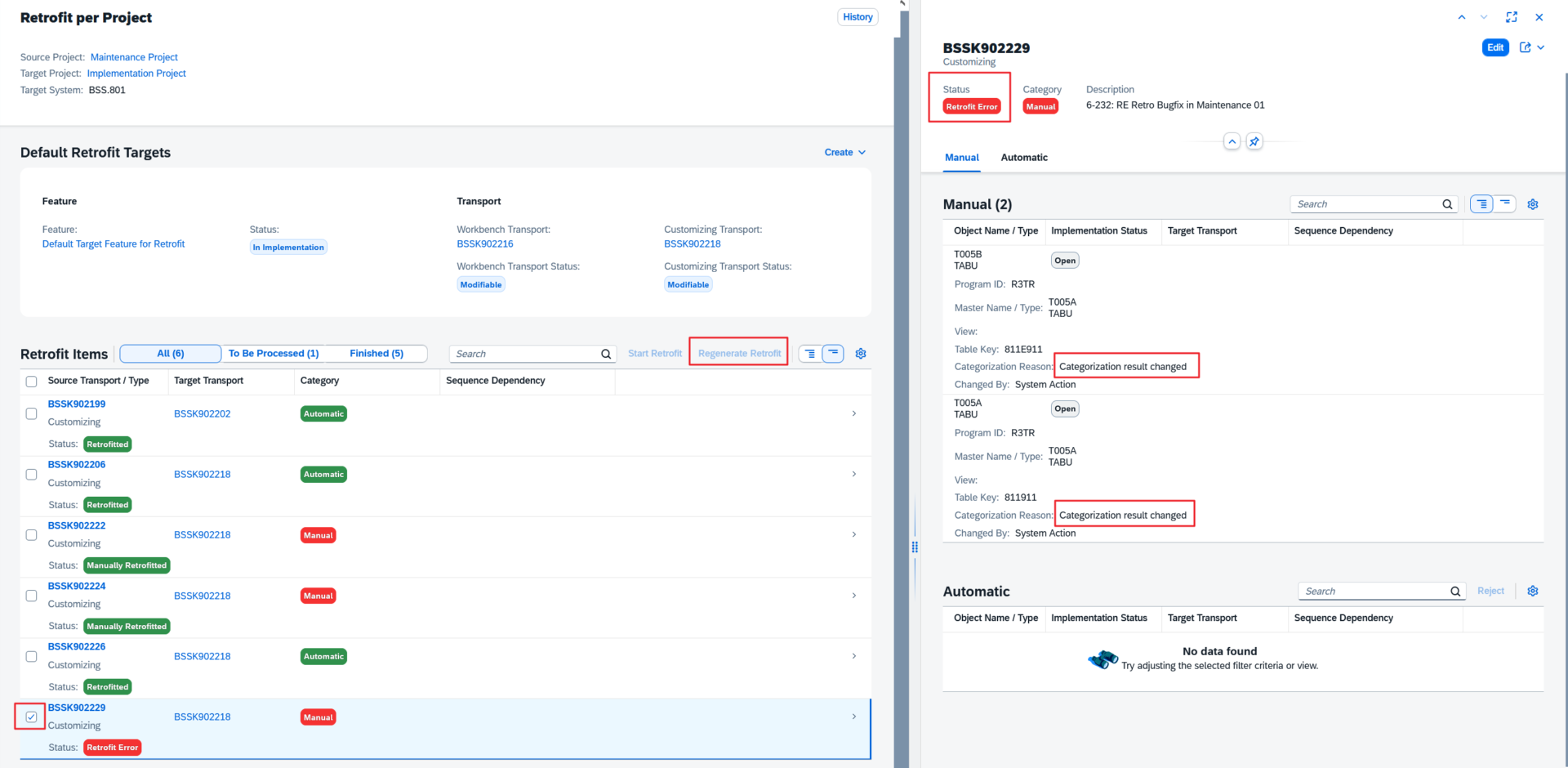
Very good! The categorization is robust and captures subsequent conflicting changes! However, we find it somewhat irritating that the “Regenerate Retrofit” button is still inactive.
Only after completely reloading the application in the browser (!) do we get our chance to reevaluate:
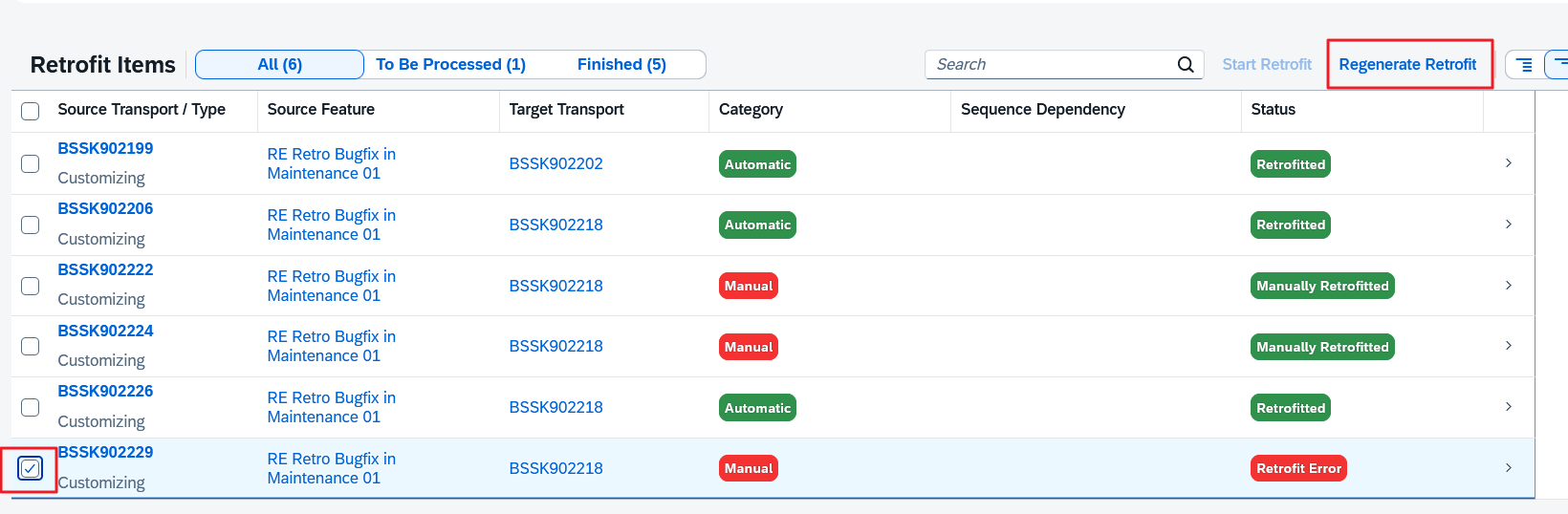
From now on, we will continue with the “Manual.”
Reject Retrofit
This action behaves quite differently than in SolMan ChaRM: In Cloud ALM, you can only reject “Automatic” retrofits.
And the ToC that has already been generated and released must then also be manually deleted from the import queue of the project development system. Do we have permission to do this? Or do we need to contact system administration?
As a result, the source transport is given the status “Manually Retrofitted”:
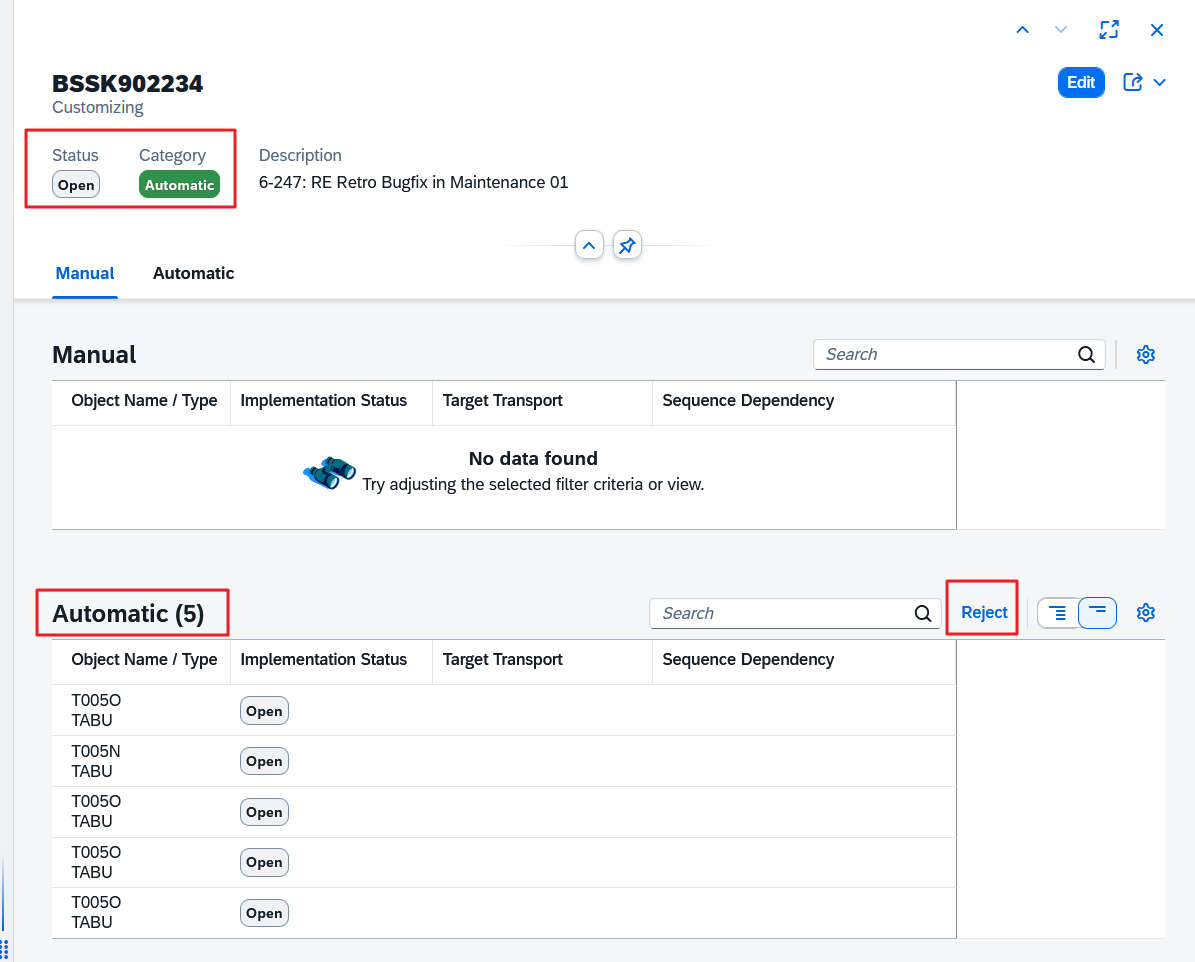
We find this unfortunate.
This is because very few projects affect the entire production system. Very often, they aim to introduce additional components or country rollouts.
We have seen several cases with customers where a retrofit into the project landscape was expressly and justifiably refused: The installation of SAP notes necessary for production, which would only disrupt project work; customizing changes to interfaces to non-SAP systems that were not even set up in the project landscape; authorization roles; BRF+ rules that were not intended for the project landscape; etc.
This means that we lose track of which source transports in the Retrofit App have the status “Manually Retrofitted” because they were ‘Rejected’ and which ones are “Manually Retrofitted” because the maintenance change was indeed manually transferred to the project landscape.
The only small indication for manual, red objects could be the empty field for the target transport, but this is a very weak clue, and there is no reporting option for this.
With mixed transports, it becomes even more unclear.
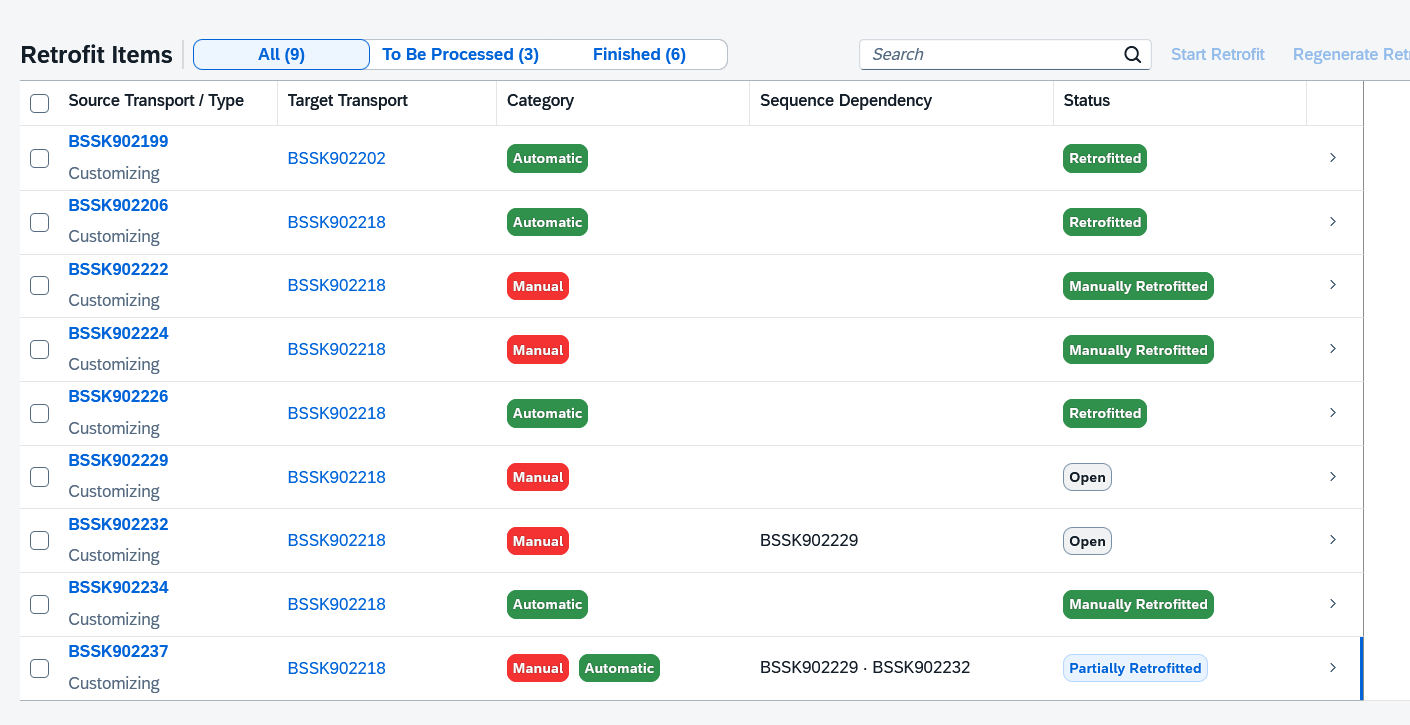
The “Reject” function was used for two transports here. With a great deal of attention and knowledge, it could be determined that the penultimate transport (BSSK902234) was “Rejected” because only then could the transport be simultaneously “Automatic” and “Manually Retrofitted.”
But who could have guessed that the “Reject” function also rejected the automatic part of the last, mixed transport (BSSK902237)?
We can only hope that the old SolMan retrofit status “Rejected” will return.
A look under the hood
Due to the high frequency of CALM synchronization jobs in the ABAP system, it is quite difficult to identify the relevant logs. A monitor report that only displays the application log of job executions with content is currently lacking.
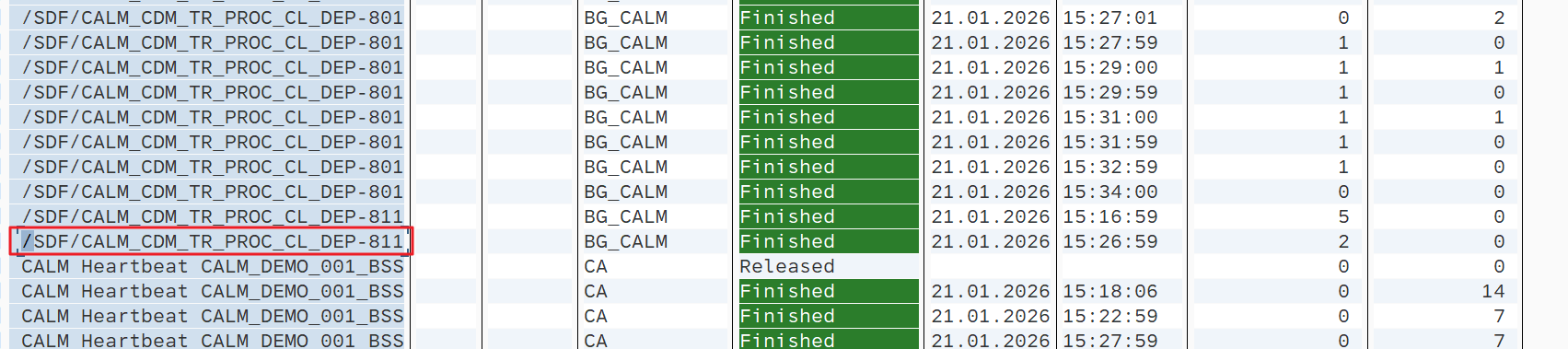
With SM37, you can try client-independent to pinpoint the job. Here is an example:
The corresponding application log, on the other hand, is client-dependent, so we search in client 811. The only way to tell that something has happened is by the higher number of messages. Here is an example for a creation of a transport in client 811:
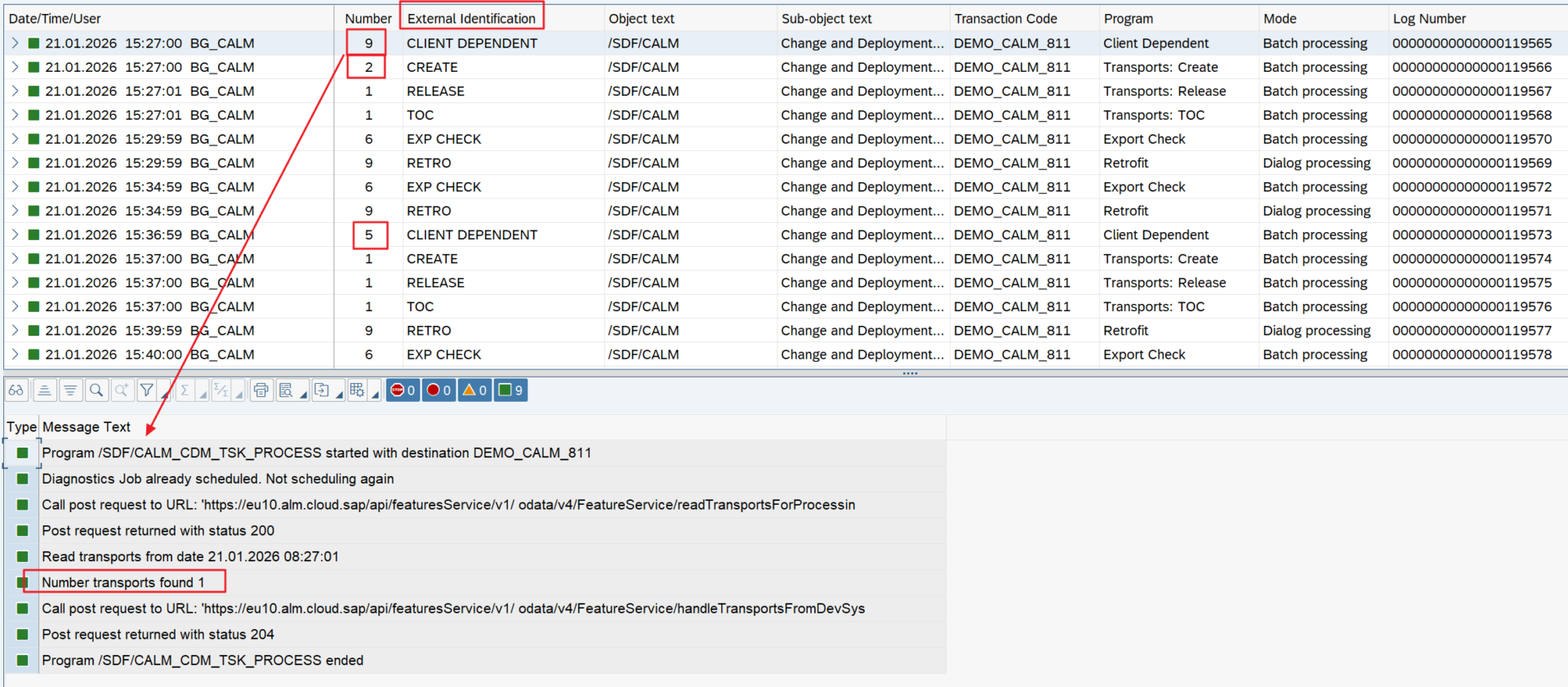
An overview of the “External Identification”s used can be found in the documentation.
Export
Here is an example for the release of a transport request:
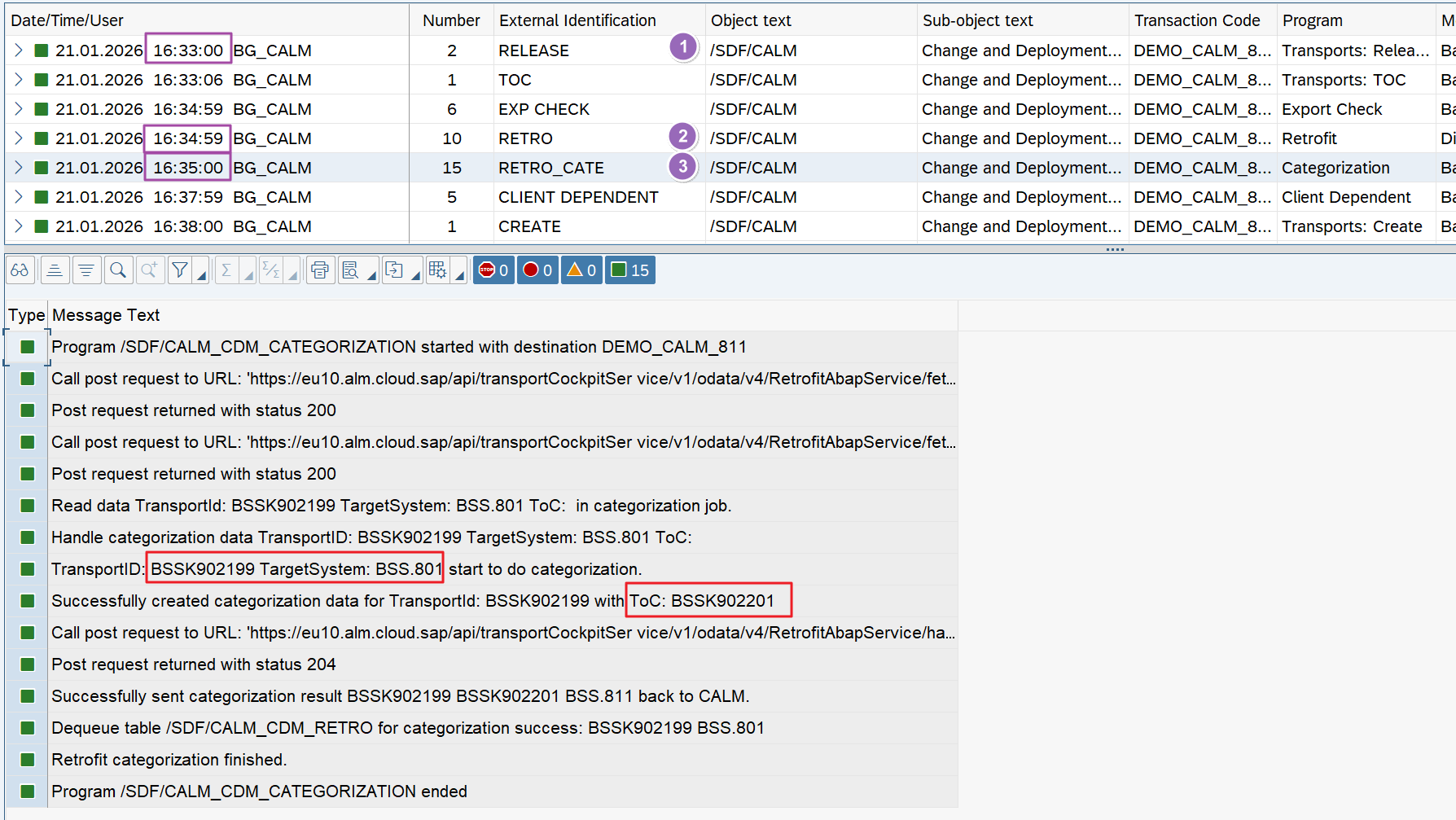
Immediately after export (1), the job was started (2) that launches the report for retrofit categorization (3). If the result of the categorization is green, this report also creates the ToC (Transport of Copies) for the target project system and releases it.
Incidentally, this is the only place where we were able to identify the “interim ToC.”
Here you can see that the ToC was released immediately after creation:
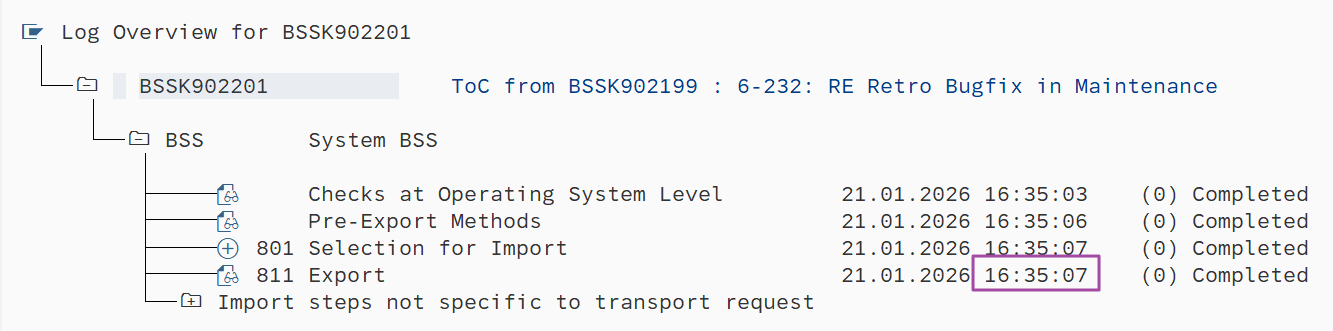
It is nice that the “Owner” of the source transport (here RE) has been retained in the ToC creation.
However, the release of the ToC leaves no traces in the application log. One wonders what it will look like if the release of the ToC fails during the “Pre-Export Methods,” which happens from time to time.
Automatic Retrofit
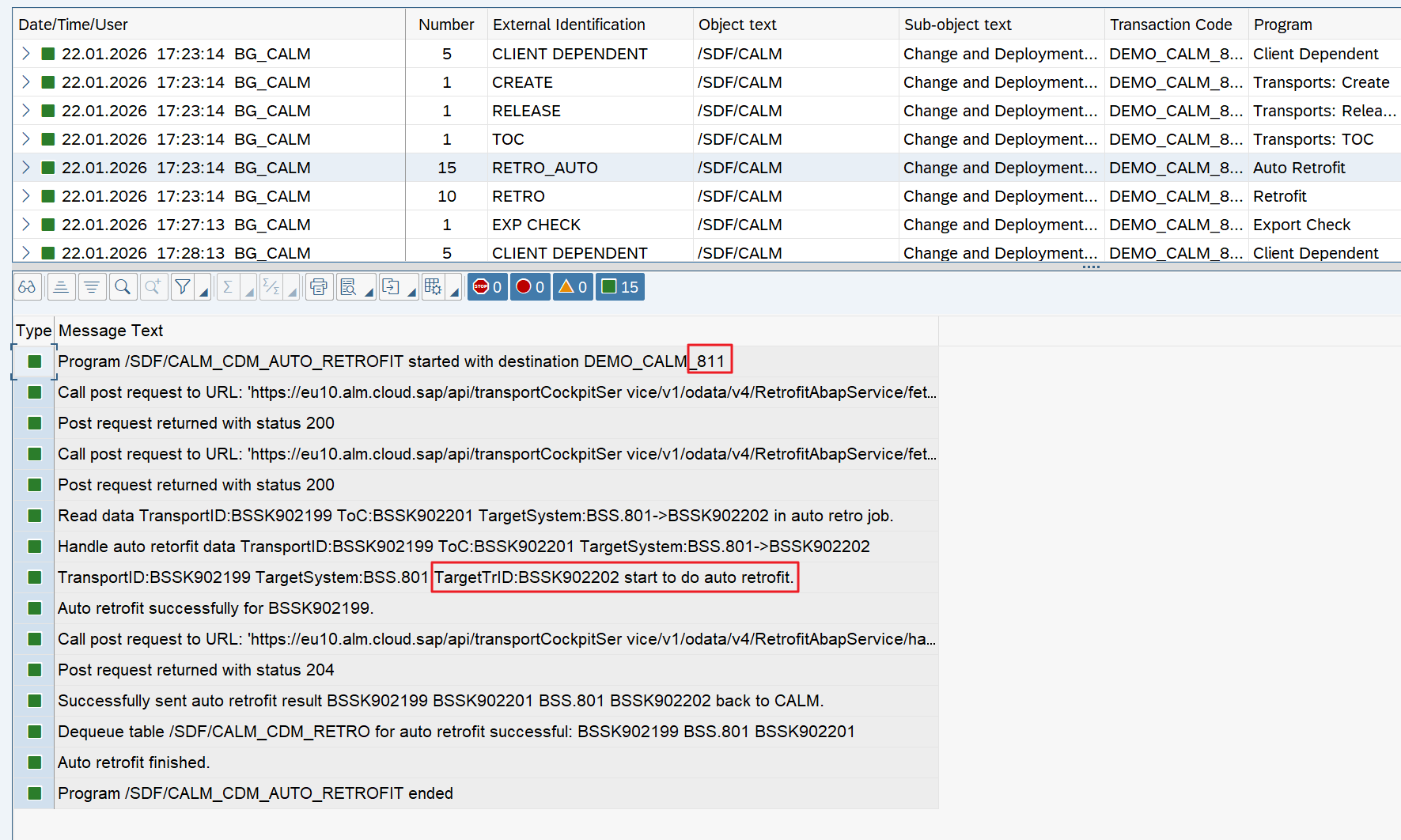
We find the retrofit job for the automatic retrofit, and the log looks reassuring:
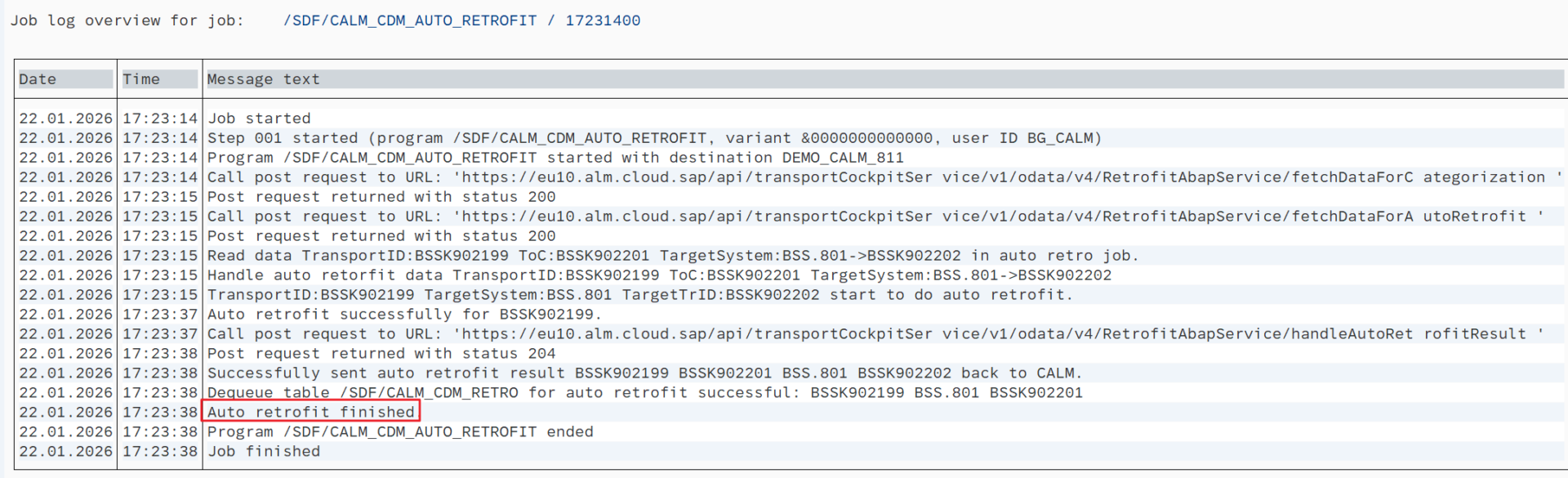
We were somewhat surprised that the application log for the retrofit, which after all has to import a ToC into the target system and transfer the parts list to the “real” transport of the target system, could only be found in the source system (in our sandbox system, this is client 811):