Tag: SAP Cloud ALM

For posts relating to CALM

A deep dive into Real User Monitoring

In today’s digital landscape, understanding how users interact with applications is essential to improving performance and enhancing user experience. For organizations using SAP systems, Real User Monitoring within SAP Cloud ALM for Operations provides powerful insights into the behavior, performance, and usage patterns of end-users, whether they are accessing applications in the cloud or on-premise.  

This tool is particularly valuable for IT and business users seeking to optimize application performance and boost user satisfaction.  

It allows organizations to track and analyze user requests within managed SAP environments, where it monitors and records user interactions, capturing data on performance, response times, and overall application usage. By gathering this information, Real User Monitoring offers a window into the user’s experience, showing how frequently applications are accessed and how responsive they are during use. 

Let’s explore the application and examine the features it offers. 

Overview 

In the overview section of Real User Monitoring, you’ll find a clear visualization of the services selected within the defined scope, ranked by decreasing criticality. The data displayed is aligned with the chosen time frame, providing a focused snapshot of performance trends. 

Each tile highlights the evolution of the Application Performance Index (Apdex) over time for the three most critical request types of a single service, with the service name and type prominently displayed in the tile header. 

The bars within each request type provide additional insights: their size represents the number of executions, while their color indicates the Apdex rating. Hovering over a bar reveals a tooltip with detailed information, including the start time, Apdex value, and execution count. 

On the left side of the tile, a visual indicator reflects the average service rating based on the displayed request types, providing an at-a-glance assessment of overall service performance. 

Requests 

For each request, you can easily view key details, including its name and type, status (Critical, Warning, or OK), execution frequency, average response time, and the number of associated users. By default, the list is sorted by the number of critical executions (marked in red), ensuring the most urgent issues are prioritized. 

Clicking the Details icon beside a request opens three deeper levels of insights: 

  • Request Actions: Actions are categorized based on the request type, such as HTTP(S) methods like GET or POST, SAPUI5 actions triggered by UI elements, Web Dynpro events, Web GUI interactions, or RFC function groups.
  • Execution Analysis: View execution patterns during the selected timeframe. A low net time for critical rows indicates the issue may lie outside the current service, requiring further investigation.  
  • Execution Details: This level provides a granular look at a single execution, including correlated requests from other components. You can also choose from different visualizations to tailor the analysis to your needs. 

The request status color is tied to response times: 

  • Critical (Red): Response time exceeds the median by at least twice the standard deviation. 
  • Warning (Yellow): Response time exceeds the median by at least one standard deviation. 

These detailed insights help identify performance bottlenecks and drive focused troubleshooting efforts. 

Analysis 

The Analysis page provides powerful tools to break down request metrics across various dimensions, offering a wide range of customizable analysis options. You can fine-tune the display settings using the Filter popover to focus on the data most relevant to your needs. 

The Analysis page supports two primary display formats: 

  1. Table View 
  • Use the Drilldown control to select dimensions displayed as columns, reorder them via drag-and-drop, and sort using the Sort option. 
  • Choose a single metric—Sum, Average, or Count—to focus your analysis. 
  • Ideal for detailed, tabular comparisons across dimensions.  
  1. Chart View  
  • Best for visualizing trends over time. 
  • Select a Resolution and Time Frame to generate line charts showing metric development. 
  • For non-temporal analysis, set Resolution to “No Time Buckets” to create horizontal bar charts.

The Drilldown control lets you activate and arrange dimensions, which define table columns or chart categories. Metrics calculations include: 

  • Sum: The total of all request values. 
  • Average: The sum divided by the count. 
  • Count: The total number of requests. 

For time-specific breakdowns, choose a time resolution in Resolution

The Analysis page delivers a flexible, dimension-based view of request metrics, making it easy to uncover trends and actionable insights tailored to your operational needs. 

Front End 

The Front End page offers key usage and performance metrics for front-end request types like SAPUI5, Web Dynpro, and Web GUI. This section provides a detailed view of how applications perform from the end-user perspective, helping you identify and address potential bottlenecks. 

The Front End section includes the following metrics: 

  • Executions: Total number of requests executed within the selected period. 
  • End User Time: Response time experienced by the user. 
  • Network Time: Time spent in network roundtrips between the front end and server. 
  • Back-End Time: Processing time on the server. 

You can visualize these metrics as a Chart or a Table, adjusting the display using the Filter option to select specific requests, time frames, and resolution levels. 

By default, metrics are shown for the current week with an hourly resolution, independent of global time frame settings. To align this page with global settings, select Inherit in the Filter popover. 

The OS & Browsers section provides an overview of operating systems, browsers, and devices used by end-users, along with their respective user counts. Depending on the Display Version setting in the filter: 

  • User counts are shown by browser and OS types (e.g., Windows, Chrome). 
  • Alternatively, they are broken down by specific versions (e.g., Windows 10).  

Clicking on a segment in the pie charts reveals individual users for a selected OS or browser. User data is anonymized if the viewer lacks the Real User Analyst Sensitive role, ensuring sensitive information remains protected. 

The Front End page delivers actionable insights into user behavior and performance, enabling proactive measures to enhance the overall experience. 

Back End 

The Back End page provides an essential overview of performance and usage metrics for back-end requests, helping you monitor and optimize system performance. 

By default, the page shows response times and execution counts for these back-end request types: 

  • HTTP 
  • HTTPS 
  • RFC 
  • RFCS 
  • Dialog 

Metrics can be displayed as a Chart or Table, and the Filter option allows you to refine the view by selecting specific requests, time frames, and resolutions. If you have the Real User Analyst Sensitive role, you can also filter data by specific users for deeper insights. 

By default, metrics from the current week are displayed with an hourly resolution. This setting is independent of the global time frame. To align with global settings, choose Inherit in the Filter popup. 

Services/Systems 

The Services/Systems page provides an overview of request performance grouped by services and systems, making it easy to identify entities with poor performance or high request volumes. 

Key Features: 

  • View ratings for each service/system and request type. 
  • Identify how many requests are executed for a particular request type and determine which service handles the highest volume. 
  • If one entity dominates, you can display values as percentages by expanding the toolbar and selecting Chart Settings. 

The status color of requests reflects their response times: 

  • Critical (Red): Response time exceeds the median by at least twice the standard deviation. 
  • Warning (Yellow): Response time exceeds the median by at least one standard deviation. 

The Services/Systems page helps you pinpoint performance issues and better understand how services handle request loads, enabling targeted improvements. 

Clients 

The Clients page provides detailed information about the operating systems, browsers, and device types used by users for the following front-end request types: 

  • SAPUI5 
  • Web Dynpro 
  • Web GUI 

Key Features 

  • Gain insights into the technologies your users rely on, categorized by OS, browser, and device type. 
  • For an overview of user counts, refer to the OS & Browsers section on the Front End page. 
  • If you lack the Real User Analyst Sensitive role, user names are anonymized to ensure data privacy. 

Filtering Options 

  • Use the general Filter to refine data by operating system, browser, and device type (e.g., Windows or Chrome). 
  • For version-specific filtering (e.g., Windows 10), use the filter option in the corresponding table column. 

The Clients page offers valuable insights into user environments, helping you understand usage patterns and optimize for a diverse range of devices and platforms. 

Execution Flow 

The Execution Flow page offers a chronological view of user actions and corresponding system responses, enabling you to analyze usage patterns and pinpoint potential system issues. 

By default, no data is displayed. To begin, provide a valid User Name or Root Context ID in the Filter: 

  • The Root Context ID identifies a session, remaining consistent even when requests are sent to different servers, such as when launching an app from the SAP Fiori Launchpad. 
  • If you lack the Real User Analyst Sensitive role, only the Root Context ID can be used, and user names will not be visible. 

Once results are populated, activities with backend responses exceeding 200ms are detailed. Key columns include: 

  • App/UI Component: Front-end application used. 
  • User Interaction: Technical name of the user’s action. 
  • UI Response Time [ms]: Time taken for the UI to respond. 
  • Request Name/Backend Component: Server request triggered. 
  • Backend Action: Operation performed on the server. 
  • Response Time [ms]: Server processing time. 
  • Net Time [ms]: Component’s gross processing time, excluding outgoing requests. 
  • Time (based on Server): Timestamp of the action. 

You can click on any component or action to navigate directly to the Requests page, applying relevant filter settings for a focused drilldown. 

The Execution Flow page provides a comprehensive overview of user activities and backend processes, helping you track actions, assess performance, and investigate issues in real-time. 

Expensive Requests 

The Expensive Requests page highlights the most resource-intensive and critical request names across your services and systems, enabling you to identify potential bottlenecks and optimize performance. 

Key Features 

  • Displays up to 200 request names by default, ranked by resource consumption or criticality. You can adjust this limit in the Filters under the Top field. 
  • Results appear as a tree map with squares representing request names, grouped by request types. 

Tree Map Details 

  • Square Size: Depends on the selected Display Mode. 
  • Square Color: Reflects the percentage of “red” (critical) executions. A request is “red” if its response time is at least 12 times the median response time for its type. Color thresholds are shown in the legend. 

Choose from three views in Display Mode: 

  • Performance (Default): Highlights request names with the most red executions. 
  • Workload: Focuses on requests with the highest total response time, calculated as the product of execution count and average response time. 
  • Usage: Shows request names with the highest number of unique calls, representing the breadth of user activity. 

Click on any square to display the corresponding request name in the Request Overview. Also, you can click Hide to hide single dominating request names to have a better overview of the other request names. Hidden request names are displayed in the Filters with an exclamation point (!) as the prefix. 

The Expensive Requests page offers a clear visual representation of resource-heavy requests, helping you prioritize optimizations and improve overall system efficiency. 

HTTP Errors 

The HTTP Errors page provides insights into HTTP(S) request errors across systems and services, enabling quick identification of performance issues. 

For each system or service within the selected time frame, the page shows: 

  • Number of Executions: Total HTTP(S) requests executed. 
  • Success Rate (%): Percentage of successful calls. 
  • Client Errors (4xx): Percentage of calls with 4xx status codes. 
  • Server Errors (5xx): Percentage of calls with 5xx status codes. 

The History section visualizes the trend of HTTP(S) calls and errors over time. An extended period before the selected time frame is included in the charts for context, with the selected time frame highlighted in purple. 

Click on a system or service in the table to view detailed data for the corresponding request names within the selected system or service. 

The HTTP Errors page equips you with actionable insights to monitor error trends, troubleshoot issues, and ensure high system reliability. 

Geolocation  

The Geolocation page allows you to analyze where HTTP(S) requests are originating from, offering insights into the geographical distribution of traffic for systems and services in scope. 

Key Features 

  • For public cloud services, the caller’s IP address is passed through to the application via X-Forwarded-For, making it possible to assign the IP address to a location. Note that users may alter this information using VPN tools. 
  • Private cloud services and on-premise systems depend on the network infrastructure configuration to provide location data. 

The Location Overview displays the number of requests grouped by country/region and IP address type, including: 

  • PUBLIC: IP addresses passed through and assigned a location. 
  • PRIVATE: No location data available for these IP ranges. 
  • UNKNOWN: IP addresses that cannot be resolved to a location. 

Drill down into specific location data by selecting a country/region from the overview or using the Filter to define a metric. You can explore the following criteria for deeper analysis: 

  • City 
  • Request Name 
  • Action (HTTP method) 
  • User Name 
  • HTTP Status (status code) 

The Geolocation page helps you visualize the global distribution of user activity, identify regional performance issues, and understand traffic patterns across different locations. 

Alerting 

The Alerting page provides an overview of all activated alerts, helping you monitor critical system events and take necessary actions. 

Key Features 

  • Alert Types: Currently, HTTP Errors are the primary alerts displayed. 
  • Configuration: Alerts are activated and configured in the Configuration section of the corresponding managed component. 

Actions You Can Take 

  • Sort Alerts: Sort alerts by Alert Name, Message, Status, Processor, and Object Details. 
  • Assign/Remove Processors: Manage who is responsible for handling alerts. 
  • Confirm Alerts: Acknowledge and confirm open alerts. 
  • View Action Logs: Review the logs associated with each alert for a detailed history. 
  • Export: Export the list of alerts to a spreadsheet for further analysis. 

The Alerting page ensures you can stay on top of critical issues, resolve them efficiently, and maintain system reliability through proactive alert management. 

Tip: How to create meaningful Favorites to Overview 

For example, to display on Overview page only certain Requests, you can open a request and Save it as Favorite. 

Now when going to Home page we can see the newly created favorite: 

Conclusion 

With Real User Monitoring organizations gain transparency into user interactions, response times, and system performance. This tool not only enhances IT teams’ ability to resolve issues efficiently but also empowers business teams with valuable insights into user behavior. As a result, Real User Monitoring helps organizations provide a seamless, optimized user experience, enhancing both operational efficiency and end-user satisfaction. 

ALM Coffee Party VIII – Transports with Cloud ALM

The Feathered Feature

Is it the dawn of SAP Solution Manager or is it the rise of SAP Cloud ALM as this lone feathered Feature soars towards Production? It is both. 

Since we are in a phase of transition, I will focus here on the question of how to use Features to bring transport requests of an OnPremise ABAP system from Development to Production. 

This use case is also attractive for SAP customers who have previously given ChaRM and/or Focused Build a wide berth. 

Here I focus on the so-called user experience and governance when using Features to handle OnPremise transports. 

To set up a sandbox system for testing, I would like to refer you to the first three chapters of the wonderful blog by the famous Dolores: First steps to work with SAP Cloud ALM Deployment scenario for SAP ABAP systems (7.40 or higher). The creation and workflow of Features is also described in detail in chapter 4 and does not need to be repeated here.

Let’s see

Let’s then have a look at this new Feature. 

We will use our existing knowledge to contextualize these new Features. By the way, I’m talking about the state of the second half of October 2024 – this needs to be emphasized, as new functions are released every two weeks. 

As we all know, SAP has a gigantic department that is constantly coming up with new names for one and the same function. Here, too, it was very successful: even at first glance, a Feature seems to be just a nice new name – who wants bugs – for the good old Change Document. There is also no longer any talk of transports in the Transport Assignment Block, but the latest buzzword is now “Deployment Orchestration of Transport Containers”.

Wzhkevin, CC BY-SA 4.0, via Wikimedia Commons 

At second glance, the Feature reminds us of the good old TMS Workflow.  

Creating or referencing

As of today, Features can only be created from the “Features Overview” or from a “Requirement”; in addition, you can reference exactly one Feature from a “User Story”, and only here. 

In a Feature, you can not only create Transport Requests, but also User Stories and Project Tasks. 

It was also possible to create Tasks (Transaction Type “1003”) as successor documents in ChaRM Change Documents. 

I demonstrated to colleagues how this could be used to involve additional team members in a change process instead of contacting them by e-mail, which would establish a holistic concept of the Change Document, with which one could achieve very good documentation (traceability), but this was never accepted, it stayed with the informal e-mails. 

I therefore fear that the option to create follow-up Tasks will also be left unused in the Feature.  

Error correction during testing  

What really surprises me is that there is still no direct link between a test defect (technically a task type) and a Feature. You have to take a detour here. 

First you have to create the Feature: 

Only then can you add the URL of the new Feature in the Test Defect as a reference using copy&paste: 

If you want to document in the Feature for which Defect you are working, you have to repeat this procedure for the other direction (URL of the Defect as a reference in the Feature), because there is no automation here yet:

I already anticipate that this cumbersome manual linking will not meet with much acceptance. 

However, there is hope for Q2 2025

Schau’n mer mal! Dann sehn mer scho!

Transports 

In contrast to ChaRM and more in line with Focused Build, Features are always linked to Cloud ALM Projects. 

These Projects reference a “Deployment Plan”, which is similar to a ChaRM Change Control Landscape (CCL), and just like the latter, this “Landscape” contains one or more “System Groups”. Each “System Group” in turn contains a Track, which was previously called a Logical System Component. This means that, as before, several tracks can be used with one Change, oh, sorry, Feature. 

In our examples, we use a Project called “Maintenance Project”, which uses the creatively named Plan “Deployment Plan 2024”, which in turn only knows one System Group, namely the equally originally named “BSS Maintenance”. 

Our demo landscape on the OnPremise ABAP system has two tracks, a four-system track for projects (BSS.801 🡺 803 🡺 804 🡺 805) and a three-system track for maintenance (BSS.811 🡺 813 🡺 805).  

The maintenance Project is also defined accordingly in Cloud ALM: 

The counterpart would be “BSS Project”, but is not used in our examples.

We try out the creation of a transport request

Our screenplay: We don’t want to draw anyone’s attention to our developments in order to avoid discussions, so we leave our Feature in the “In Specification” status and create transports straight away, because it is already possible in this initial status! To create transports, we need the powerful Project Lead” role, which of course that is why it was granted to us. 

It is strange that – in contrast to ChaRM – you can only create transports if the Feature is not in change mode (see the active Edit button), and this Create button is in the Feature header, as if a transport were an entity on the same level as User Stories etc. 

However, if you want to add an existing transport to the Feature, you must switch to Edit mode instead and then navigate to the “Transports” section. 

You get used to it. 

BSS~813 would actually be the right choice for the “Target” of the “Maintenace Project”, but its “Deployment Plan” is ignored and the extraneous consolidation system BSS.803 is offered first.

All right. I’ll pretend I’m as scatterbrained as I actually am when I’m in a hurry. 

I overlook the fact that the wrong consolidation system is offered for the maintenance development system BSS.811 and wave the transport creation through. 

I also overlooked the fact that there is an “Owner” field and left it empty. This input field was missing a value help for the possible User IDs from the development system anyway. 

As only a flag for a transport creation is created in Cloud ALM, we now have to wait until the batch jobs finally start on the BSS.811 system and fetch the task from Cloud ALM, execute it and return the result. This means patiently pressing the refresh button repeatedly:  

Soon we will have made it: 

We log into the maintenance development system and initially do not find the transports in transaction SE09, because we have left the optional field “Owner” empty and thus the owner of the batch job has been used, in our case “BG_CALM”: 

Not a big problem if we have the authorization in the development system to change the owner of a transport. 

But if we want to work with the transports we have just created, we immediately encounter problems: 

The transport BSSK901892 actually intended for development is not offered for selection, as it unfortunately has the wrong destination. 

Despite existing pitfalls to be aware of, creating a transport from a Feature has the advantage that both the descriptive and the technical Feature ID are documented:

It is better to add transports 

Because of this error-proneness, it is better in my opinion to create a new transport from the respective application during development and/or customizing – as in R/3 times:

You also do not need the same extensive authorizations as for creating transports (see above). 

The advantage is that the Change and Transport System (CTS) automatically sets all values (Owner, Target) correctly: 

The high-frequency synchronization job sends this transport data to Cloud ALM so that it will soon be visible. This can be checked with the “Transport Analysis” app, for example:  

If the new transport is known in Cloud ALM, we can set the Feature to change mode and “Assign” the new transport: 

Fortunately, the Assign dialog only offers transports that have the Source Tenant BSS~811. 

The only disadvantage of this procedure is that the technical Feature ID is not documented as an attribute of the transport. But this has no consequences.  

Difficult coexistence  

Since the early days of ChaRM, we have had to turn on the CTS Project constraint when setting it up correctly so that the project switches for transport actions force only the ChaRM (or Focused Build) to be able to create, release and import transports. 

However, Cloud ALM has been simplified here and therefore no longer knows any CTS projects. So you should use transaction SE03 🡺 “Display/Change Request Attributes” to remove again this obligation to enter the SAP_CTS_PROJECTS. 

There is no “Selective Data Transfer” to Cloud ALM for ChaRM and Focused Build. You have to work through and finally complete their cycles and only create anything new by Feature in the meantime. 

If you wanted to maintain the strict governance in ChaRM in this phase of coexistence, you would have to revoke the authorization to release transports (authorization object S_TRANSPRT, Activity 43) from all users in the development system in order to gently force the switch to cloud ALM Features, but who can do that on an established development system? 

Ignoring the CTS Projects has one advantage: You can also add transports that have already been released to a Feature:  

Testing with Transport of Copies (ToC)  

Unlike the Normal Change of ChaRM (and Focused Build), testing in the consolidation system with ToCs is voluntary. You must explicitly press the button and select the sources for the ToCs: 

Unfortunately, there is no visible feedback that you have requested the creation of ToCs; you can only see this when you open the history: 

The ToCs only become visible once the batch job has completed its work in the ABAP system. 

We note that the friendly deletion of empty transport tasks as in ChaRM is now missing again:

Status dependency of transport activities  

Depending on the status of the Feature, the following transport-related activities can be carried out in a Feature: 

As you can see, everything is permitted not only in the “In Implementation” status, but also in the “In Testing” status. This is completely different from a ChaRM Change Document, where there is a strict separation between development and testing. The reason for this high degree of freedom is not clear to me. 

Let’s assume that the tester has successfully tested the function in the ABAP QA system and then goes into the lunch break on the high of the success he has experienced. He wants to set the new status “Successfully Tested” after the break together with a cup of coffee. 

In the meantime, the developer remembers that she had forgotten something; she quickly creates a transport, records the change and pushes the change into the QA system. 

How is it ensured that the tester tests this subsequent change before setting the status? 

I also wonder in which use case a tester confirms the successful test, although the transports can still be changed:  

Ah, questions over questions…. 

Production  

Here too, the Feature only allows transports to be released when it is not in change mode:  

In contrast to the creation of ToCs, this action is immediately visible in the Feature. 

The import into the subsequent systems is now called “Deployment”. Cloud ALM behaves very differently to ChaRM. 

If you have a mixture of three- and four-system landscapes, as in the example, you have to get used to the fact that Cloud ALM calculates backwards from the Production system, which means that you can only import the transport of the three-system landscape into the Consolidation system (here BSS.813) when the transports in the four-system landscape have reached the Pre-Production system (here BSS.804), because both systems (BSS.804 and BSS.813) deliver to Production: 

I think the final mass import from the Overview page is very nicely realized if you filter for the appropriate status: 

This has the advantage that all transports selected here are imported into the production system at the same time with a tp IMPORT SUBSET. 

I also find the analytical “Feature Traceability” very appealing: 

The only fly in the ointment is the combination of the QA and PreProd systems in one icon:

Technical handling of CTS transports 

As of today, creating and/or releasing and importing an OnPremise transport request from the Feature is asynchronous. 

Only a type of flag is created in Cloud ALM. A high-frequency job runs in the connected ABAP system, which retrieves the tasks from the cloud system, executes them and uploads the result to the cloud. 

If, for example, you want to trace this process in the event of an error, you must log in to the appropriate client (for export in the development client, for import in client 000) and use transaction SLG1 with a filter for the batch process user to restrict the time period in question. 

Here we are tracing the creation of the ToCs from before: 

You cannot access these logs from within the Feature. 

In conversations during the ALM Summit 2024 in Mannheim, I learned that a direct connection between the Features and the OnPremise ABAP system will be offered in future via the SAP Cloud Connector.  

Summary 

ChaRM and Focused Build have matured over twenty years to become the lighthouse application of the Solution Manager and of course Cloud ALM needs time to be able to compete with this giant:   

The SAP team is working flat out to shoot up to ChaRM/FB, here I offer a short summary with an outlook: 

  • Features can be used to create CTS transports and move them through the landscape; if you have a simple system landscape, you can already easily control ABAP transports with Features today 
  • Cloud ALM is very easy to set up and the Features are seamlessly integrated into the Cloud ALM Implementation scenario 
  • The look and feel of the UI is outstanding, the performance is amazingly good 
  • The scenario “Customizing/code correction due to incorrect test result” is not directly supported as of today, according to the roadmap it will not come until Q2 2025, but there is a somewhat cumbersome detour 
  • Cloud ALM does not know CTS Projects, so coexistence with ChaRM/Focused Build in a transport landscape is not recommended 
  • The creation of transports from the Feature allows too much freedom; it is better to create the required transports directly in the ABAP system and then assign them to the Feature. 
  • The great freedom in status dependency and in defining the target systems is very reminiscent of the old TMS workflow 
  • However, if you need a strict set of transport rules, you should wait; 
    time is cyclical: just as ChaRM and then Focused Build emerged from the shortcomings of the TMW workflow twenty years ago, this cycle is now repeating itself – albeit with a much faster rotation – because SAP is already planning the leap to Focused Build-like checks; however, the planning is only partially fixed in the Roadmap:
  •  

An addition to ITSM 

Cloud ALM is explicitly not intended to be an ITSM tool. 

If, as I mentioned at the beginning, you have never used ChaRM or Focused Build before, but now finally want to introduce an audit-proof Change Management system that covers the entire process from the incident to the productive transport, then you might want to follow the path taken by the City Administration of Bern (CH). 

With the help of our alm360 Hub, an external ITSM tool was linked to Cloud ALM, thus ensuring traceability throughout the entire process:  

SAP Cloud ALM – What’s New in Week 46

Welcome to our bi-weekly SAP Cloud ALM – What’s New series! Every two weeks, we bring you the latest enhancements and features in SAP Cloud ALM, designed to elevate user experience with improved performance, new functionalities, and refined user interfaces. In this edition, we’re excited to explore the updates rolled out for SAP Business Transformation Center and Implementation areas in week 46, other areas didn’t get any updates this time. Let’s dive into what’s new!

SAP Business Transformation Center

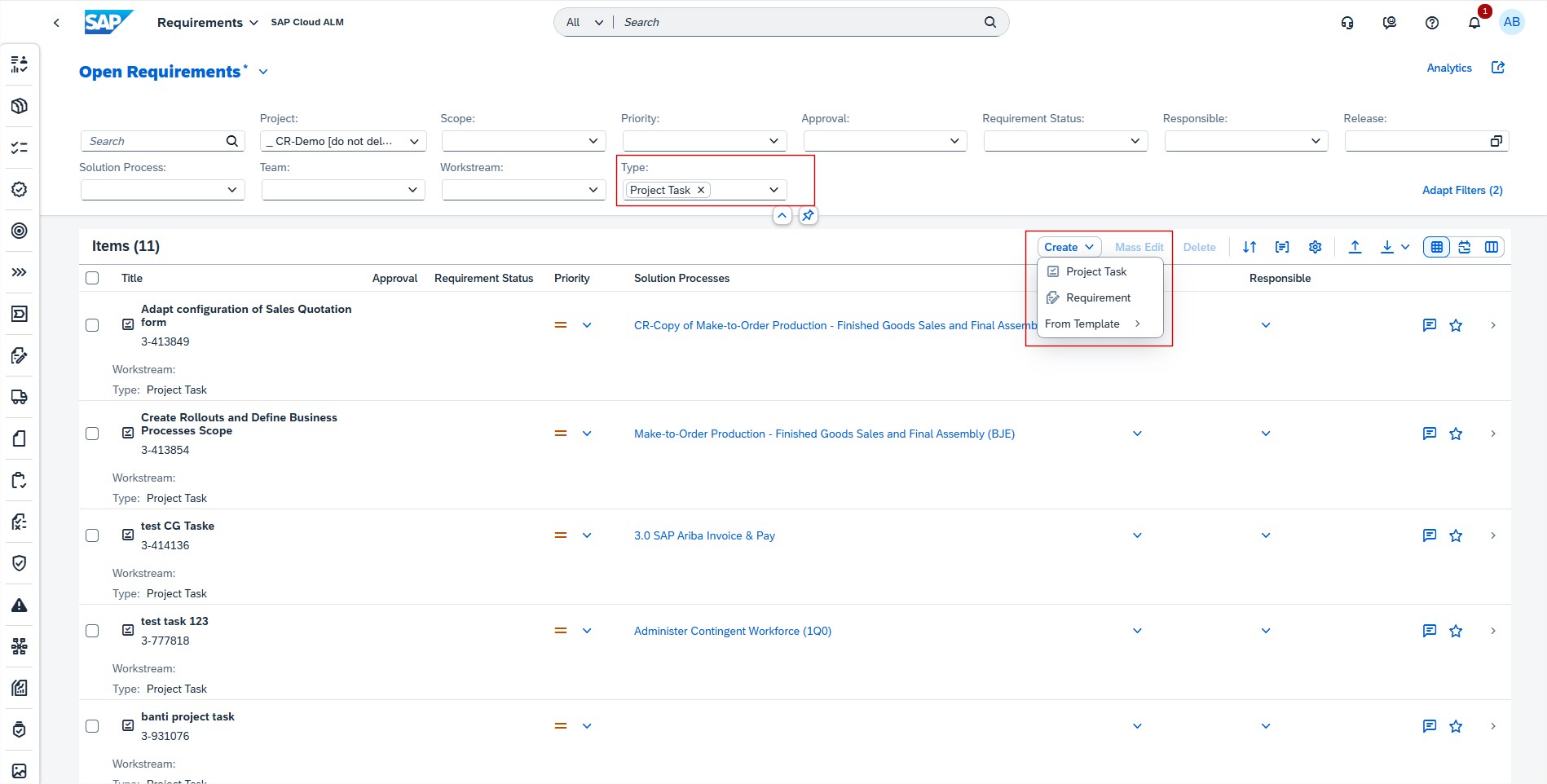
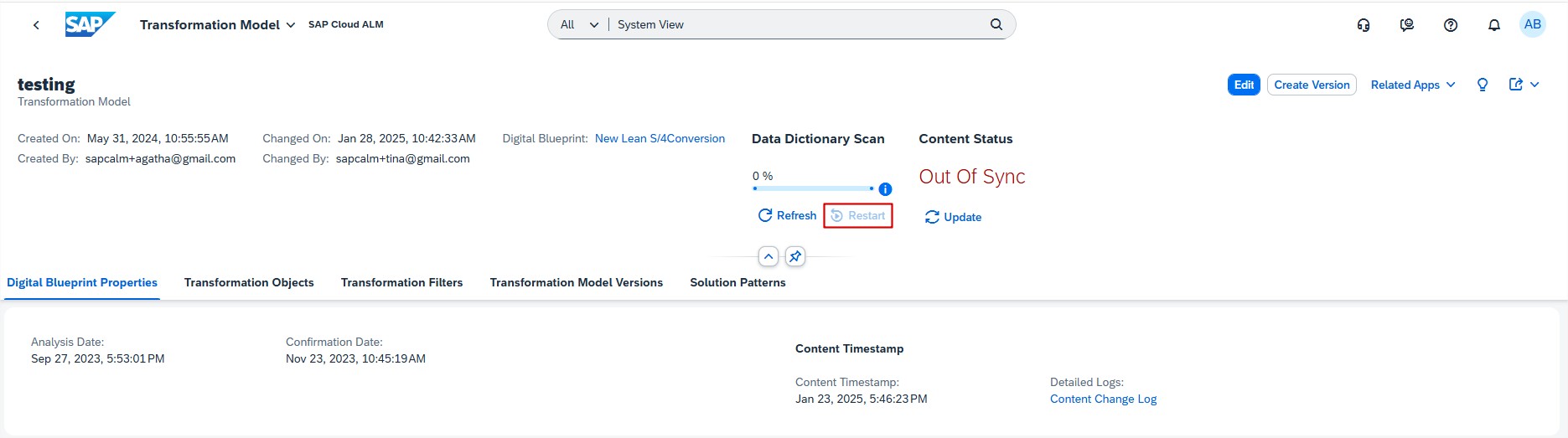
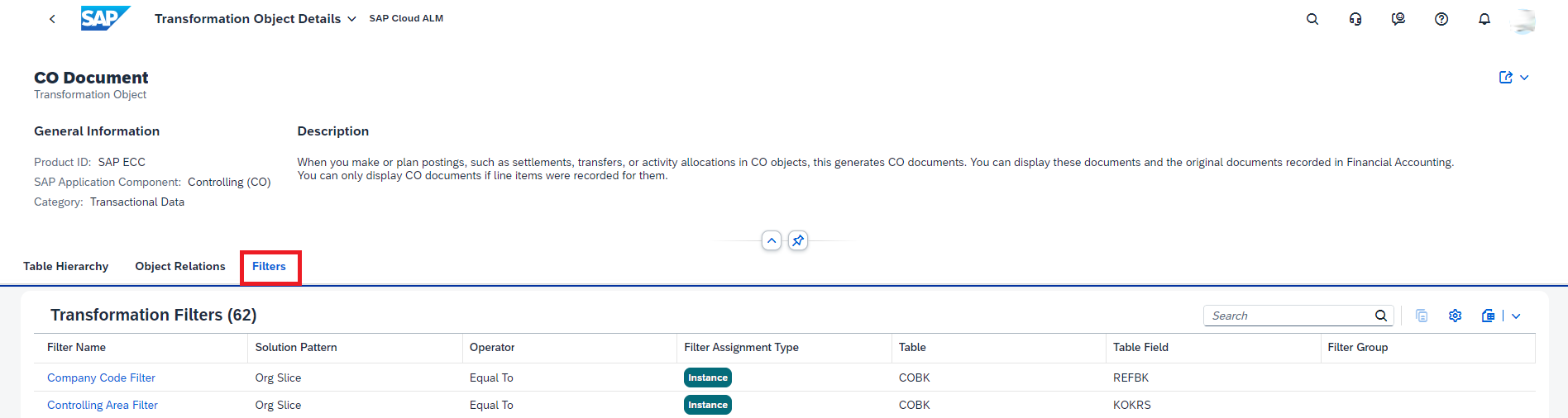
Transformation – Modeling allows now to edit the name and the category of custom transformation objects using the Edit button that is available in the Custom Transformation Objects app.

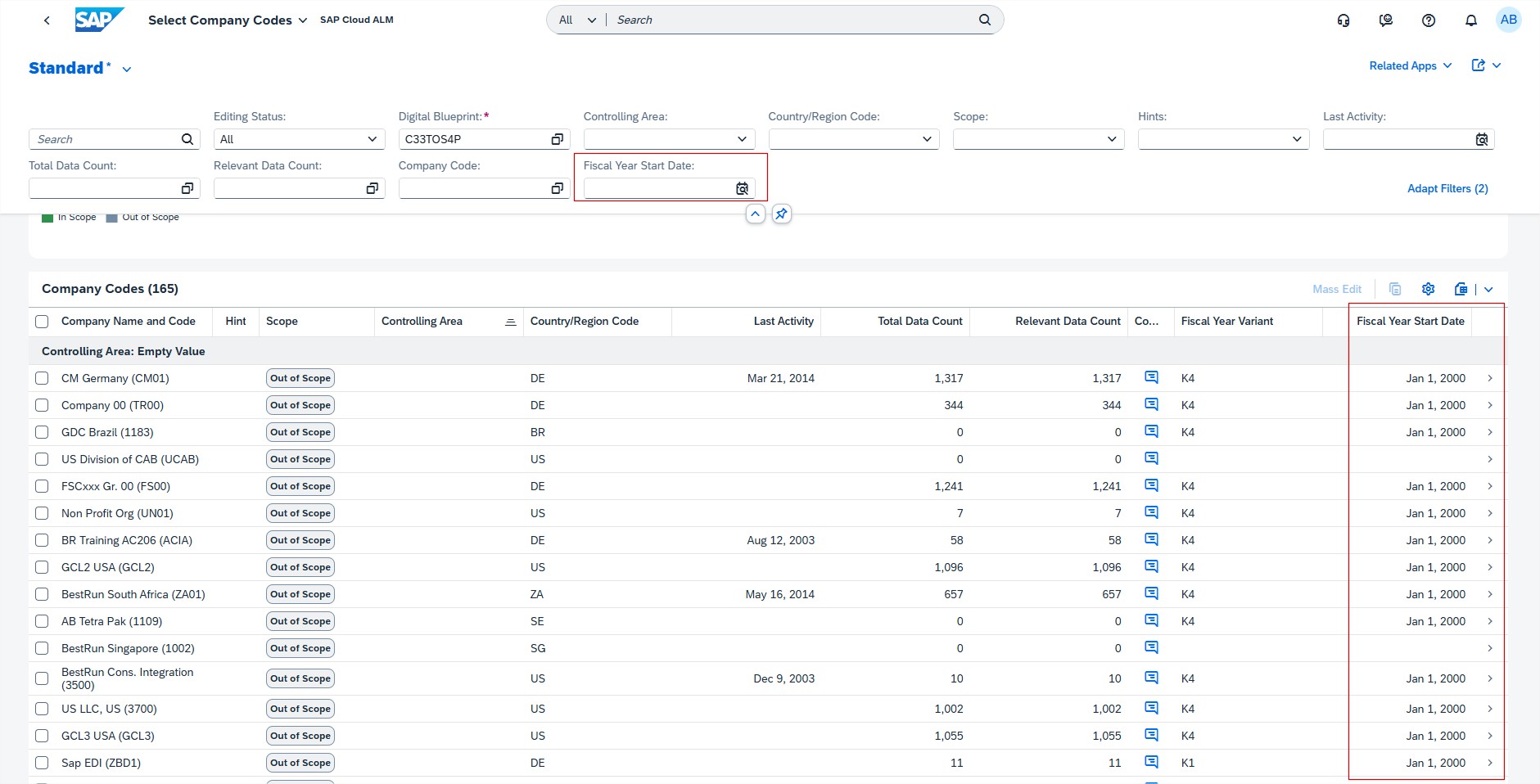
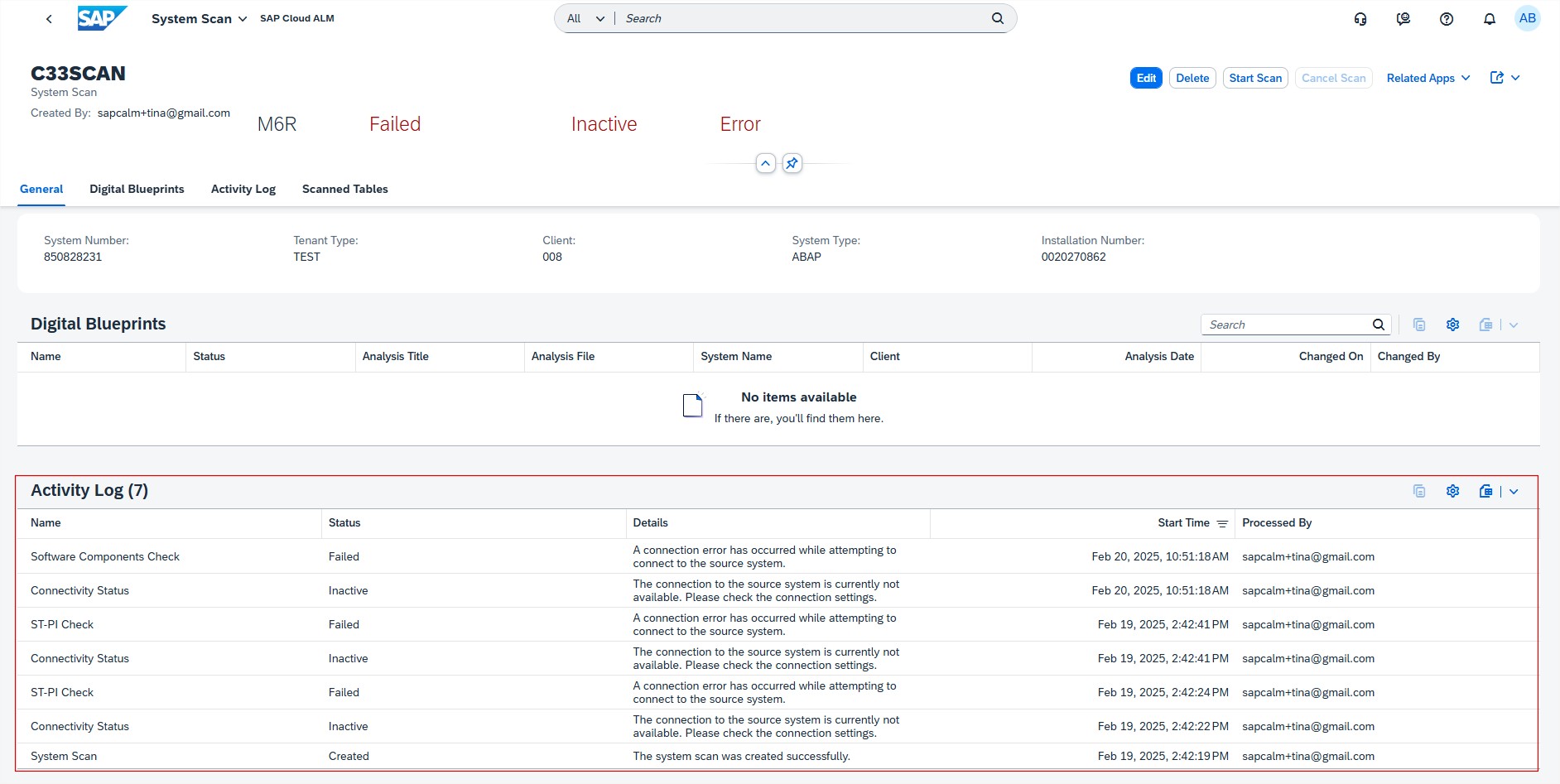
Scoping has new counting status and DDIC status columns for scanned tables. In Manage System Scans app, when in the Scanned Tables tab of the detail view of an individual system scan, now it’s possible to see the counting status for each scanned table in its own column.

Additionally, the DDIC Scan Status has been renamed to DDIC Status, and it displays the status of the DDIC scan for each scanned table. This gives a more granular view of the status of each system scan, allowing to check the tables in ABAP system for which the DDIC scan or counting has failed.

Implementation

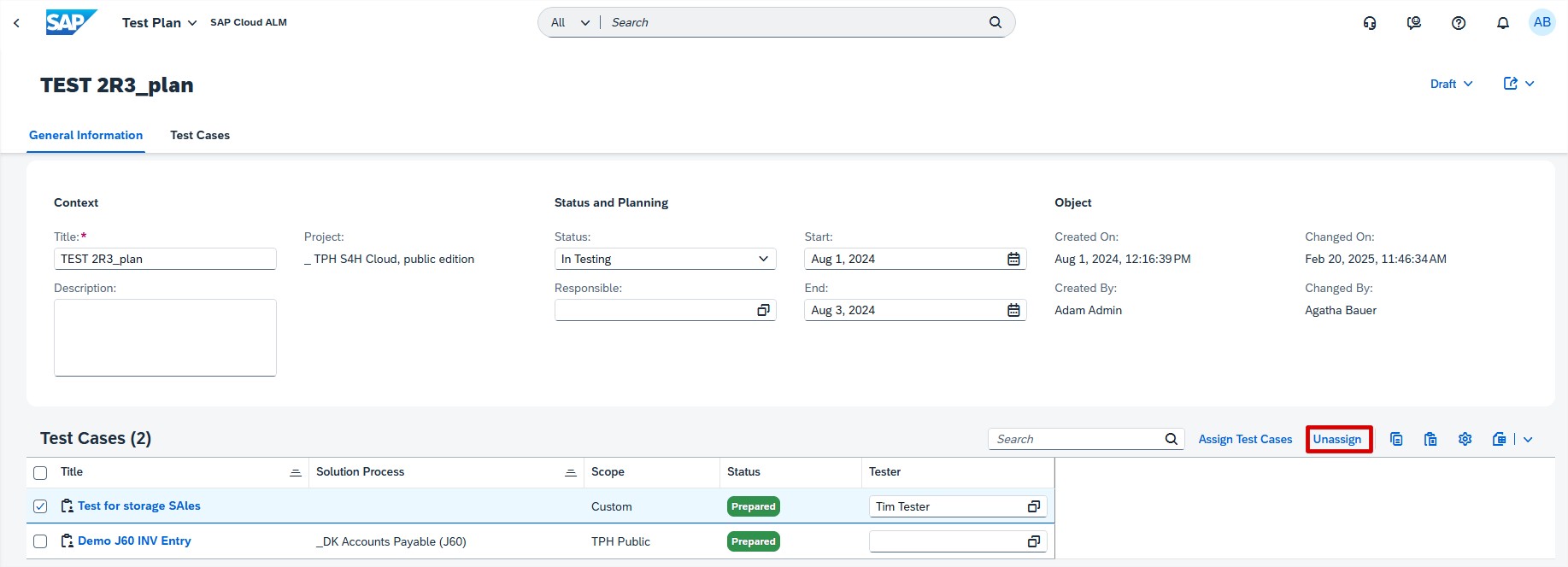
Test Execution allows now to filter by test plan status.

By default, the test case list is filtered by the test plan status In Testing. As a result, test cases without a test plan assignment (status None) and test cases that are assigned to test plans in status Finished aren’t displayed.

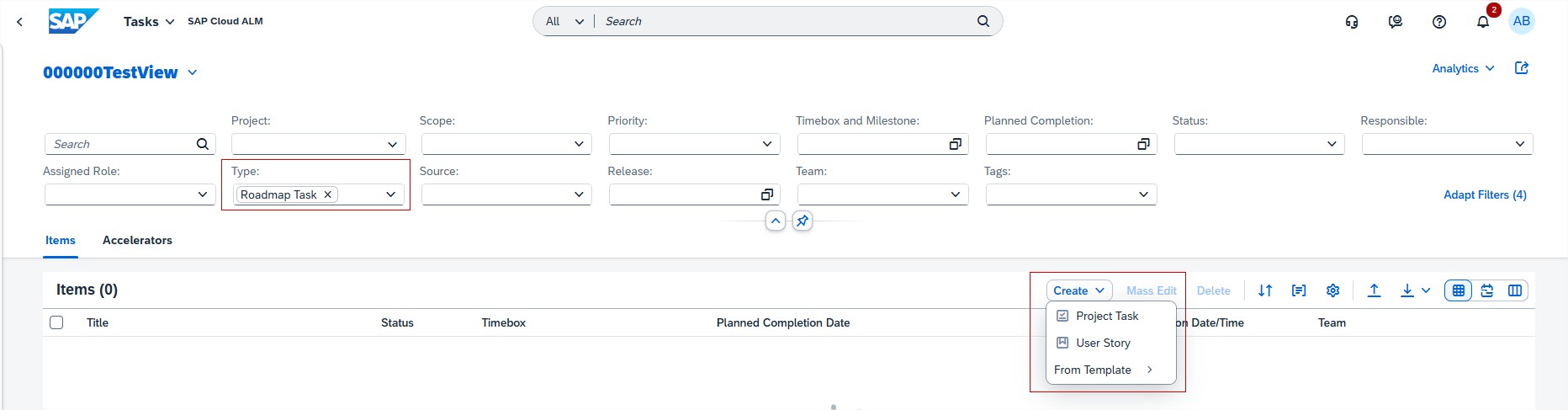
In Tasks it’s now possible to assign multiple solution processes to requirements, defects, user stories, and project tasks.

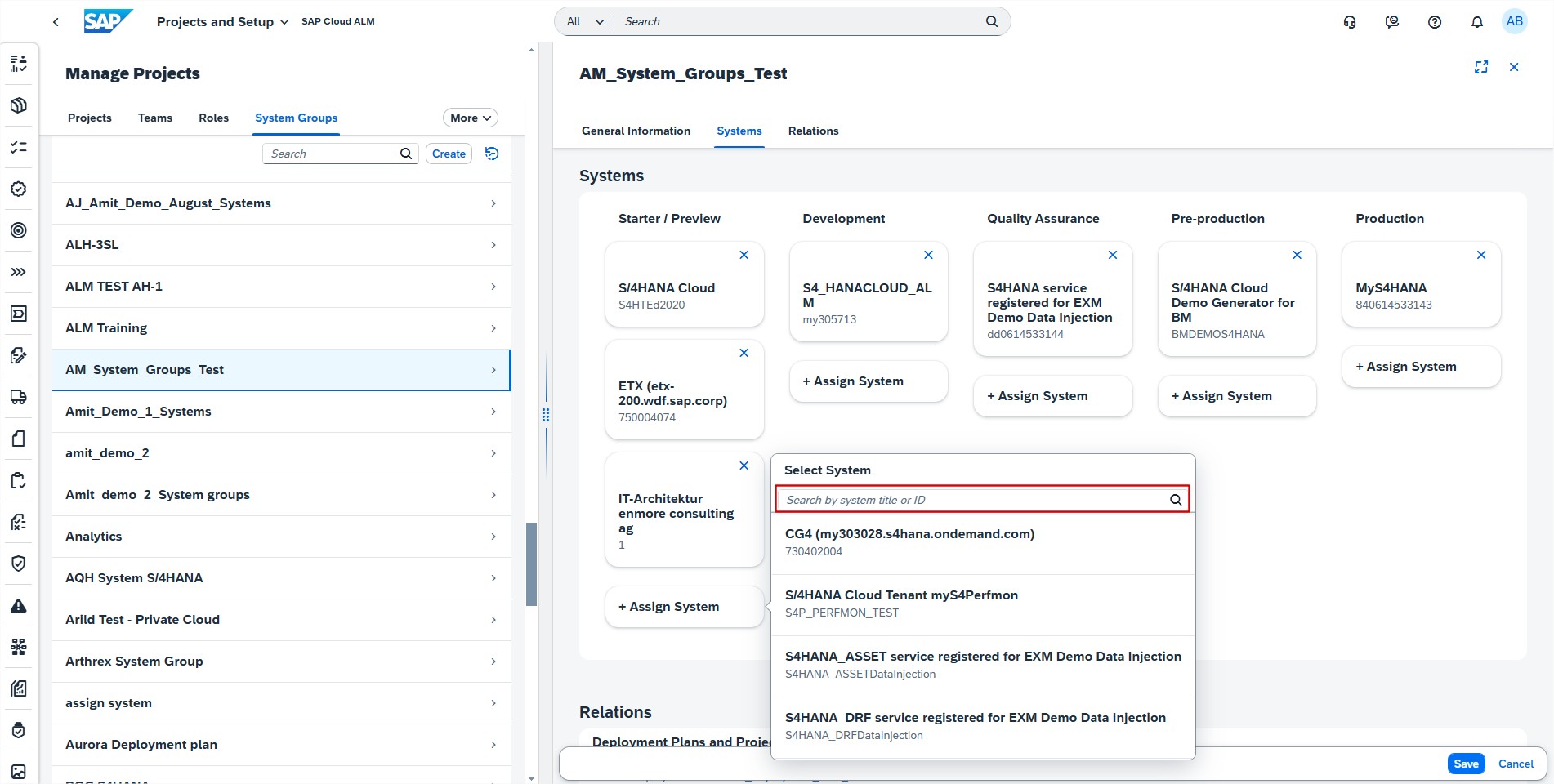
Projects and Setup has now feature to assign transport nodes to the systems in a system group.

Processes allows now to assign the same requirement, user story or project task to multiple solution processes if needed. However, it can be only assigned once within a given solution process (in the context of a project and scope).

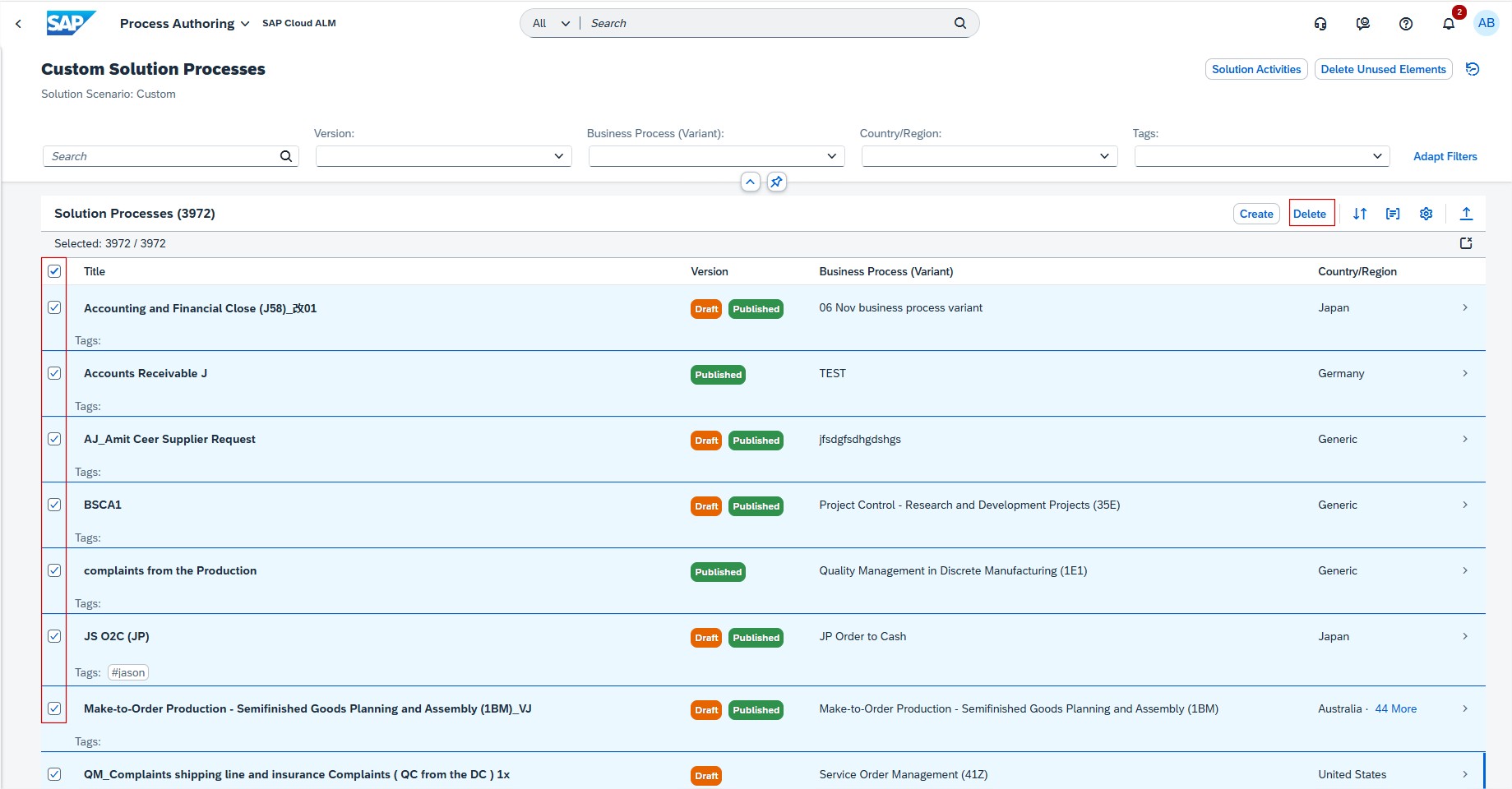
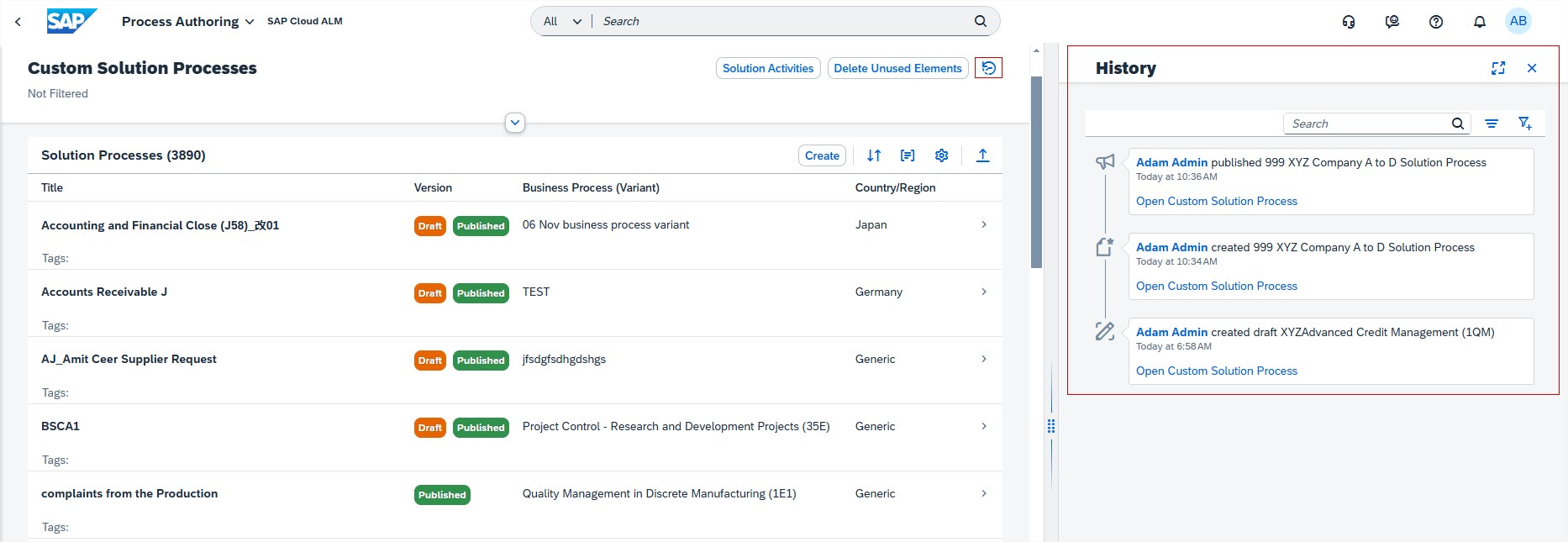
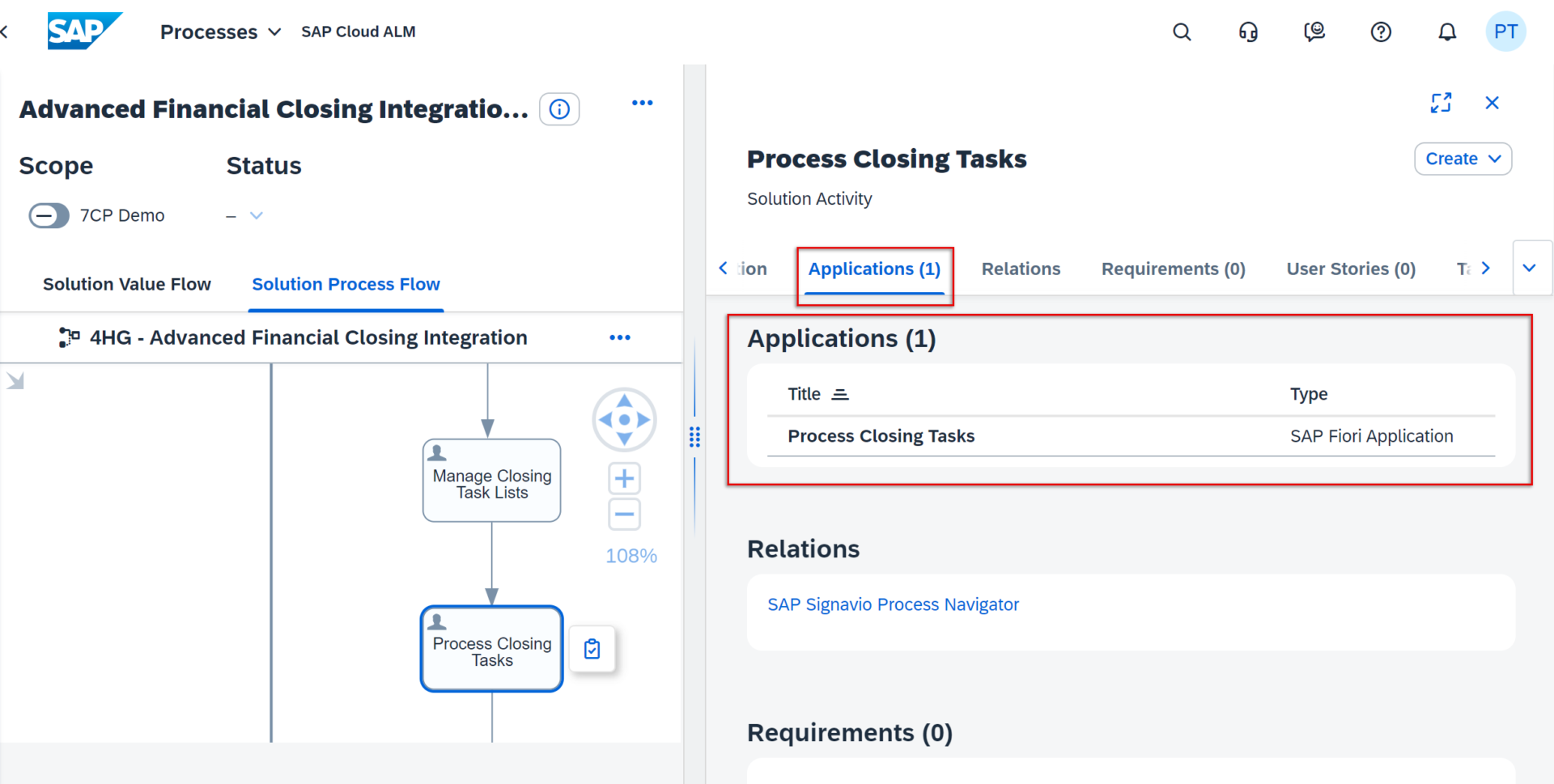
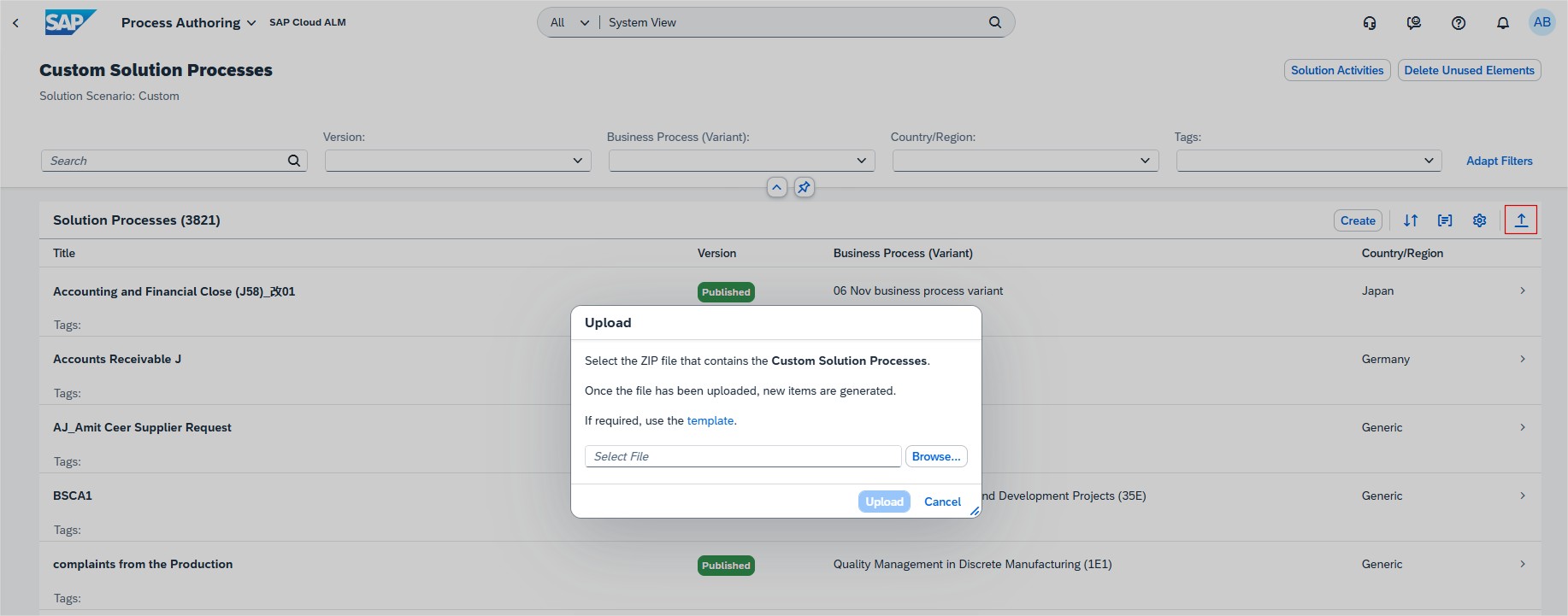
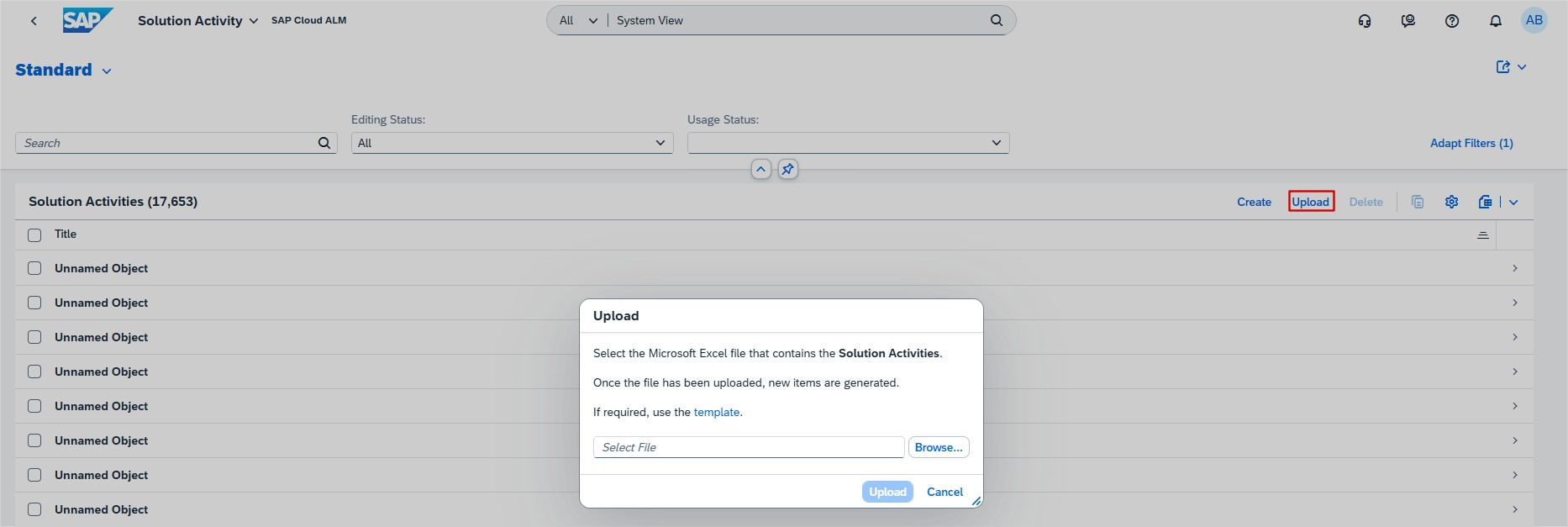
In Process Authoring it’s now possible to display all solution activities in a single list, giving you a central overview for maintaining, creating and deleting your solution activities as required.

In addition to the title, it displays columns showing the date on which the activity was created or changed, and who created or changed it. Similarly, it’s possible to also use corresponding filters and the search field to filter the list of activities.

Some filters and table list columns may be hidden at first. These can be displayed by choosing Adapt filters in the filter bar and the Settings icon in the table header.

From this list, it’s possible to do the following:

  • Create a new solution activity
  • Delete individual solution activities that are not used
  • Mass delete solution activities that are not used
  • Select a solution activity to display its details in the detailed view and edit its description if required using the Rich Text Editor.

The Delete button only becomes active if the solution activity selected is not used anywhere. When editing an existing solution activity, it’s not possible to edit the solution activity title.

Guided Implementation, which is general something new, has two new features.

Sub-tasks are now displayed in the app to help find items resulting from tasks which need to be accomplished.

Inactive phases which contain tasks are now marked with a prefix. Inactive phases without tasks are not displayed.

Cross-Project Overview allows now filter by Last Changed in the Transport Analysis app.

SAP Cloud ALM – What’s New in Week 42, 43 and 44

Welcome to the latest edition of our SAP Cloud ALM update series! Every two weeks, SAP releases a new set of updates to Cloud ALM, bringing a mix of powerful features, performance improvements, and smoother user interactions. In this post, we’re excited to walk you through the most recent updates for Weeks 42, 43, and 44. If you missed our article on the latest updates, you can read it here.

Let’s dive in to discover how these enhancements will elevate your Cloud ALM experience!

Services

Service Delivery Center recently introduced Language switch option, meaning it’s possible to view Service Results and Issues and Actions in the translated languages.

On week 42 this feature has been enhanced and if the Service Results or the Issues and Actions are available only in English, the language switch option is not displayed on the respective screens.

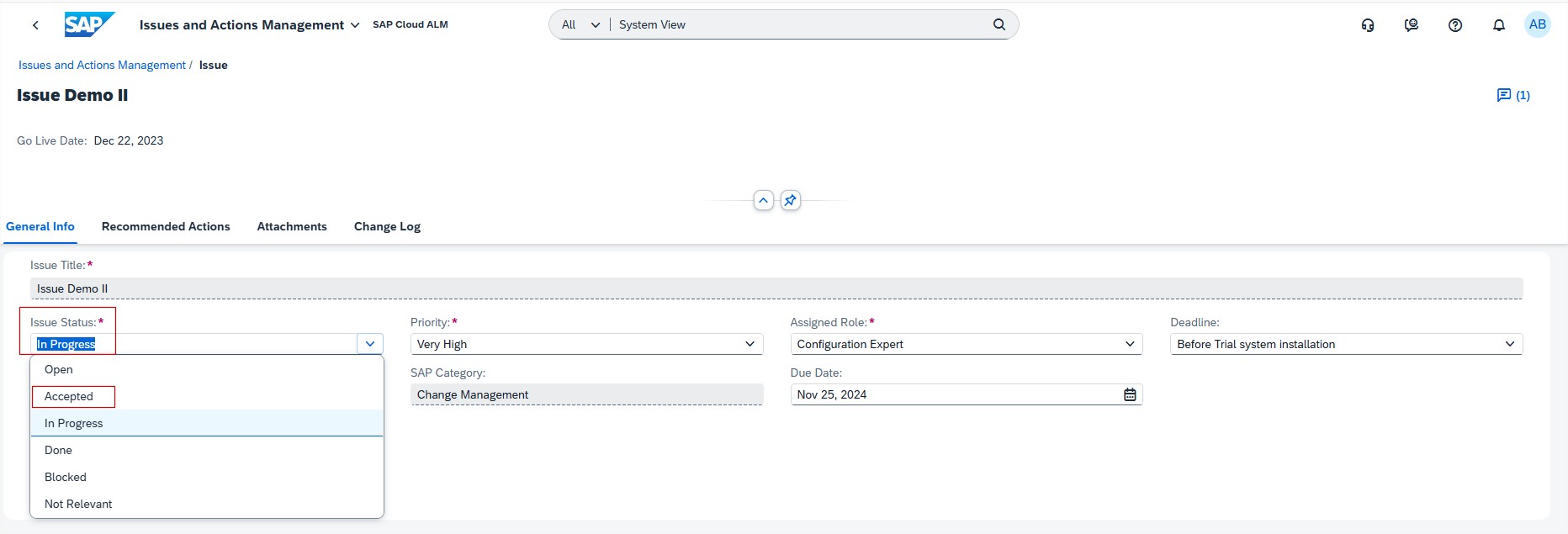
From this week it’s possible also to view latest comments for issues and standalone actions on Overview page of Issues and Actions Management, where is new column for Comment.

SAP Business Transformation Center

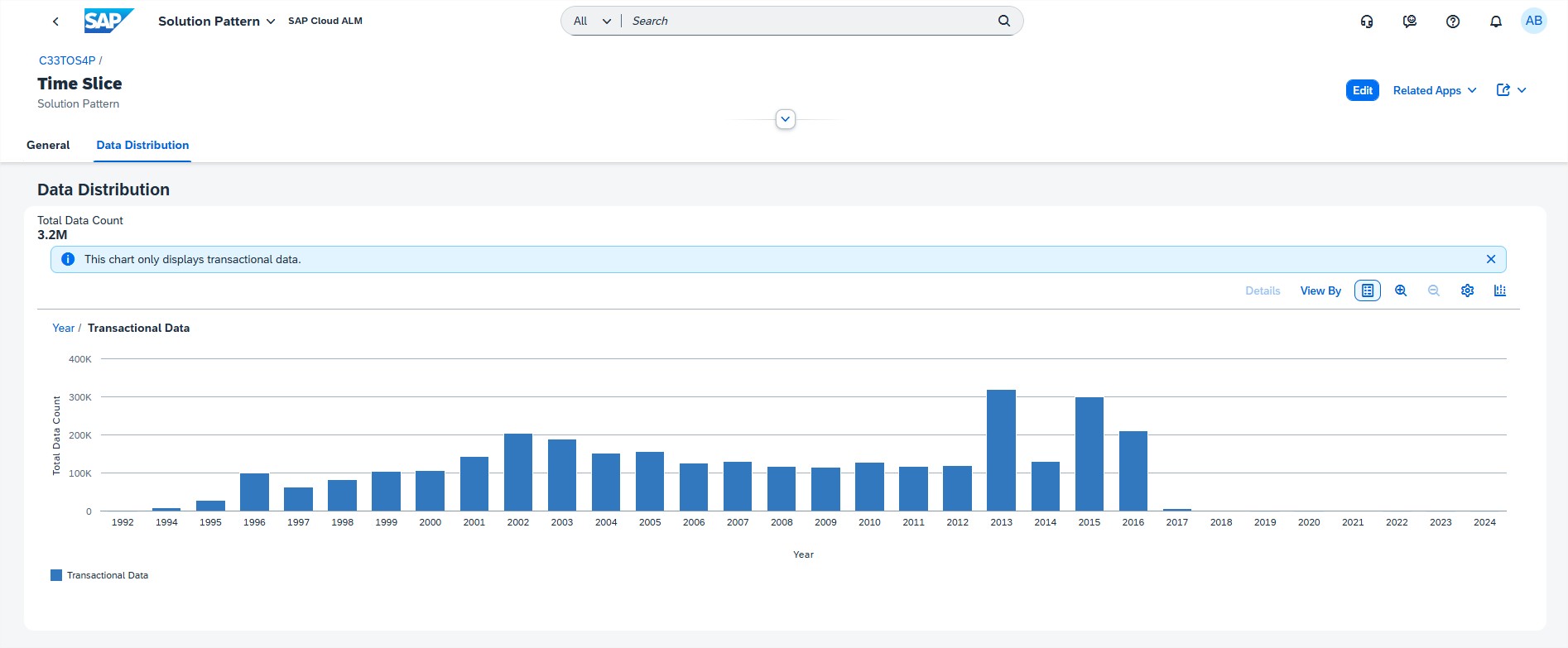
Modeling has now Content Timestamp information of a transformation model. In the Manage Transformation Models app, when in the General tab of the detail view of an individual transformation model, now the Content Timestamp information is displayed.

Implementation

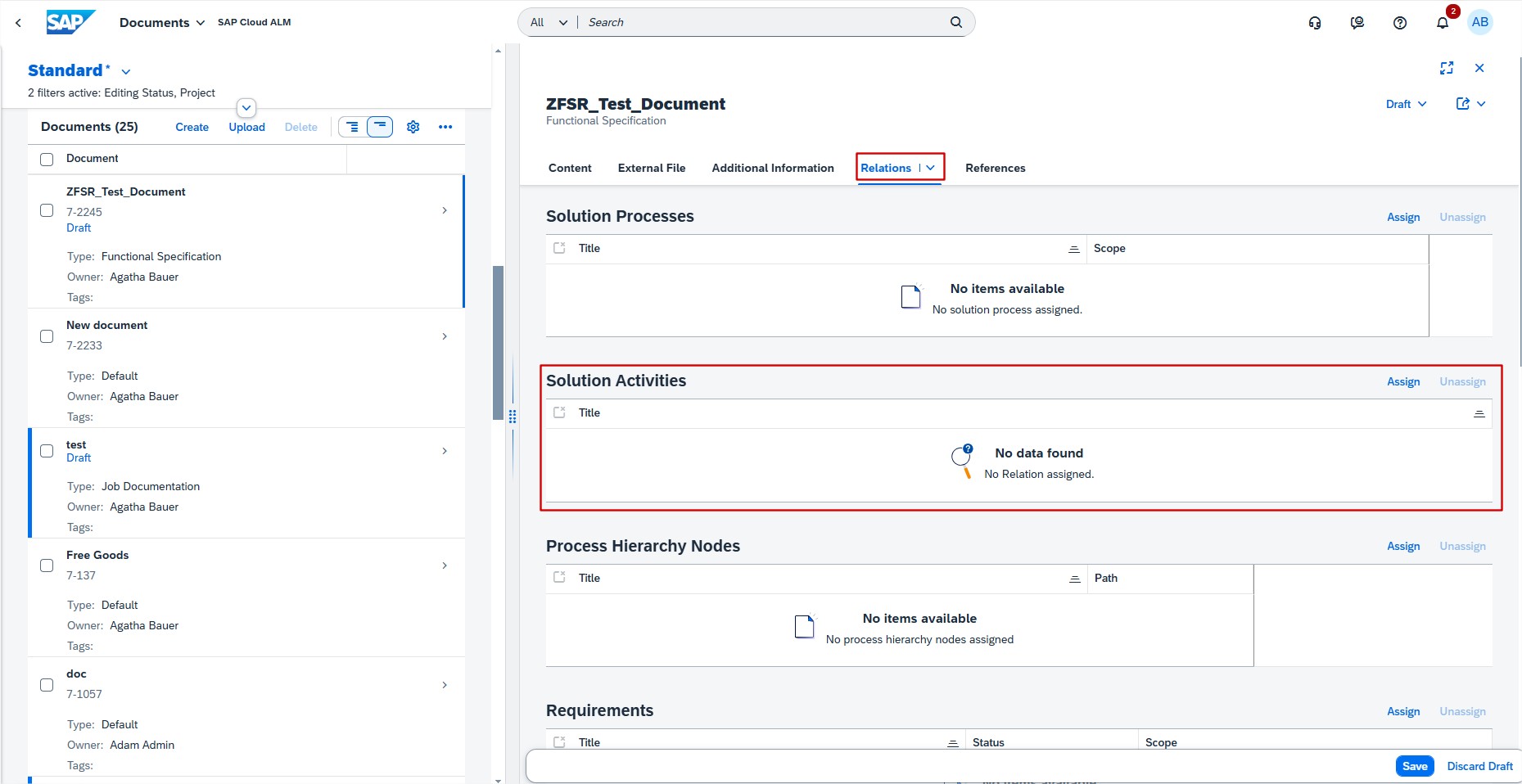
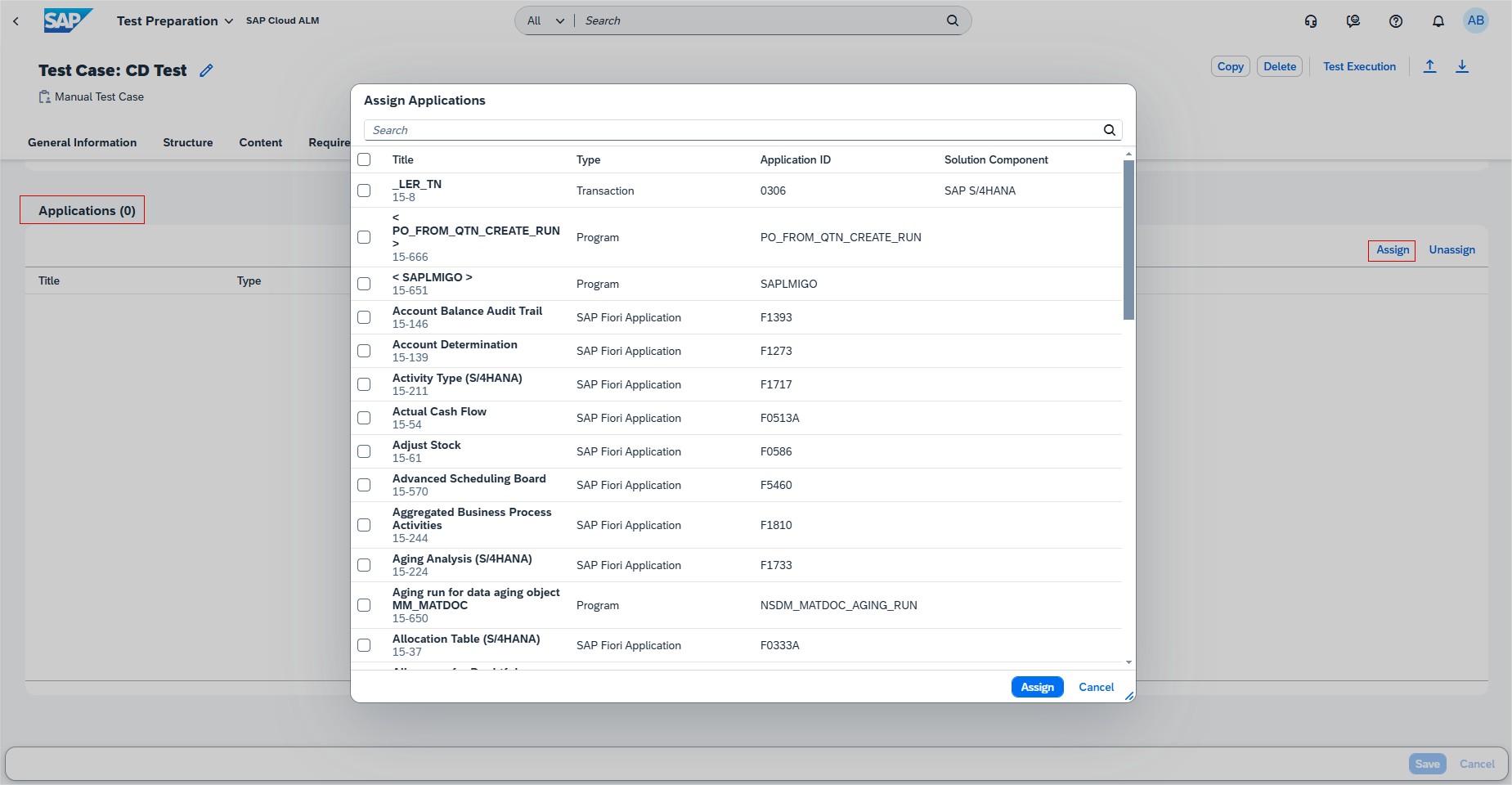
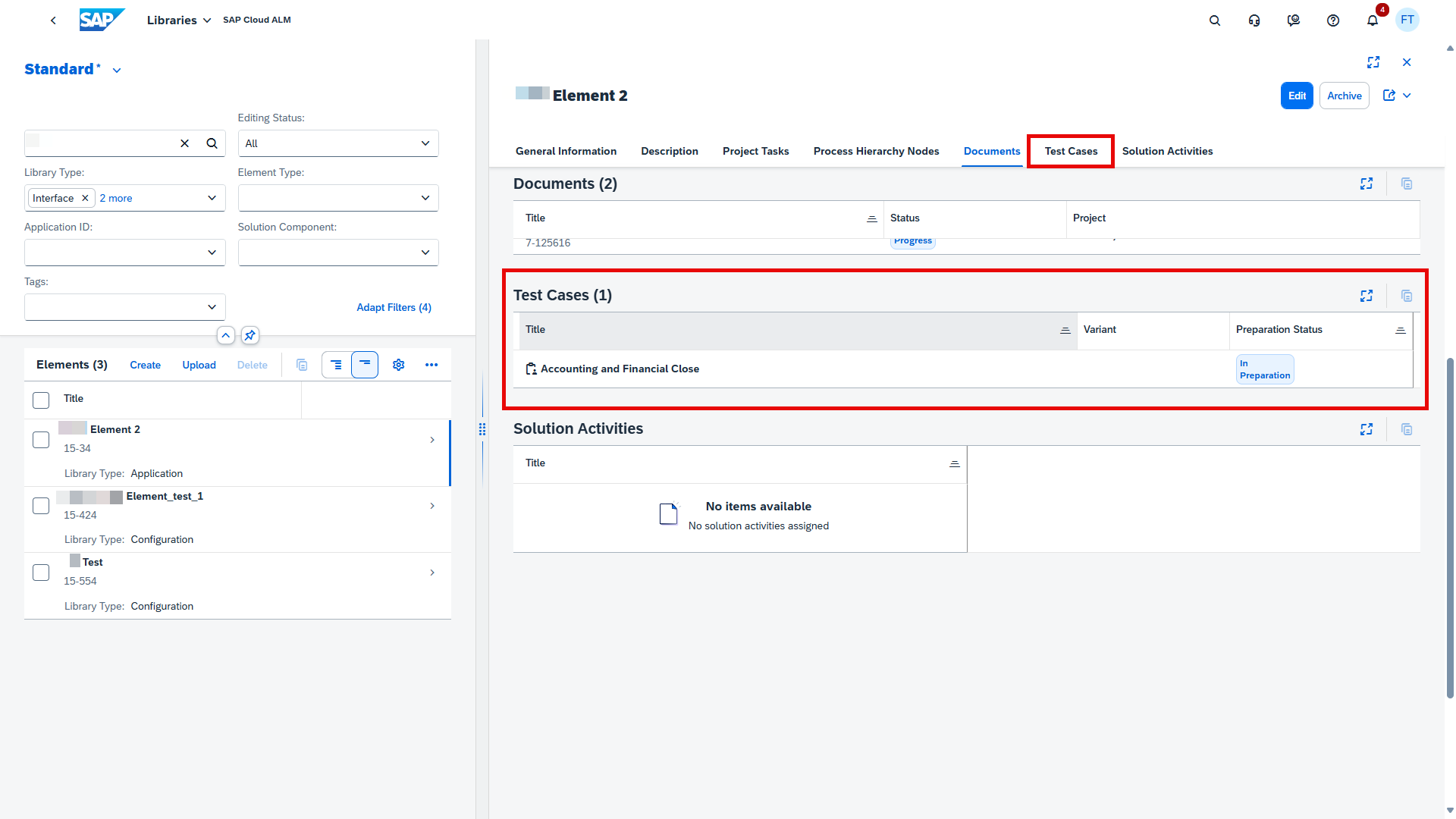
Test Preparation allows now to assign process hierarchy nodes to test cases. It helps to pinpoint the exact part of process structure to which the test case is related.

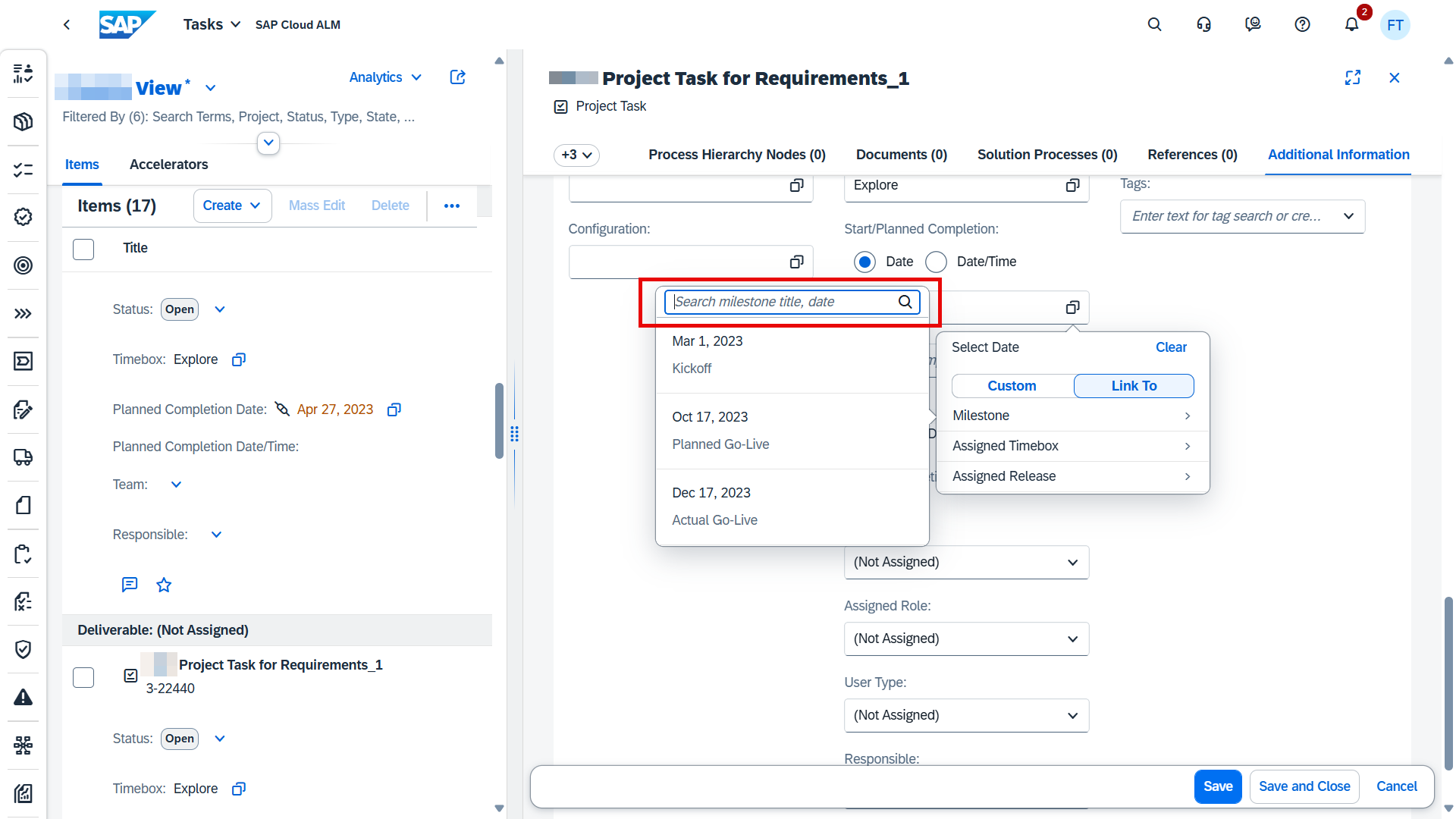
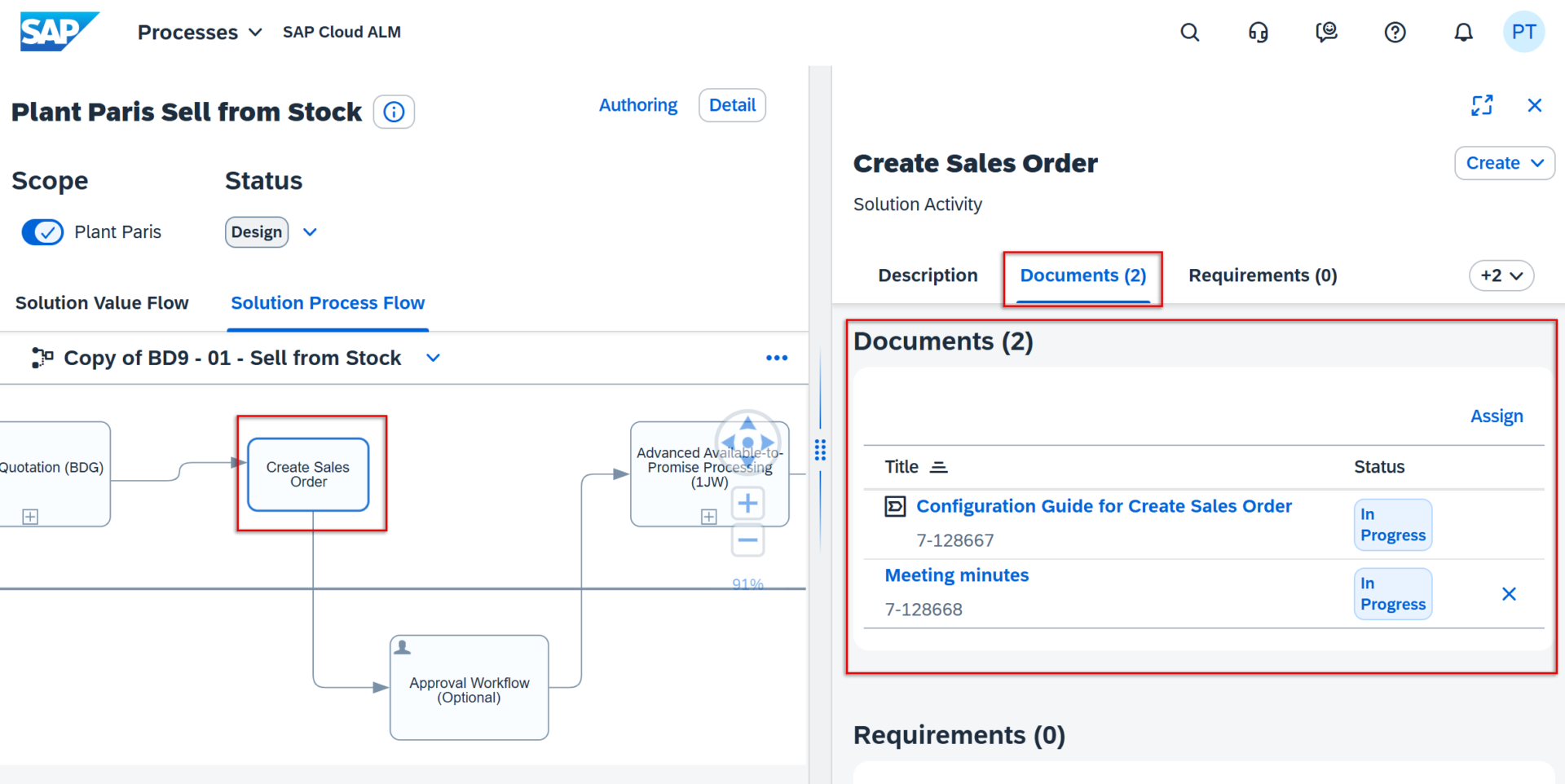
As from this week, when preparing manual and automated test cases, it’s now also possible add links to external documents and web pages as references. This allows testers to easily access them later, during the test execution. For instance, include links to process descriptions or learning material to support testers who may be unfamiliar with the test subject, or to test data sheets.

In Process Authoring it’s now possible to lock diagrams that are imported via public APIs from external sources such as Signavio, if the right parameter is used. This ensures that modelling is only done is one tool, stopping them from being edited or deleted in SAP Cloud ALM, at least initially, thereby avoiding multiple different edited versions potentially existing across customer landscapes.

Such diagrams can only be unlocked by users who have either the Global Administrator or newly introduced Process Administrator role. In particular, Process Administrator role is needed to unlock custom solution process flow diagrams that have been locked. However, users are still able to add other diagrams to the affected solution process. In addition, note that locking a diagram doesn’t prevent users being able to delete its entire solution process (including the locked diagram).

Keep in mind that:

  • The lock button is only displayed if the solution process is in a draft version.
  • If creating a new draft for a solution process after it has been published, a diagram that was locked in the previous version will still be locked.
  • The Unlock button is only shown for users who have one of the roles mentioned above.

Landscapes – Design and Visualization has new feature to access specific landscape objects, Landscapes app now automatically applies the Access Control Lists that are defined for the Landscape Management app.

In Cross-Project Overview, the Process Hierarchy Assignment app now features a new Applications column.

In Analytics, the Requirement Traceability app now features a Solution Process column.

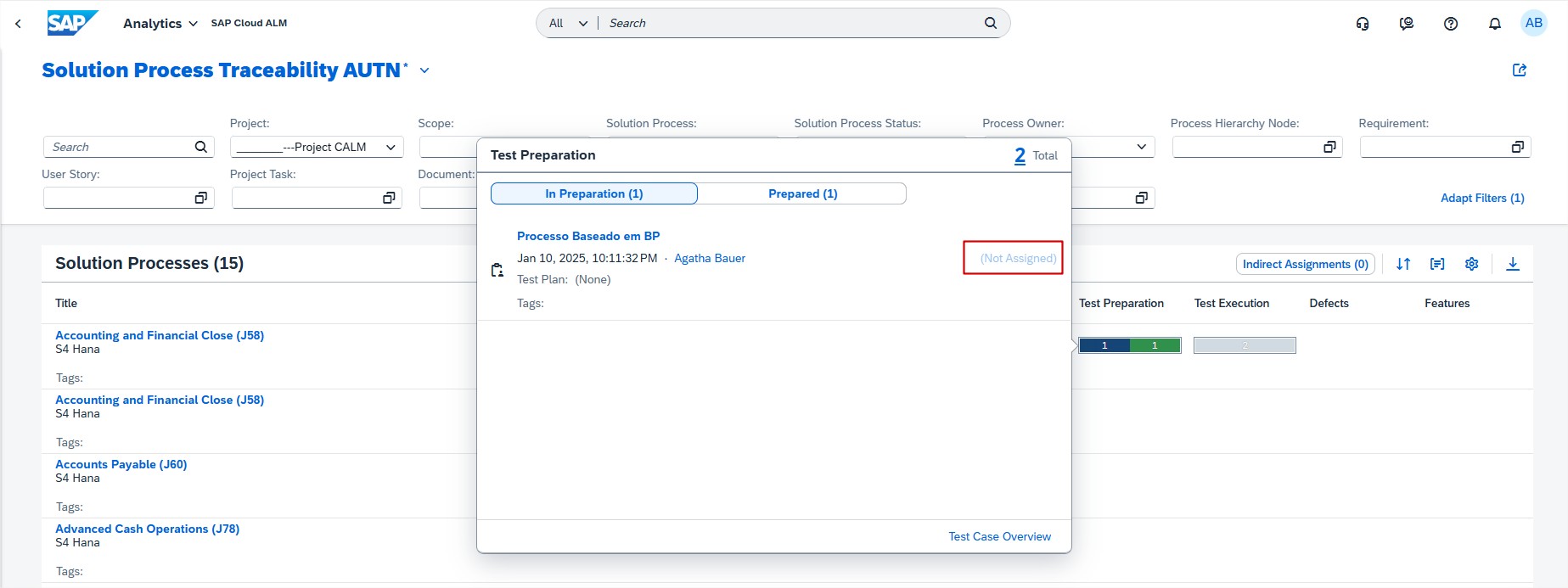
From this week, when a requirement is assigned to a test case, and vice versa, all test occurrences for a test case which are assigned in different test plans are shown in the test execution popover. Additionally, test plans are displayed.

The popover appears in the Solution Process Traceability (as indirect assignment), in the Requirement Traceability, and User Story Traceability apps.

Few additional updates for Implementation area were introduced on week 43. In Tasks, Quality gate status changes are now restricted.

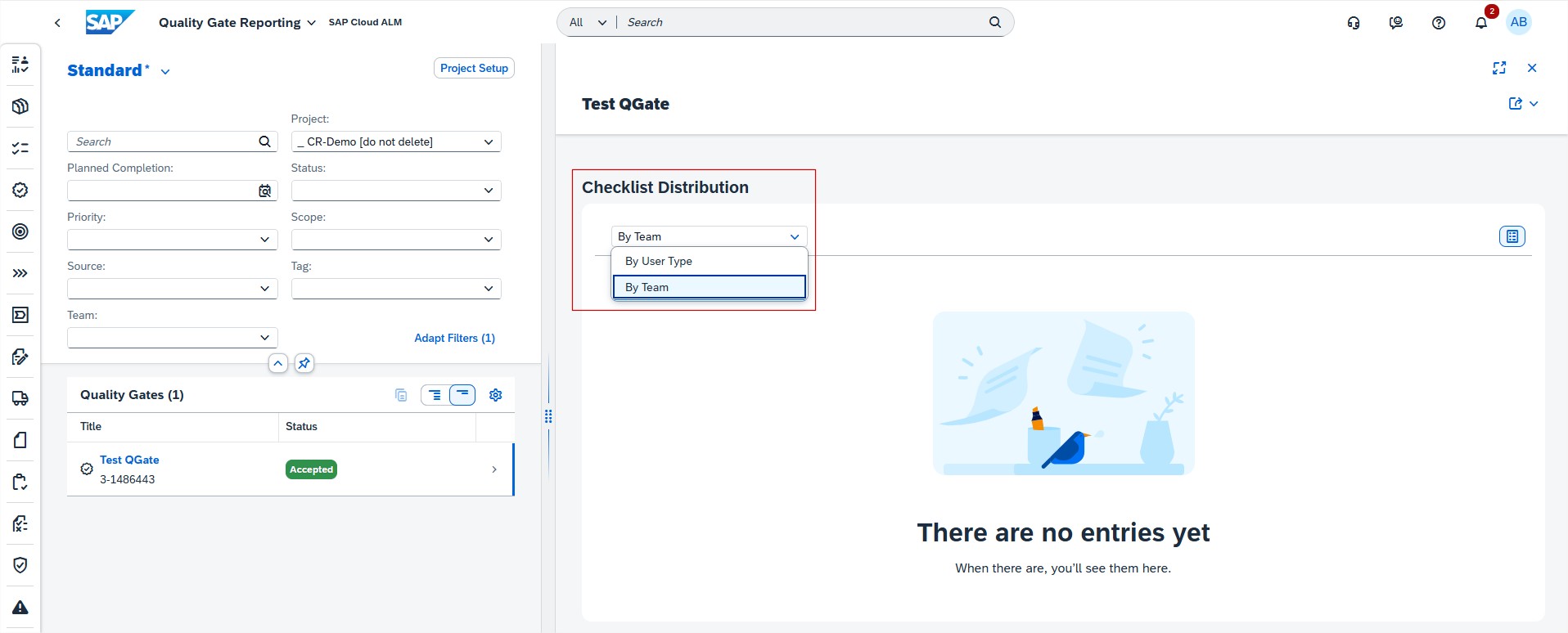
To make sure that all relevant checklist items for a quality gate have been checked, the quality gate status can now only be set to Accepted or Conditionally Accepted when the assigned checklist items have a valid status. If a quality gate status was set to Accepted or Conditionally Accepted, the statuses of the assigned checklist items can’t be changed.

As of this week, the Tasks app also allows to mass assign project tasks to quality gates.

Requirements allows now to navigate directly from the test case section in the detail view of a requirement to the Requirement Traceability app where it’s possible to view the relevant test execution statuses.

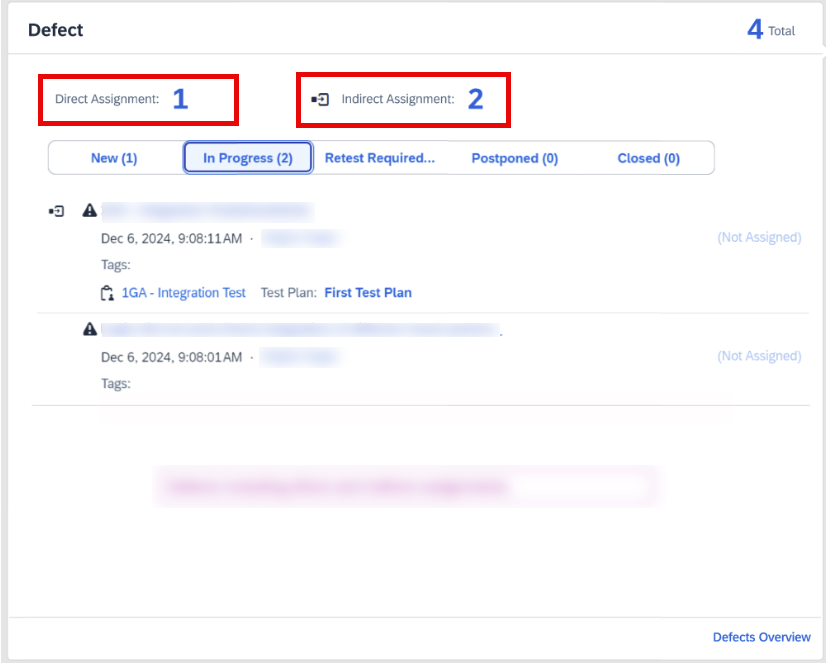
In Defects, when creating a defect from a test case, the related test plan is now displayed in the detail view of the defect. From there, it’s possible to navigate directly to the related test plan. For the defect list, a filter for test plans was added.

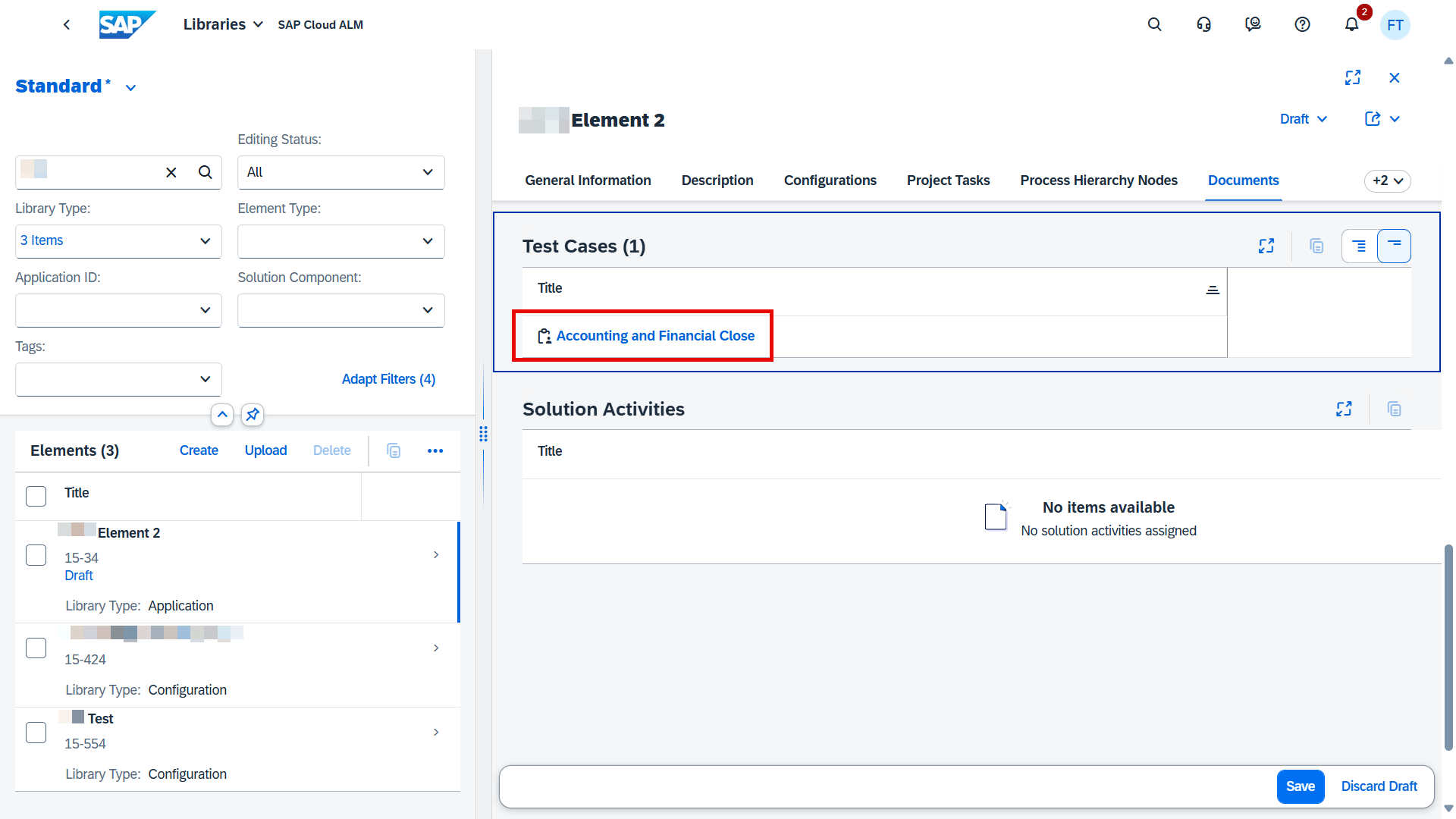
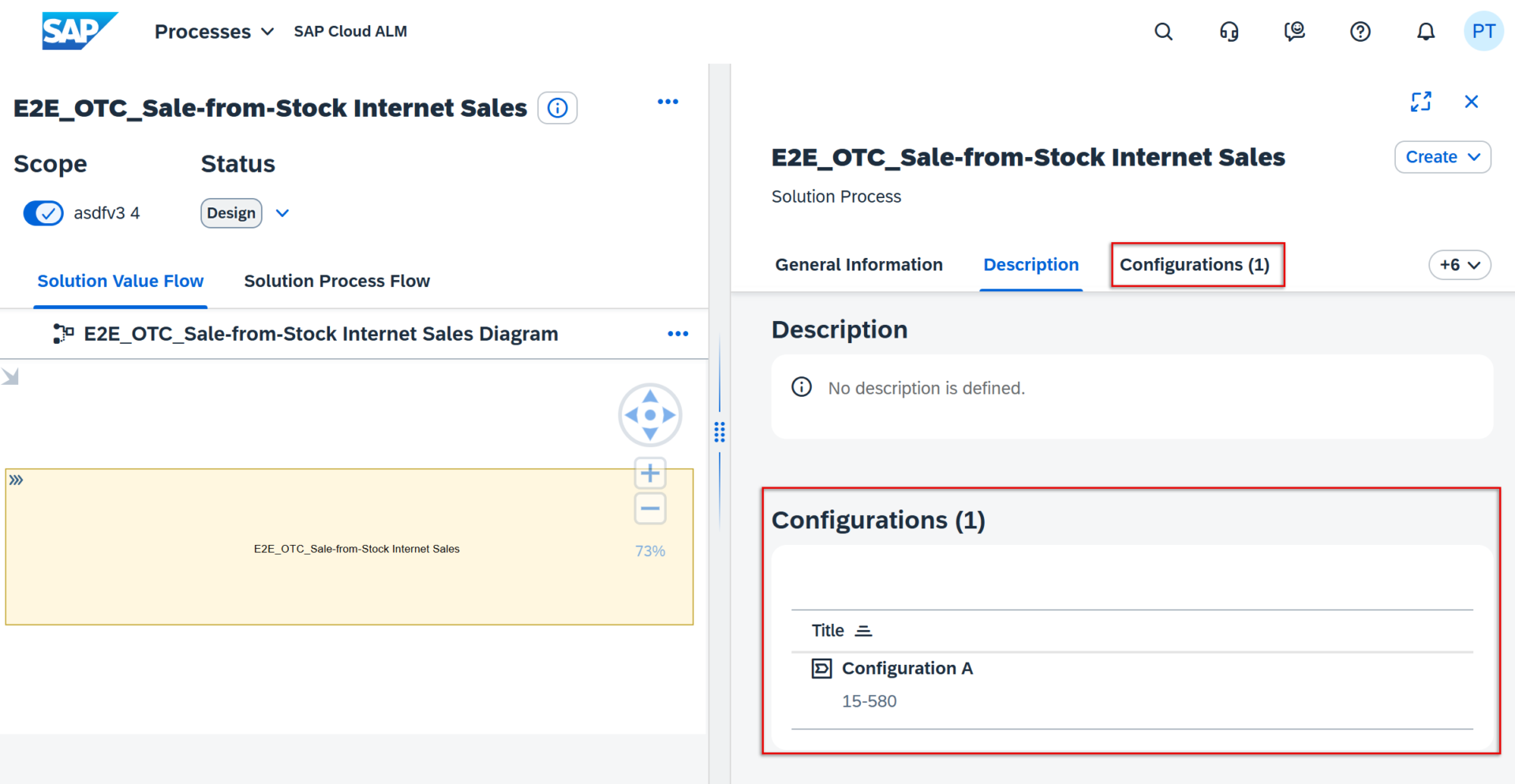
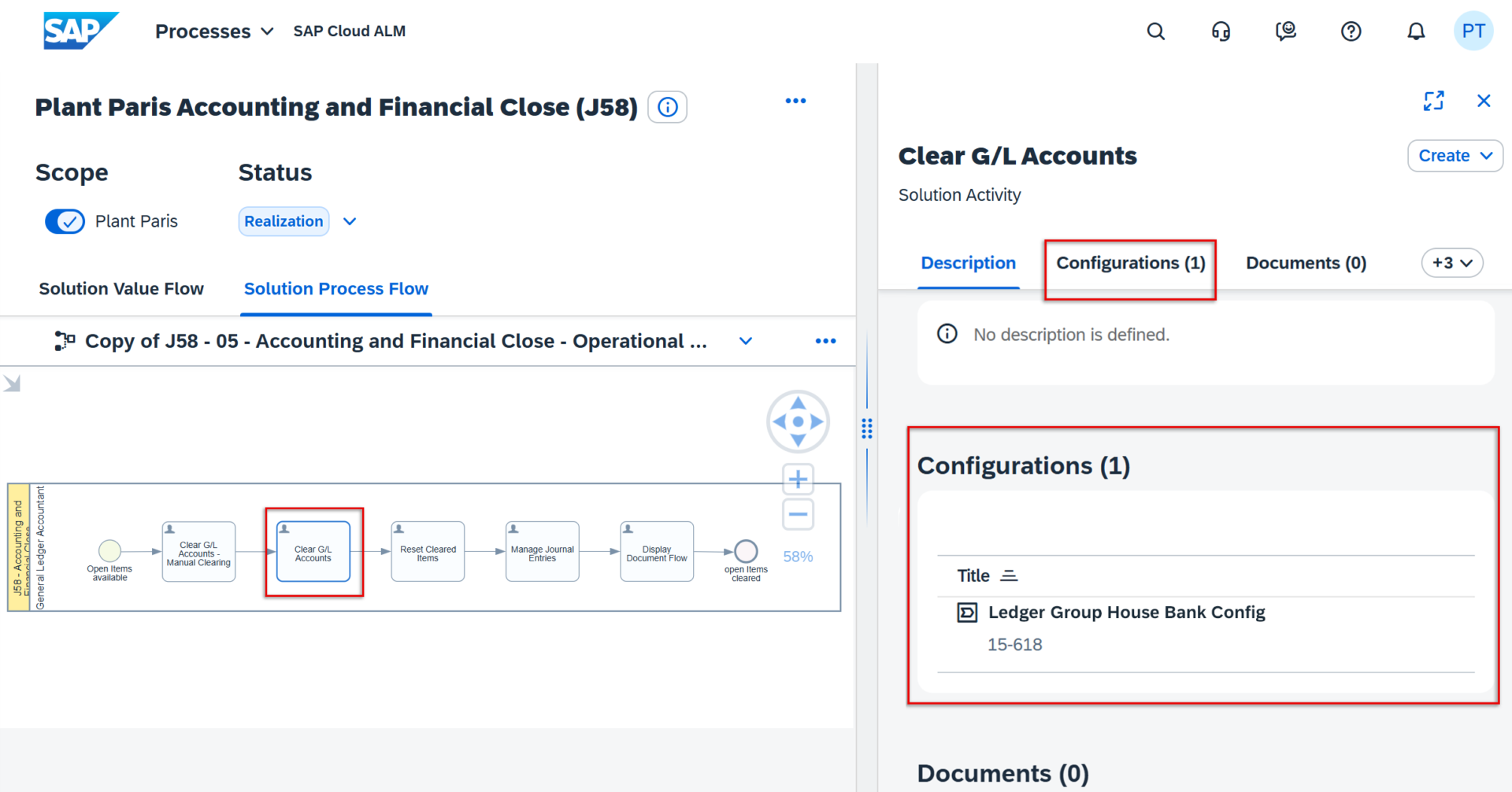
As of this week there’s new library type available in Libraries. It’s now possible create elements of the library type Configuration and Configuration Activities.

Operations

Intelligent Event Processing allows now to specify the time zone for email and chat notifications.

When configured, the reporting time stamps in the notifications for Send Email to and Send Chat Notification event actions are displayed in the configured time zone. It applies to Notifications from all different monitoring applications that have alerting capabilities.

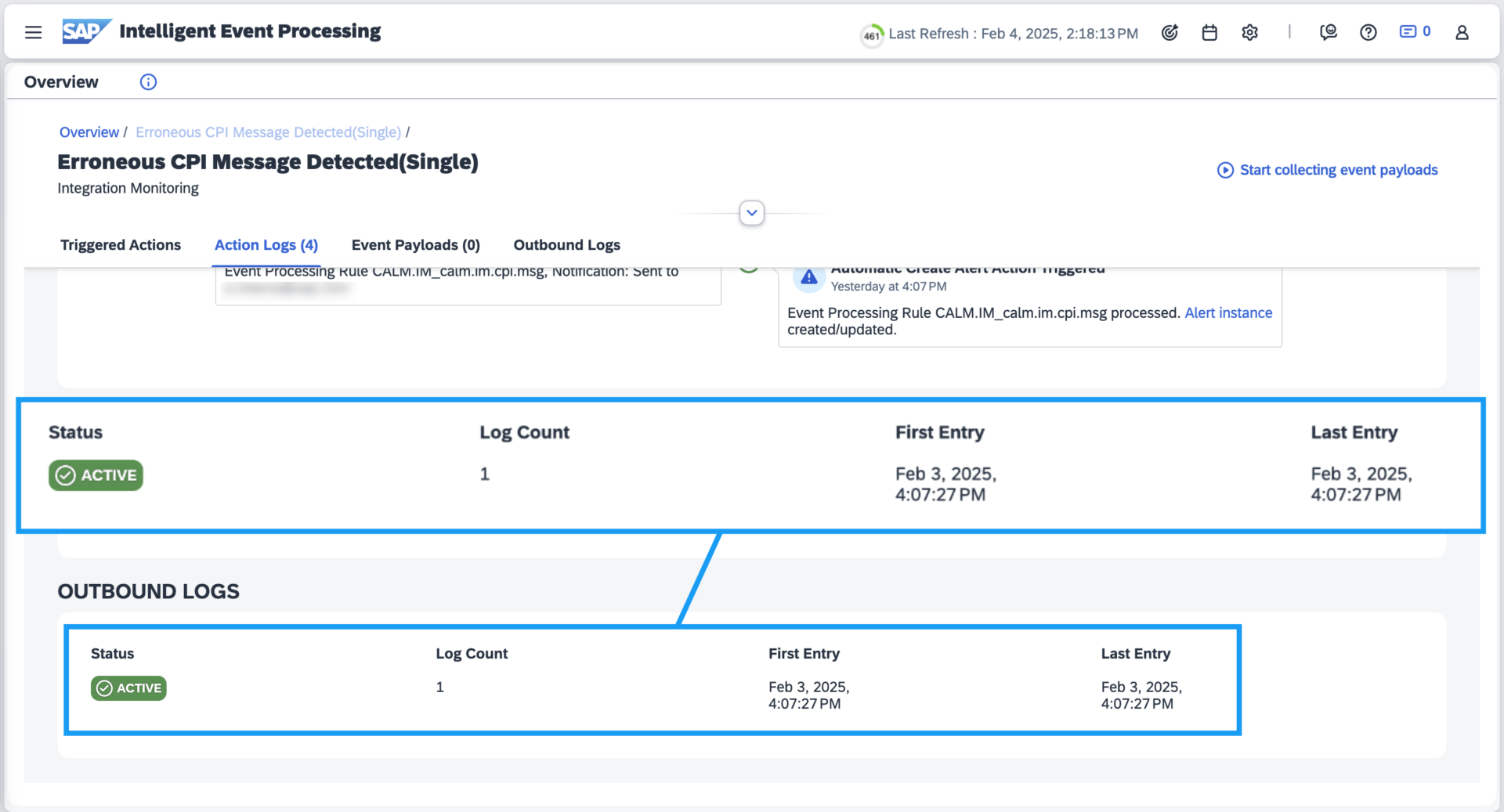
Addition to Time Zone for Email and Chat Notifications, there’s a new event action, Store Event Payload for 24 Hours. When enabled, the event payload is stored in the Intelligent Event Processing app data store. It’s then possible to access the data store and consume the event payloads using the Raw Data Outbound Logs API for Intelligent Event Processing.

This event action is available for events in the following apps:

  • Business Service Management
  • Integration & Exception Monitoring
  • Intelligent Event Processing
  • Job & Automation Monitoring
  • Synthetic User Monitoring

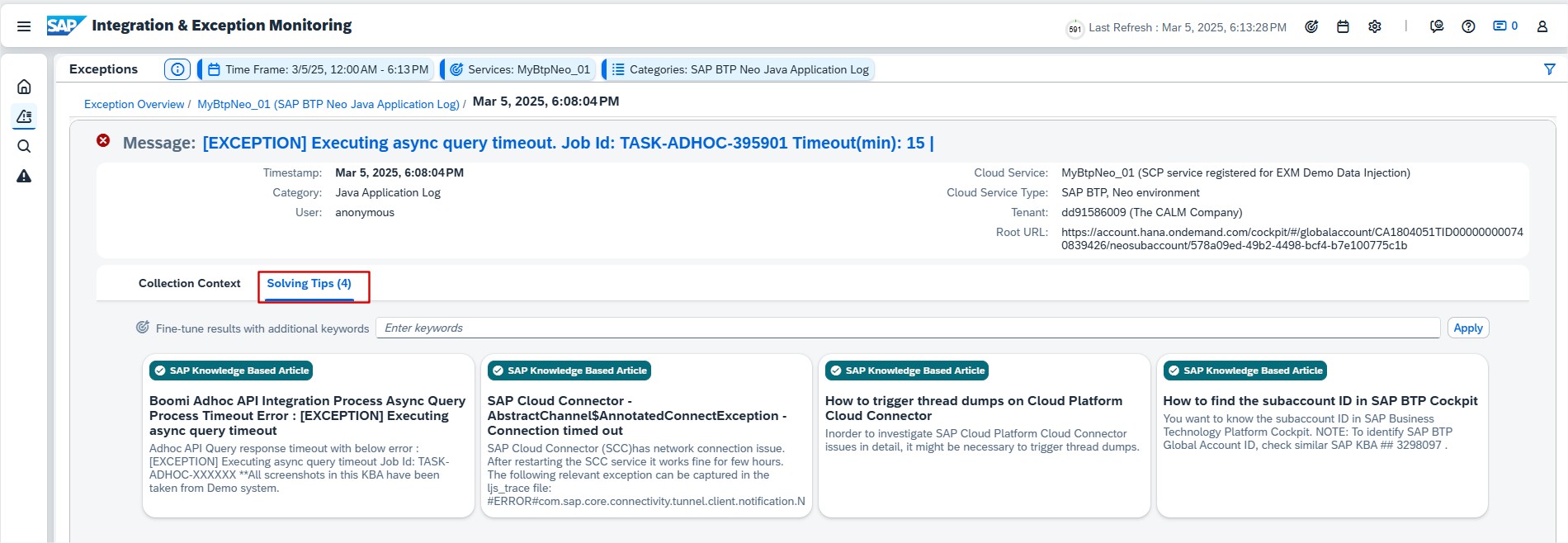
In Integration & Exception Monitoring it’s now possible to configure aggregation for Exceptions and edit the retention period for the aggregated data. Retention period of aggregated Exceptions has to be between 0 to 365 days.

Synthetic User Monitoring has new configuration feature called Threshold Sensitives.

If the quality of the Scenario Thresholds is Predictive, it’s now possible to adjust the sensitivity of the dynamic thresholds for every scenario runner.

The way sensitivity is set determines how the rating responds to minor or major performance deterioration. There is option to adjust two different sensitivities:

  • General

Changing this sensitivity adjusts the threshold values for both poor and critical performance. It’s done using a single slider. The higher the sensitivity value, the more significant the performance deterioration needs to be before a threshold value is exceeded.

  • Yellow-to-Red

Changing this sensitivityn adjusts the threshold value for critical performance only. The higher the sensitivity value, the more significant the performance deterioration needs to be before the yellow-to-red threshold value is exceeded.

To better understand the impact of changing the sensitivity on the threshold values for poor and critical performance, select Preview Thresholds.

Here, is displayed both the graph for the development of current dynamic thresholds over time and the corresponding preview for the thresholds if sensitives have been adjusted. Selecting Apply,reports the changes in the configuration and closes the preview popup.

Now it’s possible to save or discard changes.

Job & Automation Monitoring has now more options in Overview cards. Selecting more displays following actions for that managed component:

  • Edit the configuration
  • Navigate to the monitoring details
  • Navigate to the alerting details

Administration

External API Management allows now to mark subscriptions as “Critical” to enable Self-Monitoring capability.

Test Orchestration with SAP Cloud ALM

Accelerated implementation that empowers modern businesses

Effective testing is crucial for smooth business operations, especially when it comes to SAP-Implementations and-Upgrades. SAP Cloud ALM (Application Lifecycle Management)is a cloud-based solution that provides an integrated platform for managing the entire lifecycle, from project planning to testing. In this blog, we’ll look at the key features of test orchestration in SAP Cloud ALM, as well as the benefits of using test automation, analysis, and planning capabilities.

Introduction to Test Orchestration in SAP Cloud ALM

SAP Cloud ALM offers a comprehensive orchestration platform for all types of functional tests that can be linked to solution processes, requirements, and user stories. This supports a consistent implementation process with complete traceability. It structures test cases across scopes and processes, and includes manual and automated functional tests, multiple test cycles via test plans, and traceability.

The testing concepts in SAP Cloud ALM are characterized by simplicity, speed, practicality, and process orientation. The lean concept focuses on keeping testing simple by avoiding unnecessary complexity and streamlining the process. The agile concept prioritizes testing as early as possible to enable rapid feedback and flexible responses during development cycles.

Flexible test levels ensure that testing is targeted and directly linked to processes, requirements, and user stories, guaranteeing complete traceability and clarity. The process-oriented concept derives the test structure from the process flows, making particular use of assets such as S/4 HANA, and includes test actions. Overall, these concepts ensure efficient, traceable, and well-integrated test management within SAP Cloud ALM.

Key components of test orchestration in SAP Cloud ALM

Test preparation

Test preparation involves creating manual or automated test cases based on business activities. The starting point is usually a solution process. If you are familiar with the standard processes, you can create test cases directly from the process flows within the SAP Best Practices content. This ensures that all critical processes are covered without having to start from scratch. Accelerators in the solution process help increase efficiency with test scripts, tutorials, and setup instructions. You can download the test script and then upload it to speed up test creation.

(Note: Accelerators are only available for SAP Best Practices processes.)

For more complex projects, you can customize the standard solution process once and then document the requirements—user stories.

Efficient regression tests can be performed using automated tests, which are also offered in SAP Cloud ALM—I will explain below which tool you can use.

Test planning

The test planning module allows you to manage test cycles across multiple organizations. An important difference to the Solution Manager is that there are no test packages here.

The advantages of SAP Cloud ALM’s testing capabilities include efficient test planning, the ability to support multiple test cycles or rollouts across multiple organizations, detailed management of test phases, and status tracking through preparation, execution, and completion. It enables the assignment of specific testers, dedicated execution contexts, start and end dates for plans, draft editing, and provides detailed reports per test plan.

Test execution

During test execution, test cases are run and their results are tracked. The advantages of test execution in SAP Cloud ALM include easy navigation through the overview, analysis, and tracking views, as well as the ability to search for relevant test cases and apply filters. Users can filter test cases by assigned tester, view test plans marked as “In Review” for execution, and view test cases grouped by test plans. Lean testing without the creation of test plans is still supported, and test managers or reviewers can use list views for reporting. In addition, filter settings can be saved as variants for later use.

Defect Management

Defect management is an important part of the testing process in SAP Cloud ALM. It ensures that all defects or problems discovered during testing are tracked, resolved, and linked to the corresponding test case or user story. Defects can be reported directly from test cases when a test step fails, and they are automatically linked to the corresponding process or requirement.

The most important functions of defect management in SAP Cloud ALM include:

Real-time defect tracking: Defects can be created immediately during test execution, so that they are logged immediately after problems are identified.

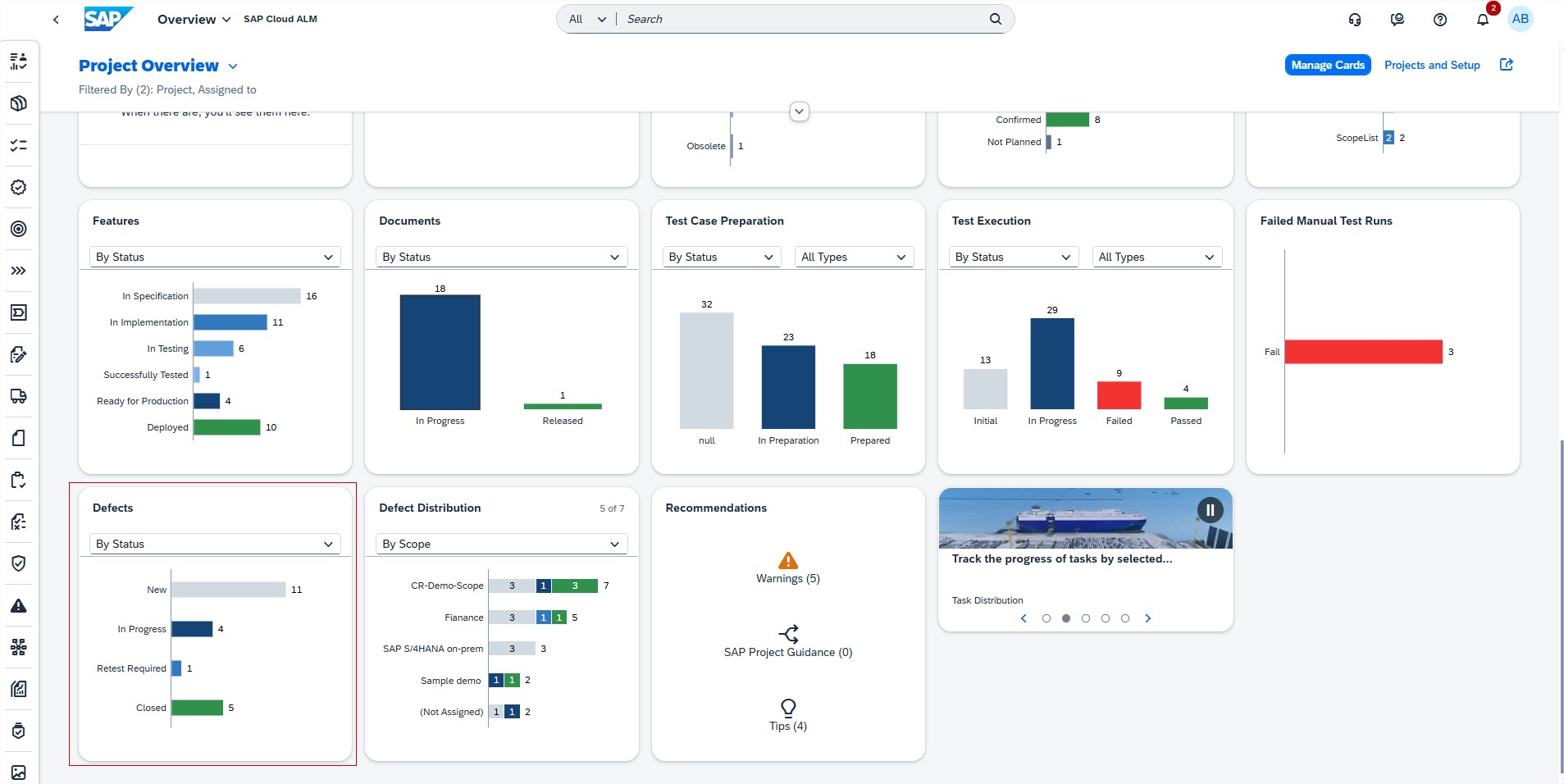
Defect reporting: Comprehensive reports show defect trends, including newly created, resolved, and open defects.

This helps teams prioritize defect fixes and prepare for the go-live phase.

Defect assignment: Defects can be assigned to specific developers, testers, or teams to ensure accountability and speed up defect resolution.

Traceability: Defekte werden mit den zugehörigen Testfällen, User Stories oder Anforderungen verknüpft, so dass Auditoren und Projektbeteiligten eine vollständige Rückverfolgbarkeit gewährleistet ist.

Test automation

SAP Cloud ALM integrates with automation tools such as Tricentis Test Automation, which is available free of charge to Enterprise Support customers. Automated tests are linked to processes, requirements, and user stories to ensure complete traceability. Below is an overview of test orchestration with Tricentis.

Since integration is done via an API, other automation tools such as Worksoft, UiPath, Suxxesso, etc. can also be connected. The latter two are working on full integration with SAP Cloud ALM by the end of the year.

Analytics and reporting

Analytics plays an important role in SAP Cloud ALM test orchestration. Users can generate reports on test execution progress, defect trends, and readiness for production. This transparency ensures that issues are identified early on, allowing teams to focus on resolving problems before deployment.

Key analysis features:

Project overview Centralized dashboards with custom filters for test status.

  • test execution analysis
  • Defect reporting: Detailed defect analysis for tracking defects and solution duration.
  • Traceability reports: Ensure that test results are linked to requirements and user stories.

Outlook

If you are not yet familiar with the SAP Roadmap, it is an excellent tool for checking what is planned. The SAP Cloud ALM functions for test orchestration are constantly being developed, and below you will find some of the planned enhancements:

  1. Mass upload: Mass upload of test cases is expected in Q4 2024, allowing multiple test cases to be uploaded in a single file. Creation of new test cases from the file upload.
  2. APIs for test cases: Upload of partner and customer-owned test cases and support for SAP standard upload formats is expected in Q1 2025.
  3. Link test plan to release: Linking test plans to the new task type to reflect the status, start and end dates, and creator in the project plan and Gantt chart is also expected by Q1 2025.
  4. Bulk editing of test cases: also by Q1 2025.

Fazit

Test orchestration in SAP Cloud ALM was developed to simplify and support the testing process in SAP ecosystems. From manual to automated testing, it offers integrated traceability, powerful analytics, and support for SAP and non-SAP environments. With a clear roadmap and continuous improvements, SAP Cloud ALM will become an indispensable tool for test management in SAP projects.